
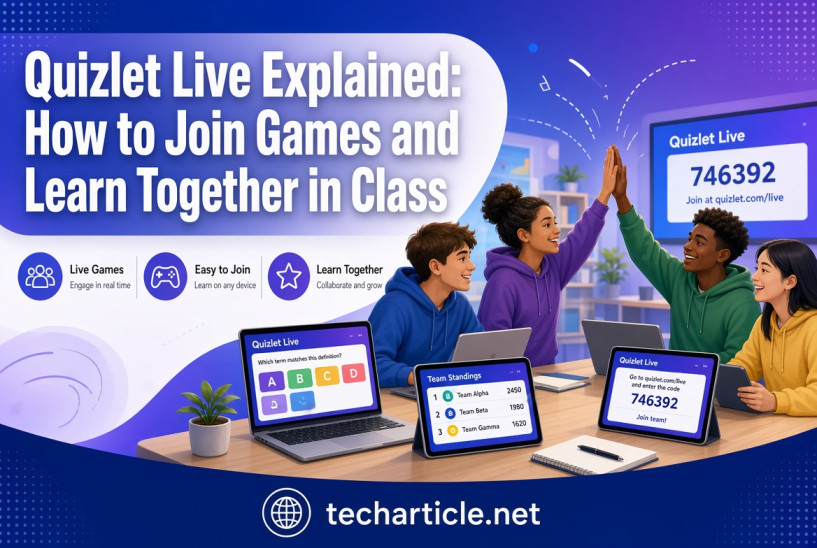
Quizlet Live is a classroom game that turns a set of study terms into a fast, team-based competition. Students use their own devices, work together to match terms with definitions, and race against other teams. Teachers like it because it makes review lessons active. Students like it because it feels like a game.
This guide explains, in clear and simple language, what Quizlet Live is, how students can join, how teachers can set up a game, how the rules work, and how to use it well in class. We also note what has changed or may change, because Quizlet updates its products from time to time.
Please note: this guide draws on public sources, including a 2023 teacher guide updated in 2024 and other 2026 articles. Menu names and plan features can change. Please check Quizlet’s official help pages for the latest details before you plan a lesson.
What Is Quizlet Live?
Quizlet is a popular study platform where users create “study sets” made of terms and definitions. Quizlet Live is a game built on those sets. A teacher starts a game, students join with a code, and the questions come from the study set.
There are two main modes:
- Teams mode: Students are placed into small teams and work together. Each teammate sees the same question but has a different set of answer choices, so the team has to talk to find the right one.
- Individuals mode: Each student plays alone and competes against others.
In both modes, the teacher can see how the class is performing, which helps with quick checks of understanding.
What You Need Before You Start
For the teacher
- A Quizlet account
- A study set with at least six term-and-definition pairs
- A computer with a projector or screen to show the game code
- Students with internet-connected devices
For students
- A laptop, Chromebook, tablet, or phone with internet access
- The game code from the teacher
Player numbers
- Teams mode needs at least four players, each on a separate device.
- Individuals mode needs at least two players.
How Students Join a Game
Joining is simple and usually takes less than a minute. According to the sources we reviewed, the steps are:
- Open the join page. Go to Quizlet’s Live page on the web (listed as quizlet.com/live), or follow the address shown on the teacher’s screen.
- Enter the game code. The teacher shares a code on the projector. Type it in and select Join game.
- Enter your name. Use the name your teacher asks for, then select Next.
- Wait for the game to start. The teacher will begin when everyone has joined.
Joining by QR code: Some games offer a QR code. Students can use the Quizlet mobile app, sign in, find the option to play Quizlet Live, choose to join a game, and scan the teacher’s QR code. This method requires being signed in to the app.
Tip for students: Do not share the game code outside your class. Anyone with the code could enter the game while it is open.
How Teachers Set Up a Game
According to a teacher guide published in 2023 and updated in 2024, here is the usual process. Menu names may be slightly different in the current version, so use this as a guide, not as a fixed rule.
Teams Game
- Log in to your Quizlet account and open a study set.
- Select Live, then choose the class version of the game and select Get started.
- Choose Random Teams.
- Choose the prompt and answer format, for example definitions as prompts and terms as answers.
- Project your screen so students can see the join code.
- Wait for students to enter the code and their names.
- Select Create game, then Start game.
Individuals Game
- Open the study set and select Live.
- Choose Classic Live, then Create game, then Individuals.
- Pick the prompt and answer format.
- Share the code or QR code.
- Select Create game, then Start game.
One source notes that Classic Live must be hosted on the website, not in the mobile app, so a computer is the safest choice for the teacher.
Checkpoint
The teacher guide also mentions a quick check feature called Checkpoint, which works as a short formative assessment. It also needs at least six pairs, and the teacher moves forward with a Continue button after each question.
How to Play: The Rules
Teams Mode
- Students are placed on random teams.
- On each question, every teammate sees the same prompt, but the answer choices are different for each person. Only one teammate has the correct answer.
- The team must talk quickly to decide who has the right one.
- A correct answer moves the team forward. The first team to finish all the terms wins.
- One source states that in traditional Classic Live play, an incorrect answer resets the team’s progress. That source did not cite an official rule, so treat it as general information and confirm it on Quizlet’s help pages. This rule is what makes the game exciting, but it can also make teams nervous, so explain it to students before you begin.
Individuals Mode
- Each student answers questions on their own.
- Students compete against others in the class.
Free Plan vs. Paid Plan
Quizlet has changed its plans over the years, so please check the current details. Here is what the sources say:
- A teacher account lets you run Quizlet Live, according to one 2026 review, which lists it as a classroom game that is still available.
- Some extras, such as custom teams, term audio, and diagram sets, are described as features for eligible Quizlet Plus subscribers.
- Quizlet offers free Quizlet Plus for one year to verified teachers who have a valid school-issued email address. Verification is handled through a partner service, and most teachers are verified instantly.
- A 2026 review lists Quizlet Plus at about 7.99 dollars a month or 35.99 dollars a year, and notes that the free plan has become more limited over time. That review is published by a tutoring company that sells its own services, so please confirm prices on Quizlet’s official site.
How to Use Quizlet Live in Class
Here are practical ways to get more from the game.
1. Vocabulary Review
Use it at the end of a unit to review key terms in any subject, from science to history to languages.
2. Math and Science Practice
Create sets that match formulas with names, or problems with answers, so students can practice quick recall.
3. Language Learning
Match words in one language with their meanings in another. Add audio if you have access to that feature.
4. Exam Preparation
Run a short game the day before a test. Because students must remember terms quickly, it works as a fun retrieval practice.
5. Warm-Ups and Exit Tickets
Use a short game at the beginning of class to review the previous lesson, or at the end to check understanding.
6. Team Building
Random teams help students work with classmates they might not choose themselves. Rotate teams over the weeks.
A Simple 20-Minute Lesson Plan
This is an example only, and one source calls this type of plan illustrative, not a proven formula. Adjust it for your class.
- Minutes 0–3: Explain the rules and the reset rule (if you plan to use it). Remind students about respectful behavior.
- Minutes 3–6: Students join using the code.
- Minutes 6–14: Play one or two rounds.
- Minutes 14–18: Review the terms students missed most. Use your teacher view to see them.
- Minutes 18–20: Quick reflection: What did you learn? What do you still need to practice?
Tips for Teachers
- Test the game first. Create a short test game with a colleague or on your own devices.
- Prepare good study sets. Clear terms and definitions lead to better games. Avoid terms with several correct answers.
- Watch the music and noise. One guide suggests turning off the in-game music with the speaker icon before you start.
- Use re-shuffle. If teams feel unbalanced, you can re-shuffle before the game begins. Removing students from teams is generally easier before the game starts.
- Keep teams small. Smaller teams give everyone a role.
- Plan for devices. Make sure every student has a working device and the Wi-Fi is stable.
- Set expectations. Talk about good sportsmanship and about quiet voices.
- Follow up. After the game, review missed terms and give students a short activity to reinforce them.
Tips for Students
- Talk quickly but clearly. In teams mode, communication matters as much as knowledge.
- Do not guess wildly. If a wrong answer resets your team’s progress, a quick check with teammates helps.
- Study before the game. Review the set so you can respond fast.
- Be kind. If a teammate makes a mistake, encourage them.
- Use your real name or the name your teacher asks for.
Privacy and Safety in the Classroom
- Protect the code. Share it only with students in your class.
- Use first names or class nicknames. Avoid asking for full personal details.
- Check your school’s rules. Schools often have policies on student accounts and online tools.
- Review sets before you share them. Make sure the content is accurate and appropriate. Study sets made by others may contain errors.
Frequently Asked Questions
What is Quizlet Live? It is a classroom game on Quizlet where students answer questions from a study set, either in teams or alone.
How do I join a Quizlet Live game? Open Quizlet’s Live join page, enter the game code from your teacher, and type your name. You can also join by scanning a QR code in the Quizlet app.
How many players do I need? At least four for teams mode and two for individuals mode.
How many terms does a set need? At least six term-and-definition pairs.
Do students need an account? One source says joining without an account is generally possible, but the QR code method needs the app and a sign-in. Check the current rules.
What happens if a team answers wrong? One source says that in Classic Live, a wrong answer resets the team’s progress. Confirm this in Quizlet’s help center.
Is Quizlet Live free? A teacher account can run it, according to a 2026 review, but some features need Quizlet Plus. Plans change, so check the official site.
Can teachers get Quizlet Plus for free? Verified teachers with a school-issued email can get one free year, according to Quizlet’s help page.
Can I host from my phone? One source says Classic Live must be hosted on the website, so use a computer.
What subjects can I use it for? Any subject that uses terms and definitions, such as vocabulary, science, math, history, and languages.
Final Thoughts
Quizlet Live is a simple way to make review lessons more active. Students join with a code, work in teams, and practice recall in a fast, game-like setting. For teachers, it is easy to set up with a study set of at least six pairs, and it gives quick feedback on what students know.
To get the best results, prepare clear study sets, explain the rules in advance, keep teams small, and follow the game with a short review. Because features and plans change, check Quizlet’s official help pages for the latest steps and pricing. Used thoughtfully, Quizlet Live can turn revision time into a lesson that students enjoy and remember.
