


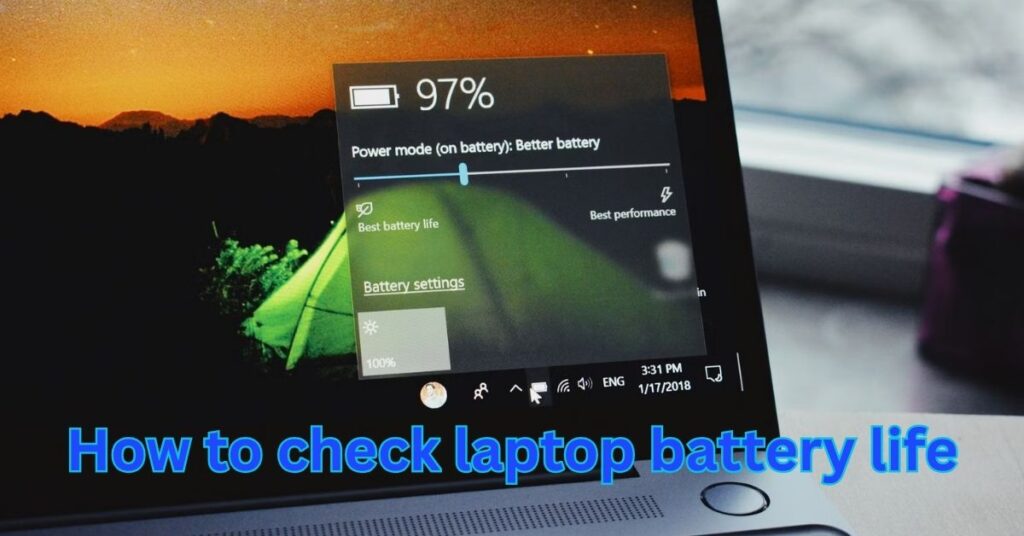
Laptops have become essential devices for work, study, and entertainment. One of the most important components that determines the usability of a laptop is its battery. No matter how powerful your laptop is, if the battery does not perform well, the overall experience will be disappointing. Over time, all laptop batteries lose their ability to hold a charge. This natural degradation happens because batteries have a limited number of charge cycles. Knowing the health of your laptop’s battery is essential to maintain performance and to plan for a replacement before sudden failures occur. In this detailed guide, we will explore different methods to check battery health in Windows. We will also cover important tips for maintaining your battery’s performance and lifespan.
Why Checking Laptop Battery Health is Important
Battery health refers to the condition of your battery compared to when it was brand new. A new laptop battery is capable of storing and delivering power efficiently. Over time, chemical aging reduces this efficiency. Checking your battery health is important for several reasons:
-
Performance Awareness
By monitoring battery health, you will know whether your laptop can provide enough usage time when unplugged. -
Planning for Replacement
If your battery health is poor, you can plan to replace it before it completely fails. -
Preventing Sudden Shutdowns
A deteriorated battery can cause unexpected power loss, which may damage files or interrupt important tasks. -
Optimizing Usage
Knowing the battery condition allows you to adjust settings and habits to extend its life.
Understanding Battery Health Indicators
When you check the health of your battery, you will often see the following terms:
-
Design Capacity: The original maximum amount of energy the battery could hold when new.
-
Full Charge Capacity: The maximum energy the battery can currently hold. This decreases over time.
-
Cycle Count: The number of complete charging and discharging cycles the battery has gone through.
-
Battery Wear Level: A percentage that shows how much the battery has degraded compared to its design capacity.
Methods to Check Battery Health in Windows
Windows provides multiple methods to check your laptop battery’s health. Some methods are built-in while others require third-party tools. Let’s look at them step by step.
Method 1: Using Battery Report Command
Windows has a built-in feature that generates a detailed battery report through the Command Prompt.
Steps to generate a battery report:
-
Press Windows + R to open the Run dialog box.
-
Type cmd and press Enter.
-
In the Command Prompt, type the following command:
-
The system will generate a battery report and save it as an HTML file in your user directory, usually
C:\Users\YourUsername\battery-report.html. -
Open the file in a web browser to view detailed battery information.
What the battery report shows:
-
System name and BIOS details
-
Recent battery usage
-
Battery capacity history
-
Comparison of design capacity vs full charge capacity
-
Estimated battery life
This method is very reliable and does not require additional software.
Method 2: Using Windows Settings
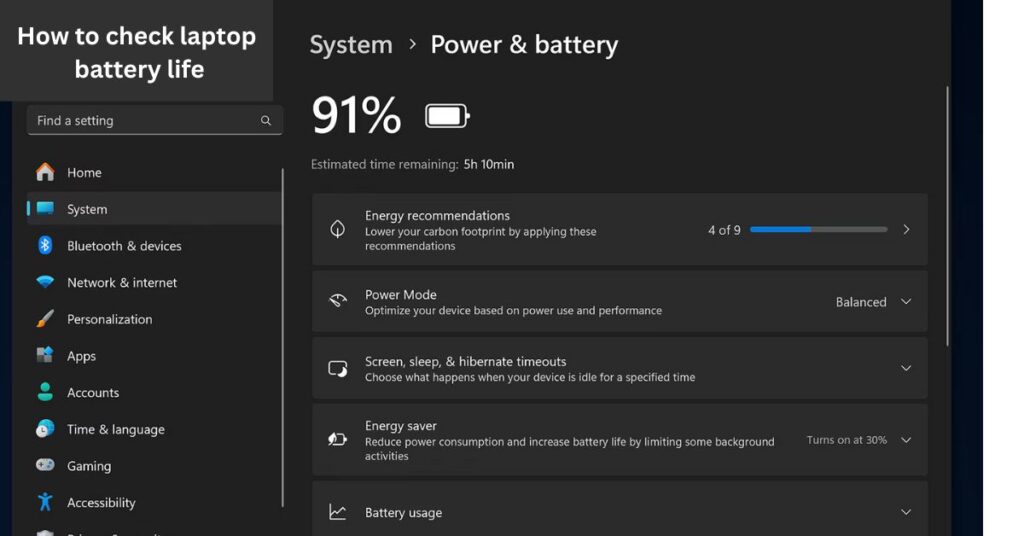
Recent versions of Windows 10 and Windows 11 include battery health insights directly in the Settings app.
Steps to check battery in Settings:
-
Open Settings by pressing Windows + I.
-
Go to System > Power & Battery.
-
Scroll down to view battery usage and capacity details.
Although not as detailed as the battery report, this gives a quick overview of battery performance.
Method 3: Using Windows Terminal or PowerShell
Another way is through Windows Terminal or PowerShell.
Steps:
-
Right-click the Start button and choose Windows Terminal (Admin).
-
Enter the same command:
-
Locate the generated HTML file and view it in your browser.
This method is similar to using Command Prompt but more modern and versatile.
Method 4: Using Third-Party Tools
Some third-party tools provide even more detailed insights into your laptop’s battery health. Popular ones include:
-
HWMonitor: Displays battery wear level, voltage, and temperature.
-
BatteryInfoView: Provides detailed battery statistics including charge and discharge cycles.
-
AIDA64: A professional system diagnostics tool that includes battery details.
These tools are useful if you want real-time monitoring and advanced statistics.
Example Battery Report Data
To better understand how Windows presents battery health data, here is an example comparison table from a generated report:
Parameter |
Value at Purchase |
Current Value |
Meaning |
|---|---|---|---|
Design Capacity |
50,000 mWh |
50,000 mWh |
Original full battery capacity |
Full Charge Capacity |
50,000 mWh |
39,200 mWh |
Maximum charge the battery now holds |
Cycle Count |
0 |
450 |
Number of charging cycles used |
Battery Wear Level |
0 percent |
21.6 percent |
Indicates the percentage of battery wear |
From this example, you can see that the battery has lost about 21 percent of its original capacity after 450 cycles.
Signs That Your Laptop Battery Needs Replacement
Even without checking reports, there are visible signs that your battery might be unhealthy:
-
The battery drains much faster than before.
-
Your laptop shuts down suddenly even when the battery indicator shows charge.
-
The laptop does not power on without being plugged in.
-
The battery becomes unusually hot during use or charging.
-
The battery status shows “Consider replacing your battery” in Windows.
If you experience these symptoms, it is time to replace the battery.
How to Maintain Laptop Battery Health
Proper care can extend your laptop battery’s lifespan. Here are some best practices:
-
Avoid Constant 100 Percent Charging
Keeping your battery at maximum charge all the time increases wear. Ideally, keep it between 20 percent and 80 percent. -
Do Not Fully Discharge Regularly
Deep discharges put stress on lithium-ion batteries. Try not to let the battery fall below 10 percent. -
Maintain a Moderate Temperature
Heat is one of the biggest enemies of battery life. Keep your laptop in a cool environment and avoid using it on soft surfaces that block airflow. -
Use Original Chargers
Using non-certified chargers can damage your battery over time. Always use the charger provided by the manufacturer or a high-quality replacement. -
Adjust Power Settings
Use Windows power-saving features to reduce strain on the battery when unplugged. -
Update Software Regularly
Keeping your BIOS and drivers updated can help improve battery efficiency.
How to Replace a Laptop Battery
If your battery health is too low, replacement is the best solution.
-
For laptops with removable batteries: You can easily buy a replacement battery from the manufacturer or a trusted vendor.
-
For laptops with built-in batteries: Replacement requires opening the laptop. It is recommended to get it replaced by a professional technician.
Conclusion
Your laptop battery is the heart of your portable computing experience. As batteries degrade naturally with time, checking their health regularly ensures that you are never caught off guard. Windows provides built-in methods such as the battery report command and Power & Battery settings to help you monitor performance. For more advanced insights, third-party tools are also available.
By keeping an eye on design capacity, full charge capacity, and cycle count, you can understand the true condition of your battery. Practicing healthy charging habits, avoiding heat, and using genuine accessories will help extend your battery life. Eventually, all batteries need replacement, but by maintaining yours well, you can enjoy reliable performance for years.
Frequently Asked Questions
How do I know if my laptop battery is failing?
If your laptop shuts down suddenly, drains quickly, or shows a reduced full charge capacity, your battery is likely failing.
What is a good battery health percentage?
A battery health above 80 percent is considered good. Anything below 60 percent may cause performance issues.
Can I improve battery health once it declines?
Battery health cannot be restored once degraded. However, you can slow down further wear by adopting good usage habits.
How long do laptop batteries usually last?
Most laptop batteries last between 2 to 4 years depending on usage patterns and charging habits.
Does keeping my laptop plugged in ruin the battery?
Modern laptops manage charging automatically, but constantly keeping the battery at 100 percent can increase wear over time. It is best to unplug occasionally.