


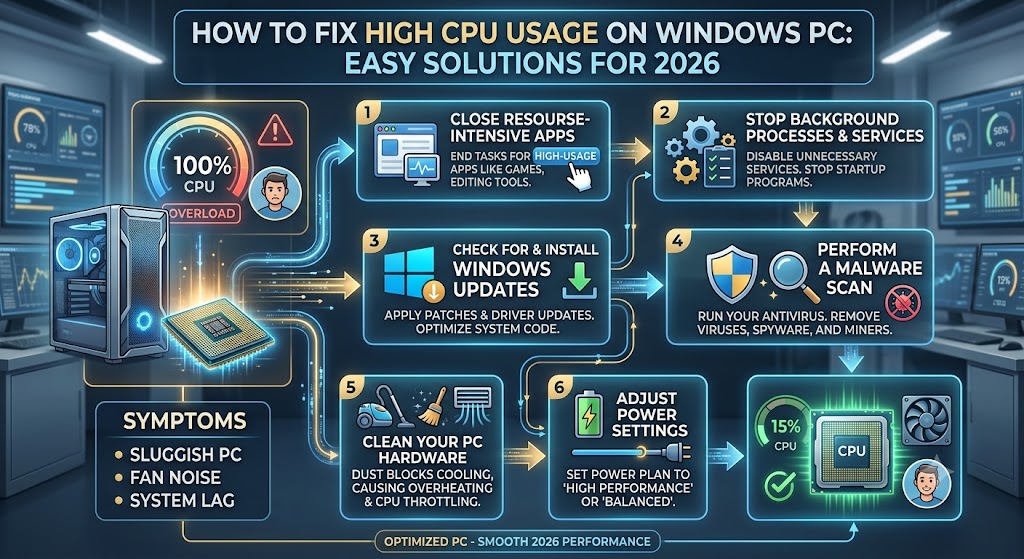
High CPU usage is one of the most frustrating problems Windows users face. Whether you’re browsing the internet, playing games, editing videos, or just working on documents, an overloaded processor can make your computer feel painfully slow and unresponsive.Even in 2026, with all the advances in hardware and software, millions still see their CPU suddenly spike to 80%, 90%, or even 100% without any warning.You can spot the issue by a few clear signs: slow app launches, system freezes, lag when multitasking, loud cooling fans, high temperatures, shorter battery life, and unexpected crashes.Luckily, high CPU usage usually isn’t a hardware problem.This guide dives into what causes your processor to work overtime and offers straightforward fixes that work on Windows 10, 11, and the latest Windows 12 systems in 2026.
What Is CPU Usage?
CPU usage shows how much of your processor’s power apps and background tasks are using at any moment.
For example:
- 0-10% usage when your computer is idle is normal.
- 10-40% during browsing or office work is pretty typical.
- 40-70% is expected when you’re gaming or editing videos.
- If it stays at 90-100% for a long time, that’s usually a sign something’s wrong.
- Modern processors can handle quick spikes in usage, but if the CPU stays busy for too long, it can slow things down and make your device run hotter.
Why High CPU Usage Happens
Several things can overload your processor.
Too Many Background Applications
Many programs keep running even after you close them.
These include cloud sync apps, messaging apps, launchers, updaters, and RGB control software.
Malware or Viruses
Malicious software often gobbles up processor power for cryptocurrency mining, data theft, or spam distribution.
Background Tasks
Windows Updates
Windows sometimes uses a lot of CPU while downloading updates, installing patches, or indexing files.
Driver Problems
Corrupted or outdated drivers may cause your CPU to get stuck in endless loops.
Browser Tabs
Modern websites demand a lot from your processor.Having multiple browser tabs open with video playback, ads, AI tools, or JavaScript apps can quickly overwhelm older CPUs.
Step 1: Identify the Problem Process
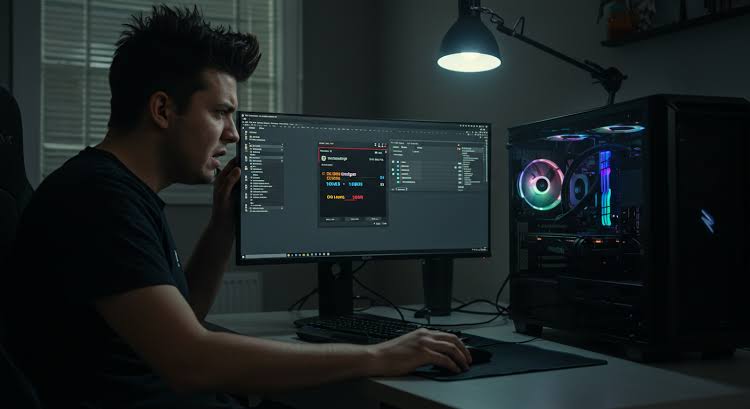
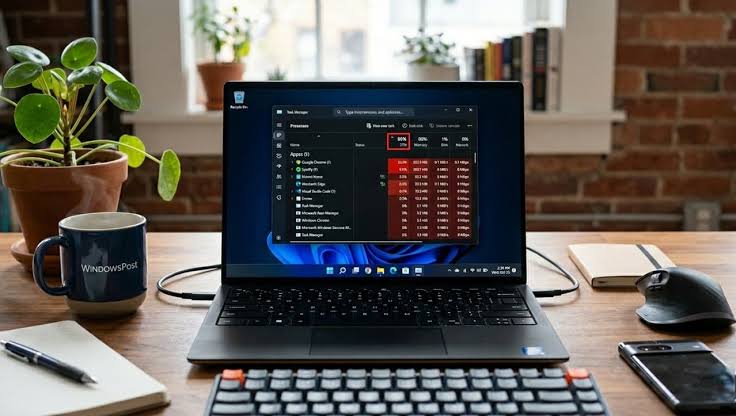
First, figure out which application is hogging your resources.Open Task Manager with Ctrl + Shift + Esc, then go to Processes → CPU.Sort the list by CPU usage.Usually, browsers, antivirus scans, update services, or third-party utilities are the main culprits.
Step 2: Restart Your Computer
Sometimes, just rebooting fixes a bunch of issues.It clears memory leaks, unfreezes stuck services, and resolves temporary software glitches.You’ll often see CPU problems vanish right after a restart.
Step 3: Close Unnecessary Programs
Shut down apps you’re not using at the moment.Keep an eye on resource-heavy ones like video editors, game launchers, virtual machines, or multiple browser windows.
Step 4: Disable Startup Applications
Lots of programs start up automatically with Windows.Open Task Manager → Startup Apps and turn off anything you don’t need, like Discord, Spotify, Adobe Updater, Steam, or game launchers.Cutting down on startup apps can really boost your system’s speed.
Step 5: Update Windows
Microsoft regularly rolls out fixes to improve performance.Head over to Settings → Windows Update and install any security patches, feature updates, or performance tweaks available.
Step 6: Update Device Drivers
Outdated drivers can cause your processor to work overtime.Make sure to update your graphics, chipset, network, and audio drivers.Check the manufacturer’s website for the latest versions.
Step 7: Scan for Malware
Malware is a common culprit behind sudden CPU spikes.Run a full scan with Windows Defender or try an offline scan.You might also want to use third-party malware scanners for a second opinion.Keep in mind, cryptocurrency mining malware has become especially prevalent in 2026.
Step 8: Disable Windows Search Indexing
Sometimes, Windows Search indexing hogs your system resources.Open Services.msc, find Windows Search, and stop the service temporarily to see if performance improves.
Step 9: Disable SysMain Service
SysMain (formerly Superfetch) can also cause CPU spikes now and then.Open Services, locate SysMain, stop it, and set its Startup Type to Manual.Check if this change helps with your system’s responsiveness.
Step 10: Reduce Browser Resource Usage
Browsers often eat up a surprising amount of CPU power these days.Try closing tabs you’re not using and removing unnecessary extensions.Enable memory saver modes if your browser supports them, and disable auto-playing videos they’re a sneaky drain.
Step 11: Disable Background Apps
Go to Settings → Apps → Startup and turn off apps you rarely use.This simple step can free up resources without much hassle.

Step 12: Check Windows Defender Activity
Antivirus scans can spike CPU usage temporarily.If you notice spikes during scans, schedule them for overnight.Also, consider excluding large game folders if that makes sense for you.
Step 13: Disable Visual Effects
Animations and fancy effects look nice but cost you CPU cycles.Head to System Properties → Advanced → Performance Settings and pick “Adjust for Best Performance.”
Step 14: Increase Virtual Memory
When your RAM runs low, Windows leans on paging files more heavily.Boost your virtual memory by going to System → Advanced System Settings → Performance → Virtual Memory.
Step 15: Check CPU Temperatures
Overheating leads to thermal throttling and slows your system down.Normal temps should be around 35°C–50°C when idle and 65°C–85°C during gaming.Anything above 95°C is a red flag and needs your attention.
Step 16: Clean Dust from Your PC
Dust blocks airflow and makes temperatures rise.Clean the CPU cooler, fans, filters, and heat sinks.
Do this every 6 months.
Step 17: Replace Thermal Paste
Thermal paste dries out over time.Replacing old paste can lower temperatures quite a bit.
Step 18: Perform a Clean Boot
A clean boot turns off third-party services.Open MSConfig, hide Microsoft services, disable the rest, then restart your PC.This helps spot any troublesome software.
Step 19: Use Resource Monitor
Resource Monitor shows more details than Task Manager.Open resmon.exe to check CPU activity, disk usage, memory, and network activity.
Step 20: Repair Corrupted System Files
Run Command Prompt as Administrator.Type sfc /scannow, then run DISM /Online /Cleanup-Image /RestoreHealth.These commands fix damaged Windows files.
Step 21: Disable Unnecessary Widgets
Windows 11 and 12 widgets can eat up resources.Turn off news feeds, weather updates, and background widgets.
Step 22: Optimize Power Settings
Go to Control Panel → Power Options → Balanced.Avoid keeping High Performance mode on all the time unless you really need it.
Step 23: Update BIOS
Motherboard makers release firmware updates that can boost CPU efficiency.Only update your BIOS if your manufacturer advises it.
Step 24: Check for Faulty Hardware
Sometimes, hardware faults cause weird CPU usage.Look out for faulty SSDs, failing RAM, or motherboard problems.
Step 25: Reset Windows
If nothing else works, a clean install might fix stubborn issues.Windows Reset lets you keep your files or remove everything.
Best Tools for Monitoring CPU Usage
Useful monitoring tools include:
Task Manager
Resource Monitor
HWMonitor
HWiNFO
MSI Afterburner
These tools give you detailed system info.CPU Usage During GamingGaming naturally pushes up CPU usage.

Typical ranges are:
- Esports titles: 30-60%
AAA games: 50-90% - Strategy simulations can hit 70-100%.
- Short spikes here and there? Totally normal.
- CPU Usage During Video Editing
- Video editors often max out the processor during rendering.
- This is expected behavior.
- CPU Usage on Laptops
- Laptop CPUs throttle aggressively to save battery life.
- To help, keep your laptop elevated and well ventilated.
- Also, plug it in when doing heavy tasks.
AI Applications and CPU Usage in 2026
AI tools now consume huge amounts of computing power.Think local AI assistants, image generators, video enhancers, and transcription software.Most of these workloads run best on dedicated GPUs nowadays.
How to Prevent High CPU Usage
- Some good habits:
- Keep Windows updated.
Limit startup apps. - Scan regularly for malware.
Clean your PC now and then. - Watch your temperatures.
And steer clear of suspicious downloads.
Frequently Asked Questions
Is 100% CPU usage dangerous?
Short spikes aren’t unusual. But if your CPU runs at full tilt for a long time, it can heat up and slow down.
Does more RAM reduce CPU usage?
Sometimes. When you don’t have enough RAM, your CPU ends up working harder to manage memory.
Can malware cause high CPU usage?
Absolutely. Cryptocurrency mining malware often drives CPU usage way up.
Should I disable SysMain?
Only if you’ve tested and found it’s causing your CPU to run too much.
Is high CPU usage normal during gaming?
Yes. Modern games tend to push processors hard.
Conclusion
High CPU usage can make even the most powerful computers feel slow and unstable. But usually, you can fix the problem with some straightforward troubleshooting.Common culprits include startup programs, malware, outdated drivers, browser activity, overheating, or background Windows services.If you try the solutions laid out here, most Windows users should see a big drop in processor usage and enjoy smoother performance.Keeping up with regular maintenance, software updates, and watching your PC’s temperature are still the best ways to keep things running smoothly well into 2026 and beyond.