


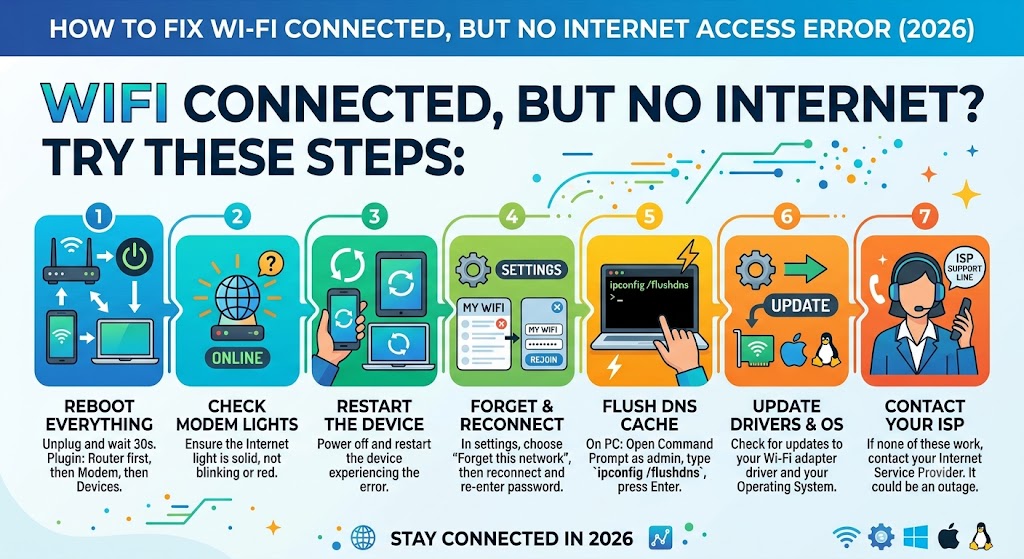
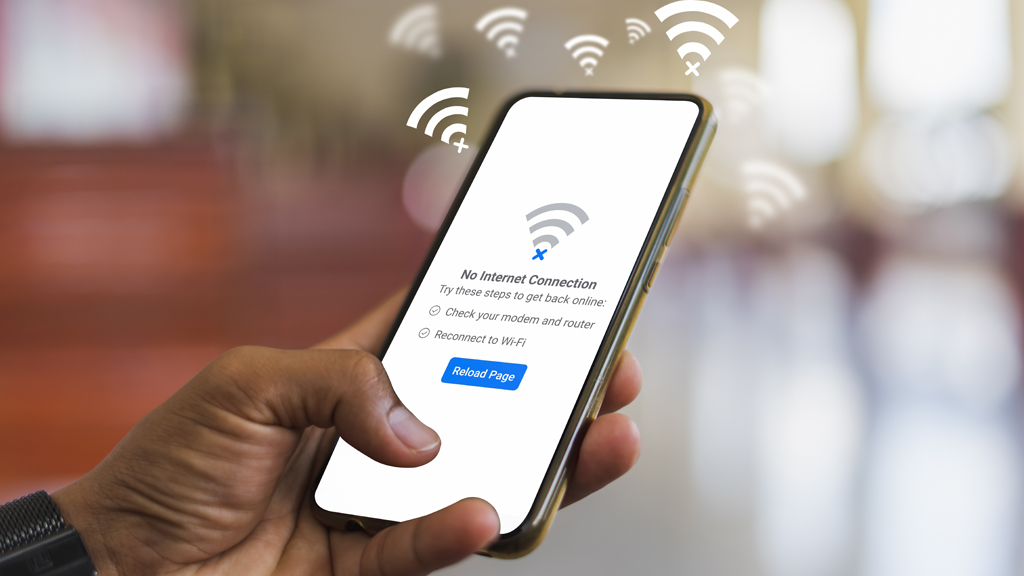
Few technology problems are as frustrating as seeing your device connected to Wi-Fi while the internet just won’t work. The Wi-Fi icon shows full signal strength, your device says it’s connected, yet websites won’t load, apps can’t connect, and online services stay out of reach.The notorious “Wi-Fi Connected but No Internet Access” error still bugs millions of users in 2026, despite all the advances in networking tech and smart routers.Whether you’re on Windows, macOS, Android, iPhone, Linux, smart TVs, gaming consoles, or IoT gadgets, this issue can pop up unexpectedly. It can mess with your work, gaming, streaming, or online chats.Luckily, you usually don’t have to call tech support to fix it.This guide breaks down the causes and walks you through step-by-step fixes that actually work in 2026.
Understanding the Error
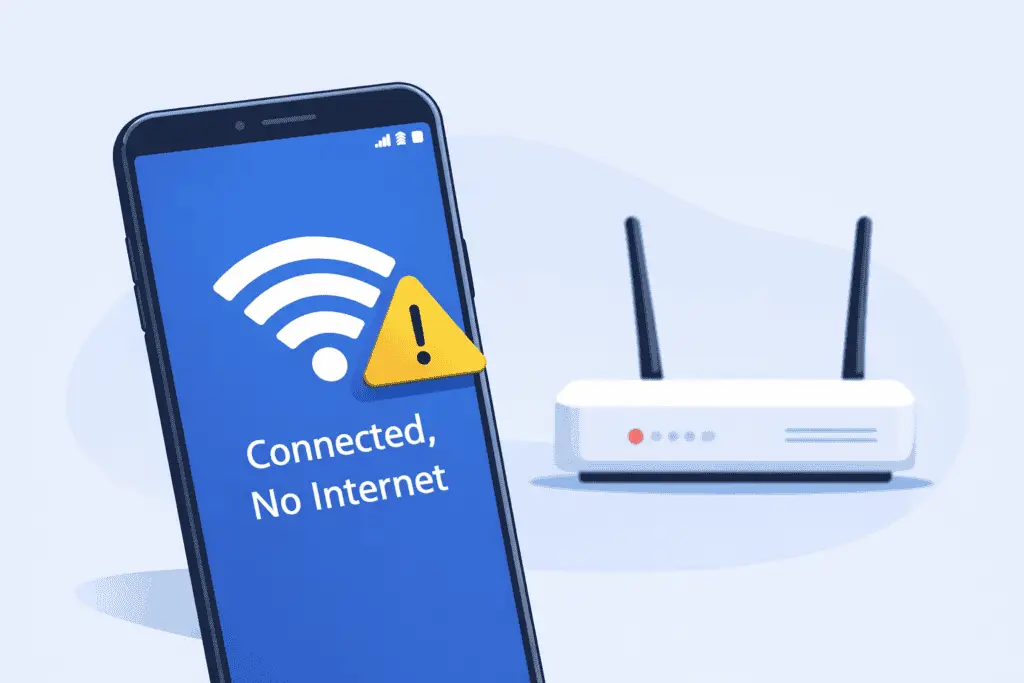
When your device says “Connected, No Internet,” it means it connected to your Wi-Fi router but couldn’t reach the internet through your service provider.
Put simply:
Device → Router = Working
Router → Internet = Not WorkingThe problem could be with your device, your router, the ISP connection, network settings, DNS servers, or even security software.Figuring out what’s causing it is the first step to fixing it fast.
Common Causes of No Internet Access
ISP Outage
The most common cause is an internet outage from your service provider. Even if your router keeps broadcasting Wi-Fi signals, the actual internet connection might be down.
Router Problems
Routers can run into issues like memory leaks, firmware bugs, or overheating. Sometimes their configuration gets corrupted, causing connection problems.
IP Address Conflicts
If two devices end up with the same IP address, they might lose internet access.
DNS Problems
DNS servers translate website names into IP addresses. If your DNS settings are off, websites won’t load.
VPN Issues
VPN software can block internet traffic after updates or crashes.
Firewall Restrictions
Sometimes security software blocks internet access by mistake.
Driver Problems
Outdated network drivers often cause connectivity troubles.
Malware Infection
Malicious software can change your network settings and disrupt your connection.
Step 1: Check Whether the Internet Is Actually Down
Before you start fiddling with your device, make sure your internet provider isn’t having an outage.
Look at your router’s status lights, check your ISP’s mobile app, peek at your neighbors’ connections, or visit your mobile internet provider’s status page.
If none of your devices can get online, the issue probably lies with your ISP.
Step 2: Restart Your Router
Sometimes, the oldest trick in the book really works.
Restarting your router clears out temporary glitches and refreshes the connection.
Here’s what to do: turn off the router, unplug the power cables, wait about a minute, then plug it back in.
Wait until the lights settle down before trying again.
You’d be surprised how often this simple step fixes internet hiccups.
Step 3: Restart Your Device
Sometimes, your device’s network adapter just freezes or can’t renew its IP address.Try restarting whatever you’re using laptop, smartphone, tablet, smart TV, or gaming console.Once it’s back on, reconnect to Wi-Fi and see if that helps.
Step 4: Forget and Reconnect to Wi-Fi
A corrupted Wi-Fi profile can block your internet access.
On Windows, go to Settings → Network → Wi-Fi → Manage Networks → Forget, then reconnect by entering your password again.
Android users should tap Wi-Fi → Saved Networks → Forget Network.
iPhone users can go to Settings → Wi-Fi → Tap the network → Forget This Network.
After that, just reconnect as usual.
Step 5: Disable and Re-enable Network Adapter
Windows
Open Control Panel.
Go to Network and Sharing Center.
Select Change Adapter Settings.
Disable your Wi-Fi adapter.
Wait about 10 seconds.
Enable it again.
Step 6: Renew Your IP Address
Windows Command Prompt
Run:
ipconfig /release
Then:
ipconfig /renew
Finally:
ipconfig /flushdns
These commands refresh your network settings.
Step 7: Change DNS Servers
Public DNS servers can be faster and more reliable.
Recommended DNS servers:
Google DNS:
8.8.8.8
8.8.4.4
Cloudflare DNS:
1.1.1.1
1.0.0.1
Switching DNS providers often fixes many internet issues.
Step 8: Disable VPN Temporarily
VPN software sometimes blocks internet traffic because of failed authentication, server issues, or split tunneling errors.
Disconnect your VPN and test your connection.
Step 9: Disable Proxy Servers
Wrong proxy settings can block internet access.
Windows:
Settings → Network → Proxy → Disable Proxy Server.
Step 10: Reset Network Settings
Windows
Open Command Prompt as Administrator and run:
netsh winsock reset
Then restart your computer.
Android
Settings → System → Reset → Reset Network Settings.
iPhone
Settings → General → Transfer or Reset iPhone → Reset Network Settings.
Step 11: Update Network Drivers
Driver problems often pop up after OS updates.
Update your Wi-Fi, Ethernet, and chipset drivers.
Check your device manufacturer’s website for the latest versions.
Step 12: Update Router Firmware
Router makers release firmware updates to fix bugs, security holes, and connectivity glitches.
Log into your router’s admin panel and look for updates.
Step 13: Check DHCP Settings
Most home networks use DHCP to assign IP addresses automatically.
Make sure DHCP is enabled on your router.
Incorrect static IP settings often cause internet failures.
Step 14: Disable Firewall Temporarily
Sometimes firewalls block all traffic by mistake.
Temporarily turn off antivirus firewalls, third-party security suites, or endpoint protection software.
If your internet works again, tweak your firewall rules.
Step 15: Scan for Malware
Malware can mess with DNS settings, install proxy servers, or redirect your traffic.
Run a full system scan to be safe.
Step 16: Check Date and Time Settings
Wrong system time can cause SSL certificate errors.
Make sure automatic time synchronization is turned on.
Step 17: Test Another Device
If another device connects fine, your router and ISP are probably okay.
That means the problem lies with your device.
Step 18: Factory Reset Router
If nothing else helps:
Find the reset button on your router.
Hold it down for 10-15 seconds.
Then set up your router again.
Warning:
This erases all your custom settings.

Fixes for Windows 11 and Windows 12
Microsoft introduced better networking tools in 2026. To reset your network, go to:
Settings → Network → Advanced Network Settings → Network Reset.
The system will reinstall the network components automatically.
Fixes for Android Devices
If you’re on Android, try these steps:
Disable adaptive connectivity.
Reset both mobile and Wi-Fi settings.
Temporarily turn off private DNS.
Fixes for iPhone and iPad
For iOS devices, common fixes include:
Turning off Private Relay.
Toggling Airplane Mode on and off.
Resetting Network Settings.
Fixes for Smart TVs
Streaming devices often run into DNS problems.
Try restarting your TV, router, and streaming apps. Then reconnect everything.
Fixes for Gaming Consoles
For PlayStation and Xbox users:
Restart your console first.
Test your network connection.
If needed, change the DNS servers manually.
Advanced Troubleshooting
If you want to dig deeper, use these commands:
Ping Test:
ping 8.8.8.8
Traceroute:
tracert google.com
They help spot where the connection fails.
Preventing Future Problems
To keep issues at bay:
Update your firmware regularly.
Use good-quality routers.
Restart routers once a month.
Avoid crowded Wi-Fi channels.
Enable WPA3 encryption.
Keep an eye on connected devices.
Best Routers for Stable Connections in 2026
Wi-Fi 7 routers offer faster speeds, lower latency, and handle more devices better.
Investing in solid hardware can seriously cut down connectivity headaches.
When to Contact Your ISP
Reach out to your provider if:
The WAN light stays red.
All your devices lose internet access.
You face frequent outages.
Your speed drops a lot.
Sometimes, your ISP needs to reset the connection remotely.

Frequently Asked Questions
Why does Wi-Fi show connected but the internet doesn’t work?
Your device is connected to the router, but the router can’t access the internet.
Can DNS cause internet issues?
Yes. Incorrect DNS settings often cause problems.
Does restarting the router actually help?
Yes. It clears temporary glitches and refreshes the connection.
Should I reset my router?
Only try this after other troubleshooting steps haven’t worked.
Can malware block internet access?
Yes. Some malware changes your network settings and DNS, blocking access.
Conclusion
The “Wi-Fi Connected but No Internet Access” error is still one of the most common networking headaches in 2026. Luckily, it rarely sticks around for long.Most problems come from router glitches, DNS hiccups, outdated drivers, VPN conflicts, or ISP outages. If you follow the troubleshooting steps in this guide, you can usually get back online in minutes.Technology keeps moving forward, but the basics of networking remain incredibly useful for anyone using the internet.With a bit of regular maintenance and some troubleshooting know-how, you can keep your devices connected and avoid interruptions to your productivity.