


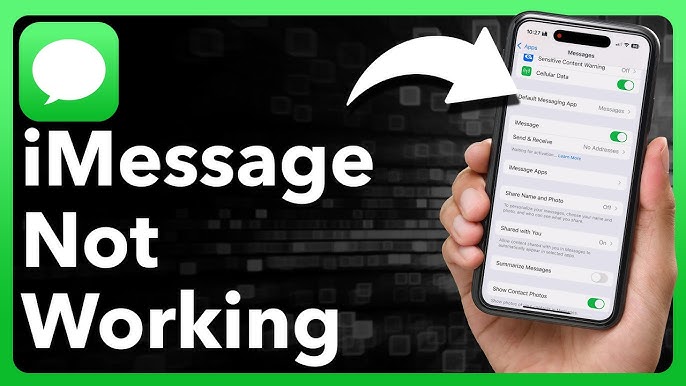
Apple’s iMessage is one of the most popular messaging services in the world, offering seamless communication between iPhone, iPad, Mac, and Apple Watch users. With features like end-to-end encryption, read receipts, high-quality media sharing, reactions, and cross-device syncing, iMessage has become an essential part of the Apple ecosystem.
However, despite its reliability, users often face frustrating issues where iMessage is not working. Messages fail to send, conversations revert to green SMS bubbles, activation errors appear, or messages simply don’t sync across devices. These problems can disrupt personal communication, business conversations, and group chats.
In this detailed guide, we’ll cover all possible reasons why iMessage is not working, along with step-by-step solutions, advanced fixes, and preventive tips to ensure smooth messaging in 2025.
What Is iMessage and How It Works
iMessage is Apple’s proprietary messaging service that works over the internet instead of cellular SMS. It uses:
-
Apple ID authentication
-
Internet connection (Wi-Fi or mobile data)
-
Apple servers for message routing
Key iMessage Features
-
Blue message bubbles
-
End-to-end encryption
-
Read receipts and typing indicators
-
Media sharing without compression
-
iMessage apps and effects
-
Group chats and reactions
If any part of this system fails—Apple ID, network, device settings, or Apple servers—iMessage may stop working.
Common iMessage Not Working Problems
Users report a variety of iMessage issues, including:
-
iMessage not activating
-
Messages stuck on “Waiting for activation”
-
iMessage sending as text message (green bubble)
-
iMessage not working on Wi-Fi
-
iMessage not working on one contact
-
iMessage not syncing across devices
-
iMessage not working after iOS update
-
iMessage not working on Mac or iPad
-
Group iMessage not working
Understanding the type of issue helps narrow down the fix.
Why iMessage Is Not Working: Main Causes
1. Poor or Unstable Internet Connection
Since iMessage relies on the internet, weak Wi-Fi or mobile data can prevent messages from sending or receiving.
2. iMessage Service Outage
Sometimes the issue is not on your end. Apple servers may experience temporary downtime.
3. Incorrect Date & Time Settings
iMessage activation requires accurate date and time settings.
4. Apple ID Issues
Problems with Apple ID authentication can disrupt iMessage services.
5. Carrier Settings Problems
Outdated carrier settings can cause activation or delivery issues.
6. Incorrect iMessage Settings
Disabled iMessage, incorrect send/receive addresses, or misconfigured options can stop iMessage from working.
7. iOS Software Bugs
iOS updates occasionally introduce bugs that affect iMessage functionality.
8. Device Storage Full
Insufficient storage may prevent messages from syncing properly.
Basic Fixes for iMessage Not Working
1. Check Internet Connection
-
Switch between Wi-Fi and mobile data
-
Restart your router
-
Enable and disable Airplane Mode
2. Check Apple System Status
Visit Apple’s System Status page and confirm:
-
iMessage is marked green (Available)
If Apple servers are down, wait until the service is restored.
3. Restart Your Device
A simple restart can fix temporary system glitches:
-
Power off your iPhone
-
Wait 30 seconds
-
Turn it back on
Step-by-Step Solutions to Fix iMessage Issues
1. Turn iMessage Off and On
-
Go to Settings → Messages
-
Turn iMessage OFF
-
Wait 1 minute
-
Turn iMessage ON
This refreshes the connection with Apple servers.
2. Sign Out and Sign In to Apple ID
-
Go to Settings → Messages → Send & Receive
-
Tap your Apple ID
-
Select Sign Out
-
Restart your device
-
Sign back in with your Apple ID
3. Check Send & Receive Settings
Ensure:
-
Your phone number and email are selected
-
“Start New Conversations From” is set correctly
Incorrect settings can cause iMessage to fail for certain contacts.
4. Fix iMessage Waiting for Activation Error
If iMessage shows “Waiting for activation”:
-
Ensure cellular data is enabled
-
Check SMS balance (carrier activation may require SMS)
-
Verify phone number format (country code included)
-
Set Date & Time → Set Automatically
Activation may take up to 24 hours.
5. Update Carrier Settings
-
Go to Settings → General → About
-
If a carrier update is available, install it
6. Update iOS to Latest Version
-
Go to Settings → General → Software Update
-
Download and install the latest update
Updates often fix known bugs affecting iMessage.

Fixing iMessage Sending as Text Message (Green Bubble)
Causes:
-
Recipient does not use iMessage
-
Internet connection is off
-
iMessage is disabled
-
Apple servers temporarily unavailable
Fix:
-
Turn on Wi-Fi or mobile data
-
Ensure recipient’s Apple ID or number is correct
-
Enable Settings → Messages → Send as SMS (optional)
iMessage Not Working With One Contact
This issue usually occurs due to:
-
Blocked contact
-
Old message threads
-
Incorrect Apple ID linked to the contact
Solution:
-
Delete the conversation
-
Restart your device
-
Start a new message thread
-
Ensure the contact’s Apple ID email is correct
iMessage Not Syncing Across Devices
To fix syncing issues between iPhone, iPad, and Mac:
1. Use the Same Apple ID
Ensure all devices are logged into the same Apple ID.
2. Enable Messages in iCloud
-
Go to Settings → Apple ID → iCloud
-
Turn on Messages
This ensures messages sync across all devices.
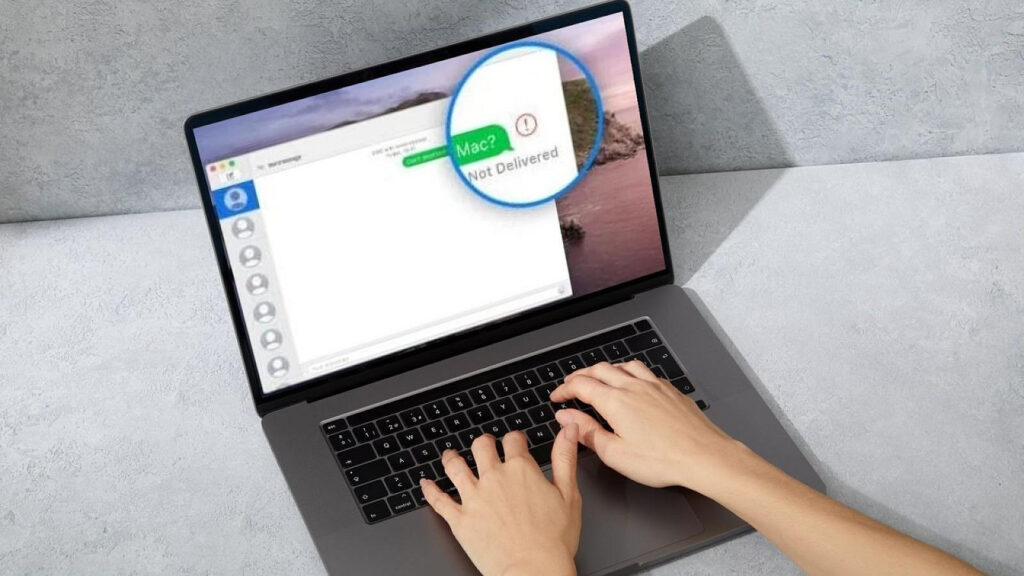
iMessage Not Working on Mac
Fixes:
-
Open Messages → Settings
-
Sign out and sign back into Apple ID
-
Enable Messages in iCloud
-
Update macOS to the latest version
iMessage Group Chat Not Working
Common Problems:
-
Group messages not sending
-
Reactions not working
-
Messages delivered individually
Fix:
-
Ensure all participants use iMessage
-
Check internet connection
-
Leave and rejoin the group
-
Create a new group chat
Advanced Fixes for Persistent iMessage Issues
1. Reset Network Settings
This will remove saved Wi-Fi passwords.
-
Go to Settings → General → Transfer or Reset iPhone
-
Tap Reset → Reset Network Settings
2. Check Storage Space
-
Go to Settings → General → iPhone Storage
-
Free up space if storage is nearly full
3. Disable VPN or Firewall Apps
VPNs can interfere with Apple services:
-
Disable VPN
-
Restart device
-
Test iMessage again
4. Factory Reset (Last Resort)
Backup your data first.
-
Go to Settings → General → Transfer or Reset iPhone
-
Tap Erase All Content and Settings
iMessage Not Working After iOS Update
After major updates:
-
Restart device
-
Toggle iMessage off/on
-
Sign out/in Apple ID
-
Reset network settings
Apple often releases bug-fix updates shortly after major releases.
Preventive Tips to Avoid iMessage Issues
-
Keep iOS updated
-
Maintain stable internet connection
-
Avoid beta software on primary devices
-
Keep sufficient storage space
-
Use one primary Apple ID
Frequently Asked Questions (FAQs)
Why is my iMessage not working on Wi-Fi?
Weak or misconfigured Wi-Fi networks can block iMessage traffic.
Can iMessage work without a SIM card?
Yes, iMessage works via Apple ID over Wi-Fi.
How long does iMessage activation take?
Usually a few minutes, but sometimes up to 24 hours.
Does iMessage cost money?
iMessage is free, but internet data charges may apply.
Final Verdict: How to Fix iMessage Not Working
Most iMessage problems can be fixed by:
-
Checking internet connection
-
Restarting the device
-
Re-enabling iMessage
-
Signing into Apple ID again
-
Updating iOS and carrier settings
In rare cases, network resets or factory resets may be required.
Conclusion
When iMessage is not working, it can feel extremely frustrating—especially when you rely on it for daily communication. Fortunately, Apple has built iMessage with multiple recovery options, and most issues can be resolved using the troubleshooting steps outlined in this guide.
By following the correct solutions in order, you can restore iMessage functionality quickly and ensure a smooth messaging experience across all your Apple devices in 2025.