


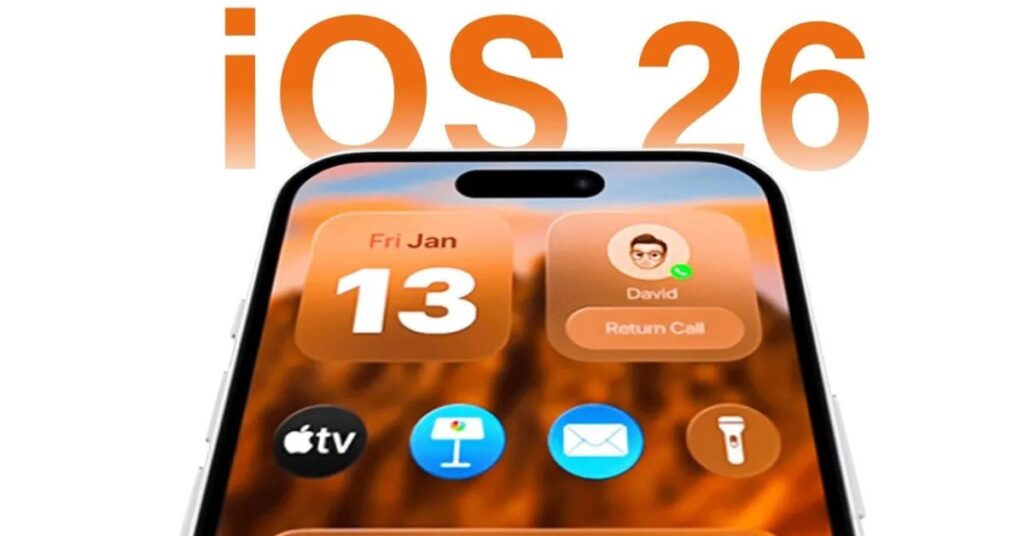
Apple’s iOS 26 brings a slew of customization features for iPhone users, and one that’s catching attention is the ability to create clear icons a minimalistic trend that declutters your Home Screen while still retaining full functionality. Whether you’re aiming for a clean aesthetic or building a personalized layout with widgets and invisible apps, this guide will walk you through everything you need to know about clear icons on iOS 26. From step-by-step instructions to creative ideas and troubleshooting tips, this article will help you master this visual trick without jailbreaking your iPhone or installing shady third-party apps.
What Are Clear Icons on iOS 26?
Clear icons, sometimes referred to as invisible app icons, are essentially app shortcuts or placeholders with transparent backgrounds. They make it seem like there’s nothing in that spot, allowing you to create gaps in your app layout or highlight wallpaper details. These icons aren’t a built-in feature labeled “Clear Icons,” but rather a clever workaround using iOS features like Shortcuts, Focus Modes, and transparent images. iOS 26 makes this process more seamless with improvements in customization options.
Why Use Clear Icons?
Here’s why iPhone users are loving clear icons:
Clean and Minimal Look: Eliminate visual clutter for a zen-like experience.
Wallpaper-Centric Layouts: Let your background art or photo shine through.
Creative Grid Designs: Align widgets, apps, and icons in visually appealing ways.
Focus and Productivity: Hide distractions while keeping essential functions accessible.
Tools You’ll Need
Before you begin, ensure you have access to the following:
-
iOS 26 Installed
-
Photos App or Safari (to get transparent images)
-
Shortcuts App
-
Widgetsmith or Transparent Widgets App (optional for layout support)
-
Any image editor or transparency site (e.g., Canva, Remove.bg)
How to Create Clear Icons on iOS 26
Let’s dive into the detailed, step-by-step method to set up clear icons.
Step 1: Take a Screenshot of Your Blank Home Screen
-
Long-press the Home Screen until it enters jiggle mode
-
Swipe to the last page, where there are no apps
-
Take a screenshot of this blank page
This screenshot will be used to create a matching transparent icon later.
Step 2: Crop Your Screenshot to Match Icon Positions
Each iPhone has a specific grid (e.g., 4×6 layout), so you’ll need to crop parts of the screenshot that align exactly with each app slot.
Use an app like:
-
Canva
-
Photoshop
-
PicWish
-
Pixelcut
Make sure the size matches your iPhone model (e.g., iPhone 14, 15, Pro models)
Step 3: Use the Shortcuts App to Create a Transparent App Icon
-
Open Shortcuts
-
Tap + to create a new shortcut
-
Tap Add Action > Search for Open App > Select your desired app
-
Tap the downward arrow at the top > Add to Home Screen
-
Tap the app icon > Choose Photo
-
Select the cropped transparent icon image
-
Name it with a space (or leave it blank)
-
Tap Add
Repeat for each icon you want to make invisible.
Step 4: Rearranging Icons for a Clear Layout
Now that you have invisible icons:
-
Drag them into position to create gaps
-
Add widgets (using Widgetsmith, Color Widgets, etc.) around them
-
Hide actual apps in the App Library for a cleaner look
You can create unique layouts like:
-
Floating icons
-
Centered dock
-
Invisible app rows with just a calendar widget
Step 5: Use Focus Mode for Different Layouts
iOS 26 now allows assigning Home Screen pages to specific Focus Modes. You can:
-
Go to Settings > Focus
-
Choose or create a Focus (e.g., Work, Minimal)
-
Scroll to Customize Screens
-
Select a Home Screen that uses clear icons or a minimal layout
Now switch Focus Modes to switch Home Screens. This feature is excellent for day/night or work/leisure setups.
How to Get Transparent Icons Easily: Online Tools
If you don’t want to crop images yourself, use tools like:
-
iEmpty.tooliphone.net
-
ClearSpaces (App Store)
-
Maketecheasier Icon Generator
-
Transparent App Icons by Kapwing
Just upload your screenshot, tap the spot you want to place a clear icon, and download the transparent PNG.
Create Widget-Based Layouts with Clear Icons
You can go even further by combining clear icons with transparent widgets. Apps like Widgetsmith, Widgy, and Color Widgets allow you to:
-
Use transparent backgrounds
-
Match your wallpaper precisely
-
Display time, date, photos, or calendar widgets with aesthetic spacing
Tips for a Better Clear Icon Experience
-
Use Grid Guides: Plan your layout with a 4×6 or 5×6 grid (depending on your model)
-
Lock Home Screens: Once set, avoid moving apps around too much
-
Hide App Names: Use spaces in the shortcut title or Unicode invisible characters
-
Save Icon Shortcuts: Keep a backup in the Shortcuts app in case they get deleted

Custom Layout Inspiration
Want ideas? Here are a few layout styles to try:
1. Minimalist Style
Just 3 icons (invisible) and 2 widgets
Wallpaper with a simple background
Focus Mode tied to ‘Do Not Disturb’
2. Anime or Art Wallpaper Showcase
Leave the center of the screen empty with clear icons
Display full anime/manga image uninterrupted
3. Productivity Focused
Top row: time and calendar widgets
Middle: clear icons to give space
Bottom: only task and note-taking apps
Advantages of Using Clear Icons
-
Personalization: Your phone feels truly yours
-
Efficiency: Organize only what you need, where you need it
-
Creativity: Play with colors, layers, and alignment
-
No Jailbreak Required: 100% Apple-approved method
Limitations and Drawbacks
-
Takes Time to Set Up: Especially if you want a fully customized layout
-
May Affect Speed Slightly: Using too many Shortcuts-based apps could slow down navigation
-
Icon Badges Don’t Show: Since you’re not using real app icons
How to Remove Clear Icons
If you want to undo everything:
-
Long-press the invisible icon
-
Tap Remove Bookmark or Delete
-
Go to Shortcuts and delete the shortcuts you created
-
Rearrange your Home Screen as normal
Conclusion
Clear icons in iOS 26 offer a fresh way to customize your iPhone Home Screen without compromising on functionality. Whether you’re going for a clean, elegant look or creating an artistic theme, the process gives you total control over the way your device looks and feels. This trend isn’t just about minimalism it’s about expressing personality through design. And the best part? You can do it all without jailbreaking your phone or compromising security. So, if you’re looking to take your iOS aesthetics to the next level, try setting up clear icons today. With a bit of creativity and patience, you’ll have a Home Screen that looks like it belongs in a tech magazine.
FAQ
How do I make transparent app icons on iOS 26?
Use the Shortcuts app to create a custom shortcut for each app, then assign a transparent image cropped from your Home Screen as its icon.
Can I hide all my apps using clear icons?
You can hide them visually, but they will still be accessible through the App Library or Spotlight search.
Are clear icons an official Apple feature?
Not directly. Clear icons are a creative workaround using existing iOS tools like Shortcuts and Focus Modes.
Is there an app that does this for me automatically?
Yes. Apps like Clear Spaces and websites like iEmpty help generate transparent icons quickly.
Will my app notifications still show up?
No, app badges (like message counts) won’t appear on Shortcuts-based icons.