


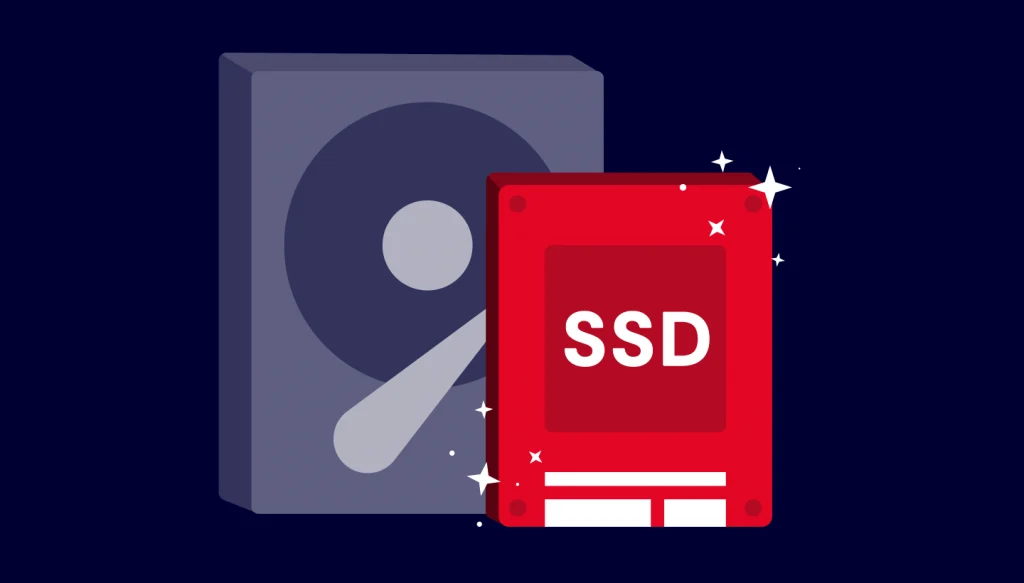
Upgrading your computer from a traditional hard disk drive (HDD) to a lightning-fast solid-state drive (SSD) can breathe new life into your system. Not only will it boost your computer’s speed and responsiveness, but it will also make multitasking a breeze. So if this is something you are interested in, let’s look at a unique approach to migrate from an HDD to an SSD using the TeraByte Drive Image Backup and Restore Suite. This suite is a versatile tool designed to make the migration process a breeze.
Step 1: Gathering the Essentials
But before diving into the migration process, make sure you have the following items ready:
Your SSD: The star of the show, your SSD, is a crucial component to enhance your computer’s performance.
SATA USB Cable: This cable will be your bridge between your SSD and your computer.
TeraByte Drive Image Backup and Restore Suite: Ensure you have this powerful software installed on your computer. You can download it from the official website.
Step 2: Setting Up Your Migration Toolkit
Install TeraByte Drive Image Backup and Restore Suite following the installation instructions on the official website. This software is your trusty sidekick throughout this migration adventure.
Step 3: Capturing the Essence of Your HDD
Activate the Software: Launch the TeraByte Drive Image Backup and Restore Suite and select the option to capture an image of your HDD.
Select Your Source: Identify your current HDD as the source drive.
Initiate the Backup: With everything in place, initiate the backup process. The time required for this step will depend on the volume of data stored on your HDD.
Step 4: Welcoming Your SSD into the Fold
Now, it’s time to connect your SSD using a SATA USB cable. Ensure that your computer recognizes the SSD as it joins the party.
Step 5: Restoring Your HDD’s Essence to the SSD
Preparing for Restoration: Open the TeraByte Drive Image Backup and Restore Suite again.
Fine-Tuning: Enable ‘Align Partitions on 1MiB Boundaries’ in the Settings/Geometry Tab, ensuring optimal performance.
Choose the Image: Select the HDD image you captured earlier.
Manual Target Selection: Opt for manual target drive selection and proceed to the next step.
Destination SSD: Identify your connected SSD as the destination drive for the restoration.
Commence Restoration: Start the restoration process and allow it to work its magic. Be patient, as the duration will depend on the size of the backup image.
Step 6: Embrace the Future: SSD Integration
With the restoration complete, it’s time to physically replace your HDD with the SSD:
Power Down: Fully power down your computer.
Hardware Transition: Carefully open your computer’s casing and swap out the old HDD with your new, sleek SSD. Ensure all connections are snug and secure.
Power Up: Turn on your computer. It should now boot from the new SSD, preserving all your precious data, applications, and settings.
Step 7: Finessing Your Boot Order (if Necessary)
In some cases, your computer might need a little nudge to boot from the new SSD:
Access BIOS/UEFI: If your computer doesn’t automatically boot from the SSD, enter the BIOS/UEFI setup by pressing the designated key during the boot process (usually DEL, F2, or ESC).
Reordering Boot Priority: Navigate to the Boot Order settings and give your SSD the top spot to ensure it enjoys the boot priority it deserves.
Save and Exit: Save your changes and exit the BIOS/UEFI setup. Your computer should now gracefully dance to the SSD’s tune during boot-up.
Unlocking the Benefits of Migrating from HDD to SSD with Ease
Upgrading from a traditional HDD to an SSD using the TeraByte Drive Image Backup and Restore Suite offers a multitude of benefits that can transform your computing experience. Here are some of the advantages of this seamless migration process:
Speed and Responsiveness: SSDs are significantly faster than HDDs. They offer lightning-fast data access and reduced load times for applications and files. Your computer will boot up quickly, and software will launch almost instantaneously. This boost in speed can greatly enhance your overall productivity.
Improved Multitasking: SSDs excel at handling multiple tasks simultaneously. You can effortlessly switch between applications, open large files without slowdowns, and enjoy smoother multitasking, making it ideal for both work and entertainment.
Enhanced Reliability: SSDs have no moving parts, which makes them more durable and less prone to mechanical failures compared to HDDs. Your data is safer, and you can count on your SSD for long-term reliability.
Energy Efficiency: SSDs consume less power than HDDs, resulting in longer battery life for laptops and reduced energy bills for desktops. Your computer will run cooler and quieter, too.
Quieter Operation: SSDs operate silently since they don’t have spinning disks and read/write heads. This means a quieter workspace and a more pleasant computing environment.
Reduced Heat and Vibration: Without moving parts, SSDs generate less heat and vibration, which contributes to a more stable and cooler operating environment for your computer components.
Data Security: TeraByte Drive Image Backup and Restore Suite ensures a seamless migration, preserving all your data and applications during the transition. There’s no need to worry about data loss, as the process is reliable and secure.
Longevity: SSDs typically have a longer lifespan than HDDs. They can endure a higher number of write and erase cycles, making them a wise investment for the long term.
Compact Form Factor: SSDs are available in various form factors, including the smaller M.2 and NVMe drives. This versatility allows you to choose the best fit for your computer, whether it’s a laptop or desktop.
Instant Gratification: Once you’ve completed the migration from HDD to SSD with ease, you’ll immediately notice the benefits. Your computer will feel like a brand-new machine, providing a satisfying and efficient computing experience.
Alternatives to TeraByte Drive Image Backup and Restore
While TeraByte Drive Image Backup and Restore is a robust and effective tool for migrating from an HDD to an SSD, there are alternative solutions available on the market today that cater to diverse user preferences and needs.
Here’s some notable alternatives:
Acronis True Image
Acronis True Image is a widely recognized backup and recovery solution that offers disk cloning and migration features. It provides both local and cloud-based backup options, making it versatile for users who want extra data security.
Macrium Reflect:
Macrium Reflect is a user-friendly disk imaging software with free and paid versions. It offers comprehensive features for disk cloning, system backup, and data migration. The free version is popular for personal use.
EaseUS Todo Backup:
EaseUS Todo Backup provides a simple and intuitive interface for disk cloning and backup tasks. It supports one-click system migration from HDD to SSD and offers various backup and recovery options.
Clonezilla:
Clonezilla is an open-source disk imaging and cloning tool. It’s a suitable choice for users who prefer free and community-supported software. It offers advanced options for experienced users.
When choosing an alternative to TeraByte Drive Image Backup and Restore, consider factors such as your technical expertise, budget, and specific requirements. Each of these alternatives has its unique features and strengths, so selecting the one that best suits your needs will ensure a successful migration from HDD to SSD. Additionally, always make sure to back up your data before any migration or cloning process to avoid potential data loss.
It’s a No Brainer
However we’d have to say that migrating from an HDD to an SSD using the TeraByte Drive Image Backup and Restore Suite is not just an upgrade; it’s a transformation, where you’ll unlock the full potential of your computer, experiencing faster speeds, improved reliability, and enhanced efficiency. So if you asked us, we’d have to say it is most definitely a worthwhile investment that will positively impact your computing experience for years to come.