
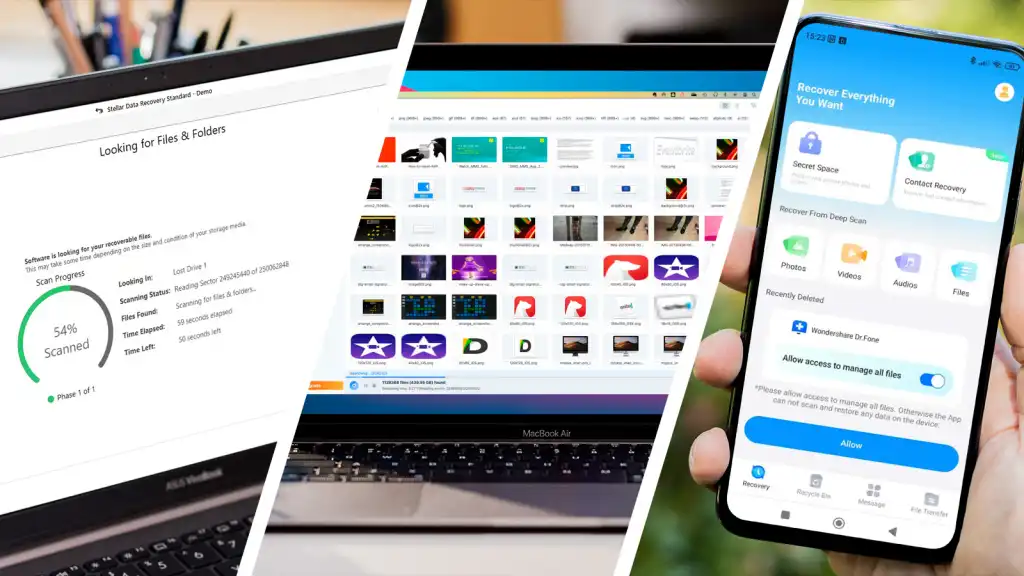
Not all data loss is the same. Accidentally deleting a file from your desktop feels very different from a corrupted SD card that won’t open at all, which feels different again from a hard drive that’s suddenly making strange noises. Yet a lot of “best data recovery software” articles treat these as one identical problem with one identical fix pick a tool, run a scan, done.
In reality, the right recovery approach changes quite a bit depending on what actually happened and where. A tool that’s excellent at restoring a deleted photo from a memory card might not be the strongest choice for rebuilding a corrupted partition on an internal hard drive. This guide breaks things down by the three most common real-world scenarios deleted files, SD cards, and hard drives and walks through which tools handle each situation best, along with what actually matters for a successful recovery in each case.
Understanding Why the Scenario Matters
Before getting into specific tools, it helps to understand why the type of data loss changes what “best” actually means. When a file is deleted, the data usually isn’t erased immediately the space it occupied just gets marked as available for new data. That means recovery is often straightforward, as long as nothing new gets written to that space before you run a recovery scan.
SD cards and USB drives introduce a different challenge. These devices use simpler file systems, get removed and reinserted frequently, and are prone to corruption from being pulled out while still writing data. Recovery tools built with strong support for these devices need to handle common formats reliably and recognize a wide range of media file types, since SD cards are so often used for photos and video.
Hard drives, especially internal ones, bring the most complexity. Beyond simple deletion, they can suffer from formatting, corrupted partitions, file system damage, or in more serious cases, physical mechanical issues. Recovering from a hard drive often requires deeper scanning capability and, in tougher cases, features like disk imaging to avoid stressing a failing drive further during recovery attempts.
Best for Recovering Accidentally Deleted Files
Disk Drill
For general, everyday deleted-file recovery, Disk Drill consistently comes up as the strongest all-around choice. It works across both Windows and Mac with a single license, and its interface is built specifically to make deleted-file recovery approachable you scan, preview exactly what was found, and recover only what you actually need. It also includes a recovery-chance indicator that gives you a realistic sense of whether a specific file can actually be restored before you commit to anything, which is especially useful when you’re dealing with a mix of recoverable and unrecoverable files.
Recuva
For Windows users specifically, Recuva remains a long-standing favorite for simple deleted-file recovery. It’s lightweight, beginner-friendly, and even offers a portable version that doesn’t require installation — useful when you want to avoid writing any new data to the affected drive. It handles files deleted from hard drives, external drives, and memory cards, and while it doesn’t have the broader feature set of larger tools, for a straightforward “I emptied the Recycle Bin by mistake” situation, it does the job reliably and for free.
EaseUS Data Recovery Wizard
EaseUS is another strong option for deleted files, particularly praised for its clean, AI-assisted scanning process that helps locate files quickly even when a folder structure has been disrupted. The free version does come with a data cap, but for a small number of important deleted files, it’s often more than enough, and its beginner-friendly design makes the whole process feel much less intimidating.
Best for SD Cards and Memory Cards
EaseUS Data Recovery Wizard
When it comes specifically to SD cards, EaseUS is frequently highlighted as one of the strongest options, offering quick preview and recovery tailored well to external storage like memory cards. This matters a lot for photographers and videographers, since the preview feature lets you confirm image and video files are actually intact before committing your limited free recovery quota to them.
Disk Drill
Disk Drill also performs very well here, particularly thanks to its Advanced Camera Recovery feature, which is specifically built to reconstruct fragmented video files from a wide range of camera and drone models. This is a genuinely useful capability for anyone recovering footage from an SD card where video files often get fragmented or partially corrupted, something many general-purpose recovery tools handle poorly.
PhotoRec
For anyone comfortable with a more technical, less polished tool, PhotoRec is a completely free, open-source option that’s particularly well-suited to media recovery despite its command-line-style interface. It works across many file systems and can recover a wide variety of file types from SD cards and other removable media, making it a solid choice for technically confident users who don’t want to pay for recovery software.
A Word on SD Card Handling
Regardless of which tool you choose, how you handle a problematic SD card matters just as much as the software. Avoid formatting the card even if your device prompts you to when it can’t read it, since formatting can make recovery significantly harder. Remove the card properly and connect it to a computer through a card reader rather than continuing to use it in the camera or device where the problem occurred, since continued use risks overwriting the very data you’re trying to recover.
Best for Hard Drive Recovery
Disk Drill
For general hard drive recovery whether it’s accidental deletion, formatting, or more general corruption — Disk Drill again stands out as one of the most versatile options. It supports byte-to-byte disk imaging, which is an important feature for hard drive recovery specifically, since creating a full image of a struggling drive and working from that image (rather than repeatedly scanning the original drive directly) reduces the risk of causing further damage during the recovery process. It also includes SMART drive health monitoring, which can give early warning signs of a drive that’s beginning to fail.
R-Studio
For more serious or complex hard drive issues damaged partitions, RAID arrays, or unusual file systems R-Studio is the tool most frequently recommended by technical users and IT professionals. It supports an unusually broad range of file systems and operating systems, including older Windows versions, Linux, and macOS, and it’s specifically capable of reconstructing damaged partition tables and handling RAID metadata, which most consumer-friendly tools simply aren’t built to do.

DMDE
DMDE is another strong option for deeper hard drive issues, particularly useful when a drive’s partition structure itself has been damaged, not just individual files within it. Like R-Studio, it’s aimed at more technically comfortable users, offering low-level disk editing capability alongside its recovery features, making it well-suited for situations where the drive’s basic structure needs to be repaired or reconstructed before individual files can even be identified.
Stellar Data Recovery
For more everyday hard drive scenarios accidental deletion or a straightforward format, rather than deep structural damage Stellar Data Recovery offers a dependable, easier-to-use option that covers hard drives, SSDs, and a wide range of file types including documents, photos, videos, and emails, without requiring much technical background.
Matching Symptoms to the Right Approach
If you’re not sure which category your situation falls into, a few quick signs can help point you in the right direction. If you know exactly which file or folder you deleted and the drive is otherwise working normally, you’re dealing with straightforward deleted-file recovery, and tools like Disk Drill, Recuva, or EaseUS will likely handle it well. If your SD card suddenly shows as blank, asks to be formatted, or won’t open at all despite working fine before, you’re dealing with card corruption, and EaseUS or Disk Drill’s camera-focused recovery features are a strong starting point. If your entire hard drive isn’t showing up properly, throws errors, was recently formatted, or has a damaged partition, you’re dealing with a more serious structural issue, and R-Studio or DMDE are worth the more technical learning curve especially if Disk Drill’s standard scan doesn’t find what you need.
If your hard drive is making unusual clicking or grinding noises, stop immediately and don’t attempt software-based recovery at all. That’s a sign of physical mechanical damage, and continuing to run the drive risks making the damage worse or permanent. In that specific case, a professional data recovery service is the only truly safe option.
A Few Habits That Matter More Than the Software Itself
No matter which category you’re dealing with, a couple of core habits make a bigger difference in your recovery success than the specific tool you choose. Stop using the affected device the moment you notice something’s missing, since continued use risks overwriting the exact data you’re trying to recover. Install your recovery software onto a different device rather than the one you’re recovering from, and connect the affected drive or card externally when possible. Always use the preview feature before committing to a full recovery, so you’re confirming your files are genuinely intact rather than wasting a limited free-tier quota on files that turn out to be damaged beyond use. And once your important files are safely back, set up a proper backup routine — cloud storage, an external drive, or both so a future accident doesn’t put you back in the same stressful position.
The Bottom Line
There isn’t one single “best” data recovery tool that dominates every situation — the right choice depends on exactly what happened and where. For simple deleted files, Disk Drill, Recuva, and EaseUS all offer dependable, beginner-friendly recovery. For SD cards and memory cards, EaseUS and Disk Drill’s camera-focused features stand out, with PhotoRec as a solid free alternative for technical users. For hard drives, Disk Drill handles most everyday cases well, while R-Studio and DMDE step in for more serious structural damage. Matching the tool to the actual situation — rather than assuming any one tool handles everything equally well — is what actually determines whether your files come back.
FAQs
Q1: Is one tool enough to cover deleted files, SD cards, and hard drives, or do I need different software for each? Disk Drill comes closest to being a true all-rounder, since it handles deleted files, SD cards, and general hard drive recovery reasonably well in one tool. However, for more serious hard drive issues like damaged partitions or RAID arrays, a more specialized tool like R-Studio or DMDE will likely perform better than a general-purpose tool.
Q2: My SD card is asking me to format it — should I do that to fix the problem? No, avoid formatting if you want any chance of recovering the existing files. Formatting can make recovery significantly harder or impossible. Instead, connect the card to a computer through a card reader and run a recovery scan before considering formatting as a last resort.
Q3: Why does hard drive recovery often need different software than deleted-file recovery? Hard drives can suffer from more complex problems beyond simple deletion — corrupted partitions, damaged file systems, or in serious cases, physical mechanical issues. Tools built for straightforward deleted-file recovery often lack the deeper scanning, disk imaging, and partition reconstruction capabilities needed to handle these more complex hard drive scenarios safely.
Q4: What does a “recovery-chance indicator” actually tell me? It’s a feature, found in tools like Disk Drill, that estimates how likely a specific file is to be successfully recovered based on the scan results, before you commit to the recovery process. This helps you focus on files that are genuinely recoverable rather than wasting time or your free-tier data limit on files that are too damaged to restore.
Q5: My hard drive is making clicking noises — should I still try recovery software? No, this is an important exception. Clicking or grinding noises usually indicate physical damage to the drive’s internal components, and continuing to run software-based recovery attempts can make the damage worse or lead to permanent data loss. In this situation, a professional data recovery service is the safer path forward.
