
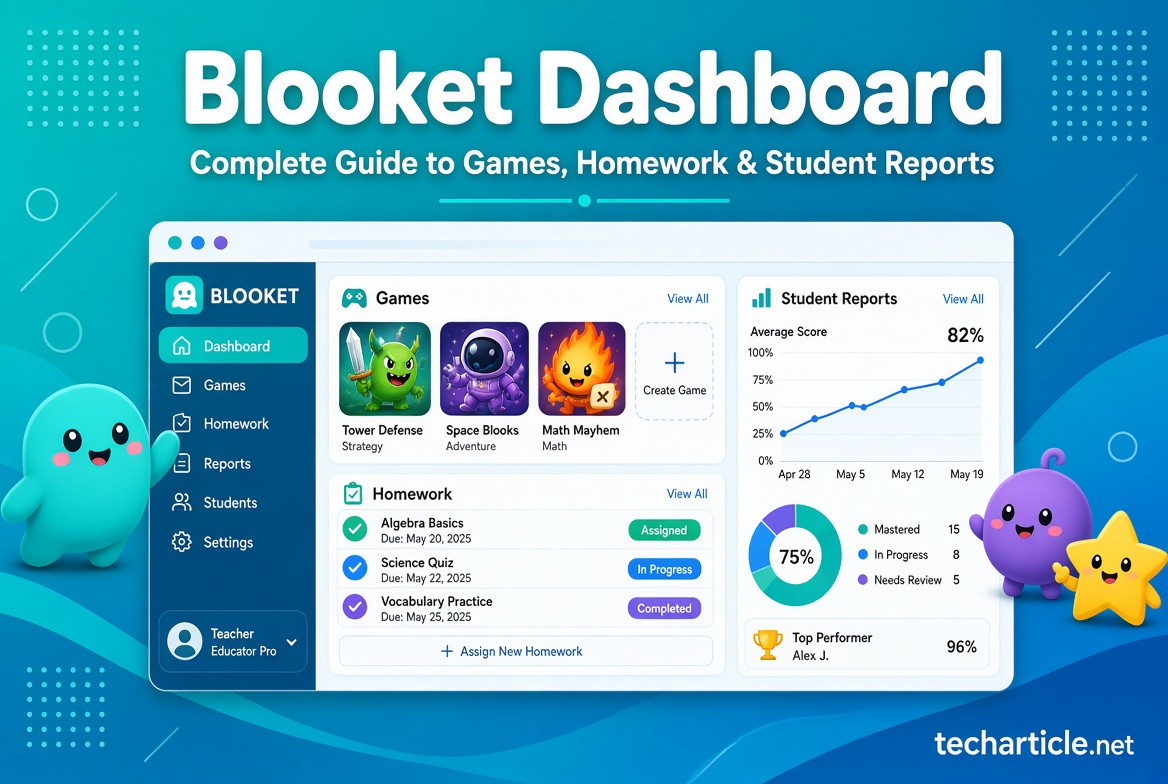
Online learning has changed the way teachers introduce lessons, review concepts, and check student understanding. Instead of relying only on worksheets and traditional quizzes, educators can use interactive platforms that combine questions with game-based activities. Blooket is one such platform, allowing teachers to use question sets, game modes, homework activities, and performance reports in one learning environment.
For new users, however, the Blooket Dashboard can take some time to understand. There are different areas for question sets, games, homework, history, and reports. Knowing what each section does can make it easier to organize classroom activities and review student performance.
This guide explains how the Blooket Dashboard works, how teachers can use it for live games and homework, how reports can help identify learning gaps, and what students should know when joining an assignment.
What Is Blooket?
Blooket is a game-based learning platform designed for educators and students. Teachers can find question sets from Blooket’s library or create their own, then use those questions in live or asynchronous activities.
The platform combines educational questions with different game experiences. Students answer questions while participating in a selected game mode, which can make review sessions more interactive.
Blooket describes its approach as combining learning with game-based engagement. Its official website highlights three basic stages: getting a question set, choosing a game mode, and then playing and analyzing the results.
This structure is useful because teachers do not have to treat the game and assessment as completely separate activities. The questions provide the learning content, while the game mode provides the interactive experience.
What Is the Blooket Dashboard?
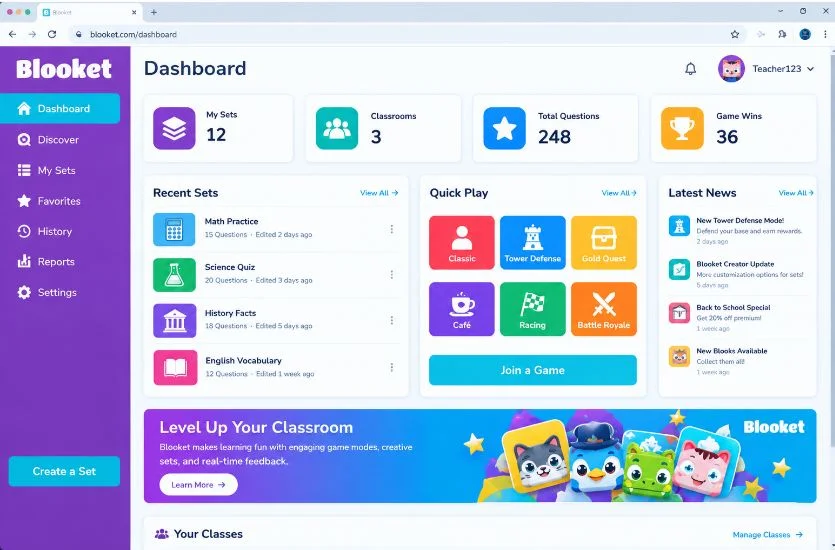
The Blooket Dashboard is the main area where users can manage their Blooket activities. Depending on the account type and features available, users can access areas related to question sets, games, homework, history, reports, and account settings.
For teachers, the dashboard can become the central place for managing classroom activities.
A typical workflow can look like this:
- Find or create a question set.
- Select an appropriate game mode.
- Host a live game or assign homework.
- Let students complete the activity.
- Review the results.
- Use the information to decide what needs additional practice.
This makes the dashboard more than simply a place to start games. It can also be used to review what happened after an activity.
How to Find a Question Set
Before starting a Blooket game, you need a question set.
Teachers can browse available question sets through Blooket or create their own. A question set contains the questions and answers that will be used during the activity.
When selecting a set, consider whether:
- The questions match the lesson.
- The difficulty is appropriate for the students.
- The questions are accurate.
- The content matches the learning objective.
- The set contains enough questions for the planned activity.
A game can be entertaining, but the questions remain the educational foundation. Choosing an appropriate question set is therefore one of the most important steps.
How to Host a Blooket Game
One of the main uses of Blooket is live classroom gameplay.
After selecting a question set, teachers can choose a game mode and adjust available settings before starting.
According to Blooket’s current hosting instructions, teachers can configure options such as the time limit or goal, late joining, random names, and other game settings depending on the selected mode.
When the game is ready, the teacher selects Host Now.
Students can then join using the available joining options. Blooket currently supports joining through a game code, QR code, or join link.
For a typical classroom activity, the process looks like this:
Step 1: Choose the Question Set
Select the questions you want students to practice.
Step 2: Choose a Game Mode
Select the game experience that fits the lesson and available classroom time.
Step 3: Configure Settings
Review the available settings, including the time limit or goal and joining options.
Step 4: Start the Game
Select the option to host the game.
Step 5: Have Students Join
Students can enter the game code, scan the QR code, or use a shared join link.
Step 6: Begin Playing
Once the students have joined, the teacher can start the activity.
The exact options available can vary depending on the game mode and Blooket’s current features.
Using Blooket for Classroom Review
Blooket can be useful for reviewing material after a lesson.
For example, a teacher who has just completed a science unit could use a question set covering the main concepts from that unit. Students answer the questions while participating in the selected game.
The teacher can then review the results to determine whether the class appears to understand the material or whether certain topics require additional explanation.
This approach can be particularly useful as a short review activity rather than replacing the complete lesson.
How to Use Blooket for Homework
Blooket also supports homework activities that students can complete outside a live classroom game.
Teachers can assign homework using a selected question set and available homework options. Students can then access the assignment through a shared link or QR code.
The current Blooket homework experience displays important information such as:
- Homework title
- Teacher name
- Due date
- Correct-answer goal
Students do not necessarily need a Blooket account to complete homework. Blooket’s current instructions explain that logging in is optional for completing an assignment, although logging in can provide additional account-related features.
How Students Start Homework
After opening the homework link or scanning the QR code, students can review the assignment details.
They can then select Get Started and choose from the game modes available for that homework activity.
Depending on the mode, students may see information about difficulty, skills, expected time, and question frequency before starting.
After choosing a mode, the student can begin playing and answering questions.
The homework page displays the remaining correct-answer goal during the activity.
Once the required goal has been reached, the student can end the homework or continue playing, depending on the available options.
What Happens After Homework Is Completed?
After completing the assigned goal, students can see a performance summary. Blooket also provides a details view where students can review question-level results.
From the teacher’s side, the results become available through the Homework area of the dashboard.
Teachers can select a homework activity and review its results, including information about participating students, accuracy, question performance, time played, and completion details.
This can make homework more useful than simply giving students questions and collecting answers.
How to Find Blooket Game Reports
Reports are one of the most useful parts of the Blooket Dashboard for teachers.
Blooket’s current reporting system is accessible through the History area. Teachers can go to their Dashboard and select History to view games they have previously hosted.
The History page can show information such as:
- Game mode
- Question set title
- Number of players
- Date played
Teachers can also filter game history by date range and sort the available records.
After selecting a particular game, the teacher can open its detailed report.
What Information Is Included in a Blooket Report?
The report provides an overview of the selected game session.
Depending on the activity and account features, the report can include information such as:
- Question set used
- Game played
- Class accuracy
- Correct answers
- Incorrect answers
- Total questions answered
- Number of participants
- Date and time of the activity
- Student scores and accuracy
The leaderboard can also provide student-level information, including placement, score, accuracy, and correct or incorrect answers.
This information can help a teacher move beyond simply asking, “Who won?”
Instead, the teacher can ask a more useful question: Which concepts still need attention?
Using Reports to Identify Learning Gaps
A report becomes more valuable when it is used to improve future instruction.
Suppose most students answer a particular question incorrectly. That may indicate that the concept needs additional explanation or practice.
Teachers can examine questions according to incorrect-answer percentages and identify areas that may deserve further review.
Blooket’s reporting documentation specifically describes using question-level information to identify opportunities for additional review and reinforcement.
For example, a teacher might:
- Review the report after a game.
- Identify questions with high incorrect-answer rates.
- Determine which lesson topics those questions represent.
- Explain those topics again.
- Create another short practice activity.
- Reassess students later.
This creates a simple cycle of teach → practice → review → improve.
Individual Student Performance
Blooket’s reporting system can also provide more detailed student information, particularly for Blooket Plus users.
A teacher can select a student’s name from a report to view additional performance information.
Depending on the available features, individual reports can include:
- Accuracy
- Correct answers
- Incorrect answers
- Total questions
- Average response time
- Question-level results
- Attempts on repeated questions
This can help teachers understand differences between individual students rather than relying only on a class-wide average.
For example, two students might have the same overall score but struggle with different questions. Individual performance information can help a teacher provide more targeted practice.
Can Blooket Reports Be Downloaded?
Blooket currently provides report-download functionality as a Blooket Plus feature.
According to Blooket’s help documentation, Plus users can download game and homework reports as spreadsheet files.
The downloaded report can contain detailed information such as:
- Question number
- Question text
- Media
- Question type
- Accuracy
- Average answering time
- Correct answers
- Incorrect answers
- Unattempted questions
- Student performance
A participant summary can also provide an overview of individual student performance.
For teachers who need to analyze classroom results outside Blooket, spreadsheet-based reports can make the data easier to organize.
Free Blooket vs. Blooket Plus
Blooket offers free access, while Blooket Plus provides additional features.
The exact features available can change, so users should check Blooket’s current pricing and feature information before making a purchasing decision.
Blooket’s current documentation lists Plus features including enhanced reports, additional game modes, folders, larger live games, question-bank functionality, verified curriculum content, audio questions, longer homework deadlines, and other features.
For example, Blooket currently states that Starter accounts can host games with up to 60 players, while Plus supports larger live games of up to 300 players.
Plus also provides enhanced reporting features, including more detailed question-by-question and individual student information.
Using the Dashboard Efficiently
A teacher can make the Blooket Dashboard easier to manage by following a consistent routine.
Organize Question Sets
Keep question sets focused on specific lessons or subjects where possible.
Choose Games Based on the Objective
Do not select a game mode only because it looks entertaining. Consider whether it fits the learning goal and classroom time.
Review Reports Regularly
A game report is most useful when the teacher actually uses the information afterward.
Focus on Difficult Questions
Look for questions that many students answered incorrectly and use them as a starting point for review.
Keep Student Names Consistent
Blooket’s documentation notes that using recognizable student names can make after-game reports more useful. Random names can be enabled, but teachers should consider whether anonymous or random naming makes sense for their reporting needs.
Blooket for Self-Paced Study
Blooket is not limited to teacher-hosted classroom games.
The platform also provides solo experiences. For example, Blooket’s Study game mode is designed for individual practice and review. It presents questions in a flashcard-style format and provides immediate feedback after answers.
This can be useful when a student wants to review material independently.
A student can use a question set, select an available solo mode, and work through the questions without participating in a live classroom competition.
Blooket and Student Privacy
Because Blooket is an educational platform, privacy is an important consideration.
Blooket’s current Privacy Policy explains that students invited to play games or complete homework can use a chosen username, and that Blooket collects information necessary to provide the service.
The policy also discusses children’s privacy and states that student profiles are not publicly visible to other students through Blooket.
Teachers and educational institutions should still use the platform responsibly and follow their school’s privacy requirements and applicable laws.
When displaying game information in a classroom, educators should also consider whether student names, scores, or responses are visible to other students.
Is Blooket Good for Homework?
Blooket can be useful for homework when the activity is designed around a clear learning objective.
It can provide students with a more interactive way to practice questions, while teachers can review completion and performance information afterward.
However, game-based homework should complement learning rather than become the entire learning strategy.
For complex subjects, students may still need explanations, reading, writing practice, projects, or teacher feedback.
Is Blooket Useful for Teachers?
The main advantage of the dashboard is that it brings several classroom functions into one workflow.
Teachers can discover or create question sets, host games, assign homework, and review results.
The reporting features can be particularly useful because they help transform game activity into information that can support future instruction.
Instead of treating a game as a one-time activity, teachers can use the results to decide what students should practice next.
Tips for Students Using Blooket
Students can get more value from Blooket by focusing on accuracy rather than simply trying to finish quickly.
Useful habits include:
- Read each question carefully.
- Do not guess repeatedly just to increase the score.
- Review incorrect answers when possible.
- Ask the teacher about concepts you do not understand.
- Use solo study options for additional practice.
- Complete homework before the deadline.
- Use an appropriate nickname when joining an assignment.
The goal of an educational game should ultimately be learning, not just winning.
Common Blooket Dashboard Questions
What is the Blooket Dashboard used for?
The Blooket Dashboard can be used by educators to manage question sets, host games, assign homework, and review game or homework results.
How do I see previous Blooket games?
Teachers can access previous hosted games through the History section of the Dashboard.
Can Blooket be used for homework?
Yes. Blooket supports homework assignments that students can access through links or QR codes and complete using available solo game modes.
Can teachers see homework results?
Yes. Once homework has been assigned, teachers can access the homework results and review available student performance information.
Can Blooket reports be downloaded?
Report downloading is currently listed by Blooket as a Plus feature. Plus users can download game and homework report data in spreadsheet format.
Does Blooket have solo games?
Yes. Blooket offers solo game experiences, including its Study mode for individual practice and review.
Does a student need a Blooket account for homework?
Blooket’s current homework instructions state that students do not need an account to complete homework, although logging in can provide additional account features.
Can Blooket show which questions students struggled with?
Available reports can provide question-level performance information. Blooket Plus provides additional detail that can help teachers identify questions and topics that may need further review.
Final Thoughts
The Blooket Dashboard provides a central place for managing game-based learning activities. Teachers can start with a question set, choose a game mode, host a live activity or assign homework, and then use the resulting reports to understand student performance.
The most valuable part of the platform is not simply the game itself. The combination of questions, interactive practice, homework, and performance information can give teachers a practical way to connect classroom activities with follow-up instruction.
For students, Blooket can turn ordinary question practice into a more interactive experience. For teachers, the Dashboard and reporting tools can make it easier to identify areas where students need additional practice.
As with any educational technology, the best results come from using the platform with a clear learning purpose. A well-selected question set, appropriate game mode, thoughtful homework assignment, and careful review of reports can make Blooket a useful part of a broader teaching and learning strategy.
Because Blooket regularly updates its features, users should check the official platform and help documentation for the latest options, account limits, and reporting capabilities before planning a specific classroom activity.
