

In the modern world of digital productivity, time tracking is no longer optional—it’s essential. Whether you’re a freelancer, remote worker, agency owner, or managing a large team, knowing how time is spent can boost your efficiency, billing accuracy, and project management skills. This is where Clockify shines.Clockify is a free time tracking software trusted by millions of users around the world. With robust features, a user-friendly interface, and cross-platform availability, Clockify stands out in a saturated market. But what makes Clockify truly unique, and how can you use it effectively? In this article, we’ll take a deep dive into Clockify, its features, benefits, real-world use cases, setup steps, and FAQs to help you make the most of this powerful tool.
What is Clockify?
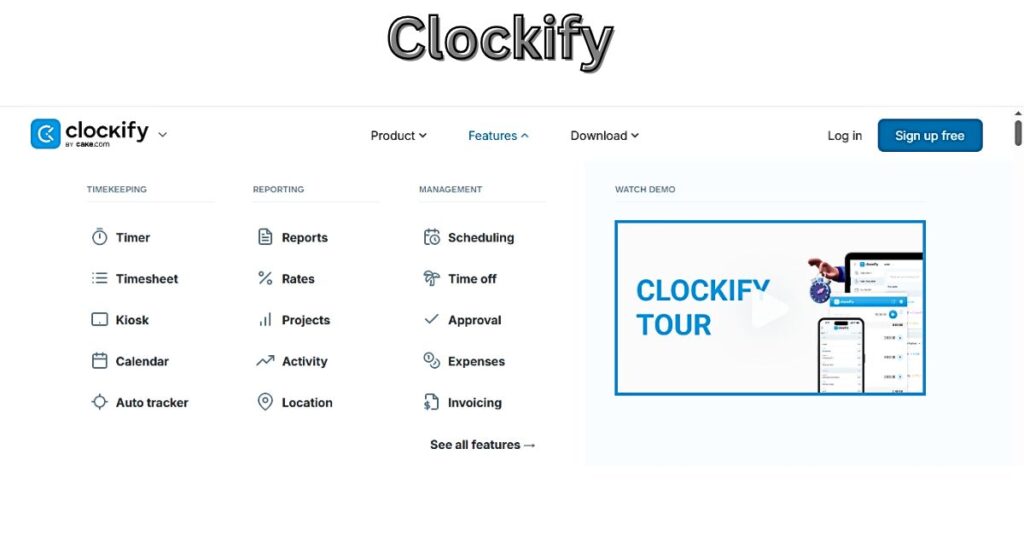
Clockify is a time tracking and timesheet app that helps individuals and teams keep track of work hours across projects. It offers features like:
-
Time tracking
-
Timesheets
-
Project management
-
Team scheduling
-
Reporting
-
Invoicing
The best part? Clockify is completely free for unlimited users, making it ideal for freelancers, small businesses, and even large enterprises.
Why Use Clockify?
Let’s explore the reasons why Clockify has become the go-to tool for professionals and teams:
1. Free for Unlimited Users
Unlike other platforms that limit features behind paywalls, Clockify provides its core functionalities entirely free for unlimited users.
2. Easy to Use
The intuitive dashboard allows users to start tracking time with just a click. You don’t need to be tech-savvy to get started.
3. Multi-Platform Support
Use Clockify on the web, as a desktop app (Windows, macOS, Linux), or on your mobile device (Android and iOS). It even has a browser extension for Chrome and Firefox.
4. Advanced Reports
Clockify offers visual and exportable reports that let you track billable hours, productivity, and project budgets.
5. Integrations
Clockify integrates with over 80 apps including Trello, Asana, Notion, Jira, Slack, and more through its browser extension or Zapier.
Key Features of Clockify
Here are the standout features that make Clockify one of the best time tracking tools available:
● Time Tracker
Track work hours manually or via a timer. Add descriptions, tag team members, and assign time to projects and tasks.
● Timesheets
Clockify allows weekly submission of time entries, making it ideal for HR and payroll systems.
● Project & Task Management
Create projects, divide them into tasks, and assign users. Track time per task and keep projects on budget.
● Dashboard & Analytics
Get real-time insights into what your team is working on, how much time they spend, and their productivity levels.
● Team Scheduling
Plan shifts, assign tasks, and see your team’s availability using the team scheduling feature.
● Invoicing
Generate client-ready invoices based on tracked time and custom rates.
● Pomodoro Timer
Use the built-in Pomodoro technique timer to boost focus and productivity.
Use Cases for Clockify
Let’s look at how different professionals use Clockify:
Freelancers
Track billable hours, generate invoices, and manage multiple client projects efficiently.
Agencies
Manage teams, track project hours, and analyze profitability with detailed reports.
Remote Teams
Ensure accountability and transparency by tracking work hours and task progress.
Developers
Track time spent on coding, debugging, and meetings. Integrate Clockify with GitHub or Jira for a smooth workflow.
Students & Educators
Track study hours, research time, and group project contributions.
How to Get Started with Clockify
Setting up Clockify is simple. Here’s a step-by-step guide:
Step 1: Create an Account
Go to Clockify.me and sign up using your email, Google, or Microsoft account.
Step 2: Set Up Workspace
Create a workspace, invite team members, and assign roles.
Step 3: Add Projects and Tasks
Name your project, create tasks, and assign them to users.
Step 4: Start Tracking Time
Use the timer to start tracking or log hours manually. Add descriptions and tags to categorize entries.
Step 5: View Reports
Navigate to the “Reports” tab to view time breakdowns by user, project, or task.
Step 6: Export or Invoice
Export time logs in PDF, Excel, or CSV format. Use them for invoicing or payroll.
Clockify Pricing Plans
While Clockify’s free plan is more than sufficient for most, here’s an overview of the premium features:
Plan |
Price (USD) |
Key Features |
|---|---|---|
Free |
$0 |
Unlimited users, projects, and time tracking |
Basic |
$3.99/user/month |
Admin features, time audits, project templates |
Standard |
$5.49/user/month |
Time off, invoicing, approval workflows |
Pro |
$7.99/user/month |
Scheduling, budgets, forecasts |
Enterprise |
$11.99/user/month |
Custom fields, SSO, audit logs |
Pros:
-
100% free for unlimited users
-
Simple interface
-
Great for remote teams
-
Wide integration support
-
Powerful reporting
Cons:
-
Offline mode could be more robust
-
Some premium features are locked
-
Mobile app could be more responsive
Clockify vs Other Time Tracking Tools
Tool |
Best For |
Free Plan |
Key Feature |
|---|---|---|---|
Clockify |
Teams & freelancers |
✅ |
Unlimited users & projects |
Toggl Track |
Solo freelancers |
✅ |
Sleek interface |
Harvest |
Agencies |
❌ (14-day trial) |
Invoicing & expenses |
RescueTime |
Personal use |
✅ |
Focus and distraction tracking |
Final Thoughts
In a world where every second counts, Clockify provides a free, reliable, and powerful way to manage your time efficiently. Whether you’re a solo entrepreneur or a growing team, Clockify offers the tools you need to track work hours, boost productivity, and stay organized—all without spending a dime. So if you’re looking for a free time tracking tool, it’s time to try Clockify. Your projects, clients, and future self will thank you.
Frequently Asked Questions (FAQs)
1. Is Clockify really free?
Yes, Clockify is completely free for unlimited users. The free plan includes time tracking, projects, reports, and unlimited entries.
2. How does Clockify make money if it’s free?
Clockify monetizes through its paid plans, which offer premium features like team scheduling, invoicing, and audit logs.
3. Can I use Clockify offline?
Yes, Clockify’s desktop and mobile apps offer offline mode, which syncs data once you’re online again.
4. Does Clockify work for large teams?
Absolutely. Clockify supports enterprise-level teams with advanced reporting, user management, and integrations.
5. Is Clockify suitable for freelancers?
Yes, it’s ideal for freelancers. You can track billable hours, generate invoices, and manage multiple clients with ease.
