
You find a striking photo on social media and wonder where it came from. A product in a picture looks perfect, but you cannot tell what it is called. A message from a stranger comes with a profile photo that seems too good to be true. In all of these cases, typing words into a search box is not much help. What you need is a search that starts from the picture itself. That is what reverse image search does, and today, Google offers it mainly through a tool called Google Lens.
This guide explains what reverse image search is, how to do it on a computer, an Android phone and an iPhone, what you can use it for, where it falls short and how to use it responsibly. The steps are based on Google’s own help documentation and several independent how-to guides. Menu names and icons change from time to time, so if something on your screen looks slightly different, look for the Lens icon (a small camera-like symbol) or the “Search by image” option.
What Is Reverse Image Search?
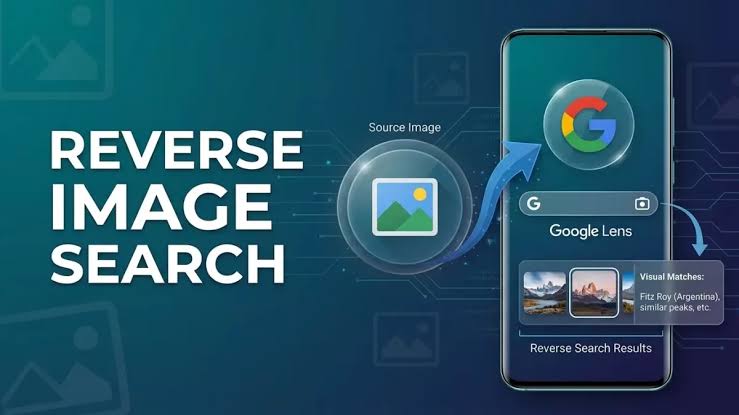
In a normal search, you type words and get pictures or pages in return. In a reverse image search, you start with a picture and ask the search engine to find information about it. Google compares your image with what it has indexed and can show you several kinds of results:
- Websites that contain the same image or a similar one, which helps you trace where a picture came from.
- Visually similar images, useful for finding other sizes, edits or related photos.
- Results about objects in the image, such as a product, plant, landmark or piece of text.
- AI Overviews, which may appear for some searches as a short summary.
Google’s help pages describe visual search with Lens as working in most major browsers, including Chrome, Firefox, Safari and Edge, as well as in the Google app on phones.
How to Search by Image on a Computer
There are several ways to start, depending on where your picture is.
Method 1: Upload an image file
- Go to google.com.
- Click the Search by image (Lens) icon in the search box.
- Choose Upload a file and select the picture, or drag and drop it into the box.
- Review the results.
Independent guides note that common formats such as JPG, PNG, BMP and WebP are accepted.
Method 2: Paste an image link
- On the web page that has the picture, right-click the image and choose Copy image address.
- Go to google.com and click the Lens icon.
- Paste the link into the “Paste image link” box and click Search.
This is handy when you do not want to download the picture first.
Method 3: Right-click in Chrome
If you use Google Chrome, right-click an image on any web page and choose Search with Google Lens. The results appear in a side panel next to the page, so you do not have to leave what you were reading. Make sure Chrome is up to date, because older versions may not show this option. Some versions also place a Lens icon in the toolbar or in the address bar menu.
Method 4: Start from Google Images
- Search for a topic on google.com and open the Images tab.
- Click the picture you are interested in.
- In the enlarged view, click the Lens icon.
- Drag the corners of the selection box to focus on one part of the picture, if needed.
Method 5: Refine with words
After you upload an image, many results pages include an “Add to your search” box. Typing a few words, such as a colour, brand or question, can narrow the results considerably. For example, you can upload a photo of a chair and add the word “wooden” to find similar wooden designs.
How to Search by Image on Android
On Android phones, Lens is built deeply into Google’s apps.
For an image on a web page
- Open the Google app or Chrome.
- Press and hold the picture.
- Tap Search with Google Lens from the menu.
- If the first results are not what you wanted, scroll down. Some versions offer a prompt to retry with classic Google Images results.
For a photo saved on your phone
- Open the Google app.
- Tap the camera icon in the search bar, next to the microphone, to open Lens.
- Choose a photo from your gallery or take a new one.
- Crop the selection box to the part you care about.
How to Search by Image on iPhone and iPad
The steps on iPhone are similar, with a few differences.
For an image on a web page
- Open the Google app or Chrome.
- Search for the topic, tap Images, and tap the picture.
- Tap the Lens icon shown in the corner of the picture. In some versions, the option appears as a visual-search button at the top of the screen.
- Tap or drag the selection box on the part you want to search.
From a web page in Chrome or the Google app
- Tap the three dots at the bottom of the screen.
- Choose Search screen with Google Lens.
- Tap the part of the image you want to search.
For a photo in your gallery
- Open the Google app.
- Tap the Lens icon in the search bar.
- Choose your photo from the picker and adjust the box.
One guide notes that searching a saved photo this way does not work on iPads. Because features vary between versions and devices, keep the Google app and Chrome updated.
What Can You Use It For?
Reverse image search is more useful than many people realise. Here are some of the most common and sensible uses.
Finding the original source. If a picture has been shared widely, a search can often lead you to the earliest or most trustworthy page that uses it. This is helpful for giving proper credit and for checking context.
Checking whether a photo is genuine. If someone says a photo shows a recent event, a search may reveal that it is older or from another place. It is not a perfect test, but it is a quick first step in verifying viral content.
Spotting scams and fake profiles. If a stranger’s profile picture appears on many unrelated pages under different names, that is a warning sign. Use this to protect yourself, for example to check an online seller or a suspicious message.
Shopping. Lens can show products that look like the one in your photo, which helps you find a name, brand or similar alternatives. Prices and availability change, so always confirm on the seller’s page.
Identifying plants, animals and landmarks. Lens can suggest what a plant, insect or building might be. Treat these as suggestions, especially for anything involving safety, such as edible plants or mushrooms.
Translating text. Pointing Lens at a sign, menu or document can translate the words on it. This works best with clear, well-lit text.
Tips for Better Results
- Crop to the subject. Drag the selection box so that only the important part is inside it. Cluttered backgrounds confuse the search.
- Use the best quality version. Higher resolution and good lighting give better matches.
- Try more than one version. If a cropped picture fails, try the whole image, or the reverse.
- Add words. A short description can steer the results.
- Use screenshots when needed. If a site or app has no search option, take a screenshot and search that. This also works for paused frames of a video, because you cannot search a video directly.
- Compare several tools. Bing Visual Search and dedicated reverse-image sites can find different matches. Google is not the only option.
- Keep your apps updated. Many menu options only appear in the latest versions.
Limits and Things That Can Go Wrong
Reverse image search is a helpful tool, not a lie detector. Keep these limits in mind:
- No results does not mean the image is original. It may simply mean the picture is not indexed, was shared in a private account or exists only in apps that search engines cannot see.
- Results may be about the wrong thing. The tool can focus on the background instead of the subject, or suggest similar-looking but unrelated items.
- Edited or AI-generated images may not match any existing page, and a match does not prove that a picture is real.
- Identifications can be wrong. Do not rely on Lens for medical, legal or safety decisions, including whether a plant or mushroom is safe to eat.
- Social platforms are a gap. Some, such as Facebook and Instagram, have no built-in reverse search, and much of their content is not publicly searchable.
- Features change. Names, icons and availability can vary by country, device and software version.
Privacy and Responsible Use
Using Lens means sending an image to Google. Google’s help documentation notes that browsers do not save the image addresses you search in your browsing history, but Google may store them to improve its products and services. A few sensible habits follow from this.
Think before uploading. Avoid uploading photos of documents, IDs, medical records, financial information or private images of other people.
Check your account settings. Review your Google activity and privacy controls to decide what is saved, and delete past activity if you prefer.
Respect other people. Do not use reverse image search to track down, identify or harass private individuals. Looking up a public photo to verify a claim or check a seller is very different from trying to find where a private person lives or works. If you are worried about your own safety, speak to the relevant authorities or a trusted organisation instead of investigating on your own.
Respect copyright. Finding an image online does not mean you may reuse it. Check the licence or ask for permission, and give credit where it is required.
Frequently Asked Questions
Is Google reverse image search free? Yes, using Google Lens and Search by image is free, although you may need a Google account for some features and your mobile data may be used.
Do I need to install anything? On a computer, no, because it works through your browser. On phones, the Google app or Chrome provides it, so keep them updated.
Is Lens the same as reverse image search? Lens is Google’s modern way of doing visual search. It includes reverse image search, plus features such as translation, shopping and object identification.
Can I search a video? Not directly. Pause the video, take a screenshot and search the screenshot instead.
Why do I get no results? The image may not exist elsewhere online, may be on a private page or may be too edited or low quality to match. Try cropping, using a better version or another tool.
Can I find who someone is from their photo? Results are unreliable and using the tool to identify private individuals raises serious privacy and safety concerns. Do not use it for that purpose.
Is it safe to upload my photos? Google may store searches to improve its products. Avoid sensitive photos, and review your privacy settings.
Final Thoughts
Reverse image search has become one of the simplest and most useful search skills. With Google Lens, you can trace where a picture came from, check a suspicious profile, find a product, translate a sign or learn about the world around you, using only a few taps or clicks. The best results come from cropping carefully, adding a few words and comparing several sources instead of trusting a single match.
Just as importantly, remember its limits. A result is a clue, not proof. Verify important claims with reliable sources, protect your own privacy and respect other people’s. Used thoughtfully, the tool will help you see where an image came from and what it really shows.
