
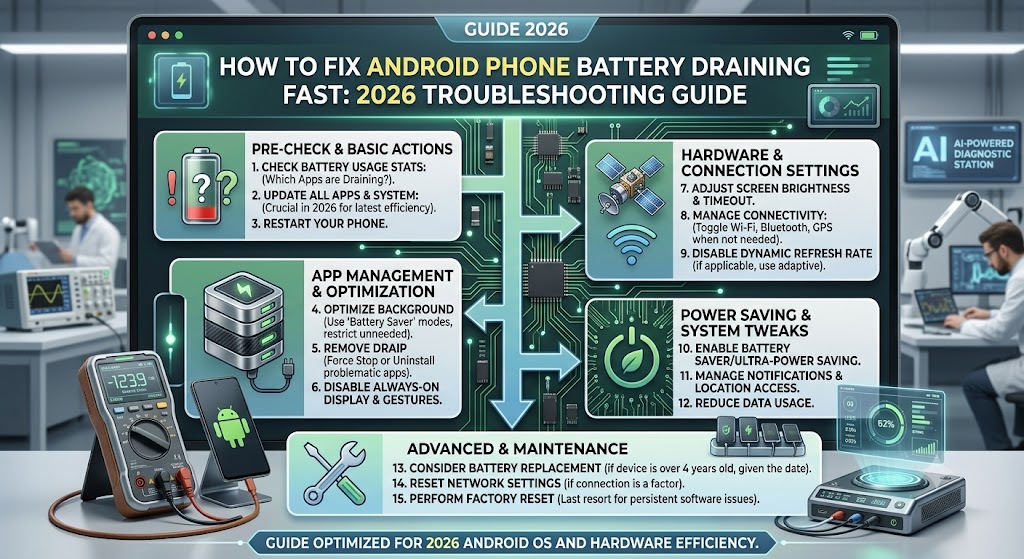
Few things are more frustrating than watching your Android phone’s battery percentage drop rapidly, even when you’re barely using it. Whether you own a flagship device or a budget smartphone, battery drain issues can strike any Android phone regardless of age or price. In 2026, with more demanding apps, constant background AI processes, 5G connectivity, and always-on features, battery drain complaints remain one of the most common smartphone problems.
The good news is that most battery drain issues are fixable without needing a professional repair or a brand-new phone. This guide walks through the most common causes of fast battery drain on Android devices and provides step-by-step troubleshooting methods to help you restore normal battery life.
Common Causes of Fast Battery Drain
Before diving into fixes, it helps to understand what typically causes excessive battery drain:
- Background app activity Apps running processes even when not actively in use
- Screen brightness and display settings High brightness and long screen timeout settings
- Outdated software Bugs in old Android versions or app versions
- Poor battery health Batteries naturally degrade over time (typically after 2-3 years of daily use)
- Excessive notifications and syncing Constant background syncing across multiple accounts
- Location services GPS running continuously for certain apps
- Weak network signal Phones use more power searching for signal in low-coverage areas
- Faulty or non-certified chargers Can affect charging efficiency and battery health over time
- Widgets and live wallpapers Constantly updating on the home screen
- Rogue apps or malware Rare, but poorly coded or malicious apps can drain battery significantly
Step-by-Step Troubleshooting Guide
Step 1: Check Battery Usage Statistics
The first step in diagnosing battery drain is identifying exactly what’s consuming the power.
- Go to Settings > Battery > Battery Usage
- Review the list of apps sorted by power consumption
- Look for apps that seem to be using a disproportionate amount of battery relative to how often you use them
If you spot an app you rarely open consuming a large percentage of battery, that’s a strong signal something is wrong with that specific app.
Step 2: Identify and Limit Background App Activity
Many apps continue running processes in the background even when you’re not actively using them — checking for updates, syncing data, or sending push notifications.
- Go to Settings > Apps > [App Name] > Battery
- Select Restrict Background Activity for apps that don’t need constant background access
- For extreme cases, use Settings > Battery > Background Usage Limits to automatically restrict apps you haven’t used recently
Be cautious with restricting essential apps like messaging or email if you rely on real-time notifications.
Step 3: Adjust Display Settings
The screen is typically the single largest battery consumer on any smartphone.
- Lower your screen brightness or enable Adaptive Brightness
- Reduce Screen Timeout to 30 seconds or 1 minute
- Switch to Dark Mode, especially beneficial on OLED/AMOLED screens where dark pixels use significantly less power
- Disable Always-On Display if you don’t need it
- Lower the screen refresh rate if your phone supports 90Hz/120Hz displays — dropping to 60Hz can meaningfully extend battery life
Step 4: Update Android OS and Apps
Outdated software is a common but overlooked cause of battery drain. Manufacturers regularly release updates that include battery optimization fixes and bug patches.
- Go to Settings > System > System Update to check for OS updates
- Open the Google Play Store > Manage Apps & Device to update all apps
- Enable auto-updates for apps to stay current automatically
Step 5: Check Battery Health
If your phone is more than 2 years old, degraded battery health could be the root cause rather than software issues.
- Many Android phones show battery health under Settings > Battery > Battery Health (availability varies by manufacturer)
- Third-party apps like AccuBattery can provide more detailed battery health diagnostics
- A battery that has degraded to below 80% of its original capacity will often show noticeably faster drain and may benefit from professional battery replacement
Step 6: Manage Location Services
GPS and location tracking can significantly drain battery, especially when apps access location continuously in the background.
- Go to Settings > Location > App Location Permissions
- Change permissions from “Allow all the time” to “Allow only while using the app” for apps that don’t need constant location access
- Disable location entirely when not needed, especially during travel or outdoor activities where you’re not using navigation
Step 7: Reduce Notifications and Sync Frequency
Constant notifications and account syncing (email, cloud backup, social media) contribute to battery drain through frequent wake-ups of the device.
- Go to Settings > Notifications and disable non-essential app notifications
- For email and cloud accounts, increase sync intervals or switch from “push” to “fetch” every 15-30 minutes
- Disable auto-sync for apps you don’t need updated in real time
Step 8: Check Network and Signal Settings
Poor signal strength forces your phone’s radio to work harder, consuming more power.
- If you’re in an area with weak cellular signal, consider switching to Airplane Mode temporarily when not needing connectivity, or enable Wi-Fi Calling if available
- Disable 5G and switch to 4G/LTE in areas where 5G signal is unstable, since searching for 5G networks can drain battery faster
- Turn off Bluetooth, Wi-Fi, and NFC when not actively in use
Step 9: Use Battery Saver and Power Management Modes
Most Android phones in 2026 come with built-in battery optimization tools.
- Enable Battery Saver Mode or Adaptive Battery (found in Settings > Battery)
- Some manufacturers offer AI-based power management that learns your usage patterns and optimizes accordingly
- Consider using Extreme Battery Saver mode during travel or emergencies when charging isn’t available
Step 10: Audit Recently Installed Apps
If battery drain started suddenly, think about any apps installed or updated recently.
- Uninstall apps you suspect might be causing issues and monitor whether battery life improves
- Check app reviews on Google Play Store for mentions of battery drain complaints from other users
- Avoid installing apps from unknown or unofficial sources, as these can contain poorly optimized code or malware
Step 11: Restart Your Phone Regularly
A simple restart can clear temporary processes, memory leaks, and stuck background tasks that accumulate over time and contribute to battery drain.
- Restart your device at least once a week
- If battery drain is severe, try a Safe Mode restart to determine whether a third-party app is the culprit (Safe Mode disables all third-party apps temporarily)
Step 12: Factory Reset as a Last Resort
If none of the above steps resolve the issue, a factory reset can help eliminate deep-rooted software issues, corrupted system files, or persistent rogue processes.
- Back up all important data first (photos, contacts, files) via Google account sync or manual backup
- Go to Settings > System > Reset Options > Erase All Data (Factory Reset)
- Set up the phone as new rather than restoring from a backup, to avoid reintroducing the same issue
When to Consider a Battery Replacement
If you’ve tried all software-based fixes and your phone still drains quickly, the issue is likely hardware-related — specifically, battery degradation. Signs that indicate you need a battery replacement include:
- Phone shutting down unexpectedly even at 20-30% battery
- Significant battery health degradation (below 80% capacity)
- Phone swelling or physical battery deformation (a safety hazard — stop using the device immediately if you notice this)
- Battery percentage dropping rapidly within minutes of unplugging the charger
Most manufacturers and third-party repair shops offer battery replacement services, and for most Android phones, this is a relatively affordable fix compared to buying a new device.
Preventive Tips for Long-Term Battery Health
- Avoid extreme temperatures Heat is particularly damaging to lithium-ion batteries; avoid leaving your phone in direct sunlight or hot cars
- Don’t always charge to 100% Charging to around 80-90% regularly, rather than always topping up to full, can extend long-term battery lifespan
- Use certified chargers and cables Cheap, uncertified chargers can damage battery health over time
- Avoid letting the battery drain to 0% frequently Try to charge before it drops below 20%
- Enable optimized charging features Many Android phones now offer AI-based charging optimization that learns your routine and slows charging speed overnight to reduce battery stress
Conclusion
Fast battery drain on Android phones in 2026 is rarely a mystery without a solution. In most cases, it stems from background app activity, display settings, outdated software, or natural battery degradation over time. By systematically working through the troubleshooting steps outlined in this guide from checking battery usage statistics to adjusting display and location settings most users can significantly improve their phone’s battery life without needing a repair or replacement.
However, if your phone is over two years old and battery health has clearly degraded, a battery replacement is often the most effective long-term solution. Taking preventive steps, such as avoiding extreme temperatures and using certified chargers, will also help maintain healthy battery performance for years to come.
Frequently Asked Questions (FAQs)
1. Why is my Android battery draining so fast all of a sudden? Sudden battery drain is usually caused by a recently installed or updated app, a software bug after an OS update, weak network signal, or a rogue background process. Check battery usage stats first to identify the culprit.
2. Does closing apps from the recent apps menu help save battery? Not really, and in some cases it can hurt more than help. Android is designed to manage app memory efficiently, and force-closing apps can cause them to restart and use more battery when reopened. It’s better to restrict background activity instead.
3. Is it bad to charge my phone overnight? Modern Android phones have overcharge protection, so charging overnight generally won’t damage the battery. However, using optimized or adaptive charging features (which slow charging near 100%) can further reduce long-term battery stress.
4. How can I check my Android phone’s battery health? Some phones show this directly under Settings > Battery > Battery Health. If your device doesn’t have this built in, third-party apps like AccuBattery can estimate battery health and capacity.
5. Does 5G drain battery faster than 4G? Yes, generally. 5G radios consume more power, especially in areas with weak 5G coverage where the phone constantly searches for a signal. Switching to 4G/LTE in low-coverage areas can noticeably improve battery life.
6. Will a factory reset fix battery drain issues? It can, especially if the drain is caused by corrupted system files or a deep-rooted software conflict. However, it should be a last resort after trying other fixes, since it erases all data on the device.
7. How do I know if I need a battery replacement instead of a software fix? If your phone shuts down unexpectedly at 20-30% battery, battery health has dropped below 80%, or the phone drains rapidly even after a factory reset, it’s likely a hardware issue requiring battery replacement.
8. Do widgets and live wallpapers really affect battery life? Yes. Widgets that update frequently (weather, news, stock tickers) and animated live wallpapers keep the processor and screen more active, which does add up to noticeable battery drain over a day.
9. Should I turn off Bluetooth and Wi-Fi when not in use? It can help slightly, especially Bluetooth if it’s constantly scanning for devices. The bigger battery savers are usually screen brightness, background app restrictions, and location settings, but disabling unused radios is still good practice.
10. Can a bad charging cable cause battery drain? A faulty or uncertified cable/charger won’t directly cause faster battery drain while using the phone, but it can lead to inefficient or slow charging and may contribute to long-term battery degradation. Always use certified or manufacturer-recommended chargers.
