

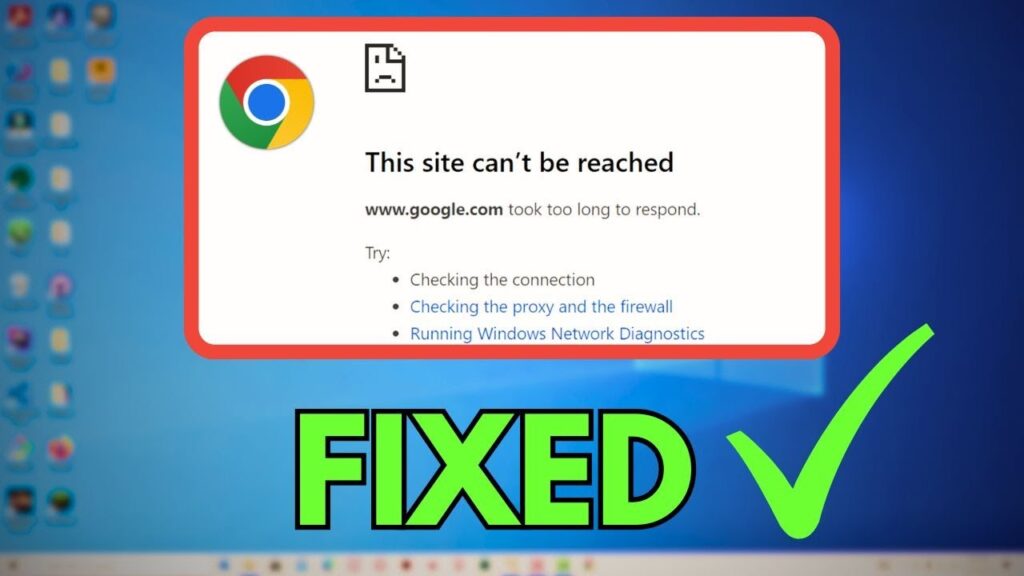
Few things interrupt your browsing faster than opening a tab, typing in a URL, and getting hit with “This site can’t be reached.” It’s one of the most common errors in Google Chrome, and it can show up for dozens of different reasons everything from a typo in the address bar to a misconfigured router, an expired DNS cache, or even a full-blown internet outage on your ISP’s end.
The good news is that this error is almost always fixable, and in most cases you don’t need any technical expertise to solve it. This guide walks through every practical cause of the error and gives you a clear, step-by-step troubleshooting path starting with the simplest fixes and working toward more advanced solutions.
What Does “This Site Can’t Be Reached” Actually Mean?
When Chrome shows this message, it means your browser sent a request to load a webpage but never got a valid response back. The specific error code that appears below the main message (like DNS_PROBE_FINISHED_NXDOMAIN, ERR_CONNECTION_TIMED_OUT, or ERR_CONNECTION_REFUSED) tells you exactly where the process broke down. Understanding these codes helps you skip straight to the fix that matters instead of trying everything at once.
Here are the most common variations you’ll encounter:
- DNS_PROBE_FINISHED_NXDOMAIN Chrome couldn’t translate the website’s domain name into an IP address. Usually a DNS issue or a typo in the URL.
- ERR_CONNECTION_TIMED_OUT The server took too long to respond. Could be your network, the website’s server, or something blocking the connection in between.
- ERR_CONNECTION_REFUSED The server actively rejected the connection request.
- ERR_INTERNET_DISCONNECTED Your device has no active internet connection at all.
- ERR_NAME_NOT_RESOLVED Similar to the DNS error; Chrome can’t resolve the site’s address.
- ERR_ADDRESS_UNREACHABLE The destination address exists but can’t currently be reached, often due to firewall or routing issues.
Knowing which of these appears on your screen will save you time, but if you’re not sure, the general troubleshooting steps below will fix the vast majority of cases regardless of the exact code.
Step 1: Check the URL for Typos
It sounds almost too simple, but a mistyped web address is one of the most frequent causes of this error. Double-check that:
- The domain is spelled correctly (e.g., “exmaple.com” instead of “example.com”)
- You haven’t accidentally included extra spaces or characters
- The protocol is correct most sites now require
https://rather thanhttp:// - You’re not missing a dot or using the wrong extension (
.comvs.net, for example)
If you’re not sure of the correct URL, try searching for the site’s name directly in Google instead of typing the address manually.
Step 2: Confirm Your Internet Connection Is Working
Before diving into Chrome-specific fixes, rule out a basic connectivity problem:
- Try loading a different website. If nothing loads, the issue is likely with your network, not Chrome or the specific site.
- Check whether other devices on the same Wi-Fi network can access the internet.
- Look at your Wi-Fi icon or network settings to confirm you’re actually connected to a network (not just “connected” with no internet access).
- If you’re on Wi-Fi, try switching to a wired Ethernet connection temporarily, or vice versa, to isolate the issue.
If your entire network is down, restart your router and modem: unplug them for about 30 seconds, then plug them back in and wait for them to fully reconnect. This resolves a surprising number of connectivity issues because it clears temporary glitches in your router’s memory and forces it to re-establish a fresh connection with your ISP.
Step 3: Restart Your Router and Modem
Even if your connection seems to be working elsewhere, a soft reset of your networking hardware is worth doing early in the process because it fixes so many underlying issues at once outdated IP leases, DNS resolution problems, and minor firmware glitches included.
To do this properly:
- Unplug both your modem and router from power.
- Wait at least 30 seconds this ensures any residual charge clears and cached settings reset.
- Plug the modem back in first and wait for its lights to stabilize (usually 1–2 minutes).
- Plug the router back in and wait for it to fully boot and reconnect.
- Try loading the website again in Chrome.
Step 4: Clear Your DNS Cache
Chrome and your operating system both cache DNS information to speed up future page loads, but that cache can become outdated or corrupted, which triggers “site can’t be reached” errors even when the website itself is working fine for everyone else.
Clear Chrome’s internal DNS cache:
- Open a new tab in Chrome.
- Go to
chrome://net-internals/#dns. - Click Clear host cache.
Flush your system’s DNS cache (Windows):
- Open Command Prompt as an administrator.
- Type
ipconfig /flushdnsand press Enter. - Restart Chrome and try the site again.
Flush your system’s DNS cache (Mac):
- Open Terminal.
- Type
sudo dscacheutil -flushcache; sudo killall -HUP mDNSResponderand press Enter. - Enter your password if prompted.
- Restart Chrome and try again.

Step 5: Try a Different DNS Server
Sometimes the DNS server provided by your ISP is slow, overloaded, or temporarily malfunctioning. Switching to a public DNS server like Google DNS or Cloudflare DNS often resolves persistent DNS-related errors.
To change your DNS server on Windows:
- Open Control Panel > Network and Internet > Network and Sharing Center.
- Click your active connection, then Properties.
- Select Internet Protocol Version 4 (TCP/IPv4) and click Properties.
- Choose Use the following DNS server addresses and enter:
- Preferred DNS:
8.8.8.8(Google) or1.1.1.1(Cloudflare) - Alternate DNS:
8.8.4.4(Google) or1.0.0.1(Cloudflare)
- Preferred DNS:
- Click OK and restart your browser.
To change your DNS server on Mac:
- Go to System Settings > Network.
- Select your active connection and click Details (or Advanced).
- Go to the DNS tab and add
8.8.8.8and1.1.1.1as DNS servers. - Apply changes and restart Chrome.
Step 6: Disable VPN, Proxy, or Firewall Software Temporarily
VPNs, proxies, and overly aggressive firewall or antivirus software can all interfere with Chrome’s ability to reach certain sites, especially if their servers are misconfigured or blocking specific IP ranges.
- Temporarily disable your VPN and try loading the site again.
- Check Chrome’s proxy settings by going to
chrome://settings> System > Open your computer’s proxy settings, and make sure “Use a proxy server” is turned off unless you intentionally rely on one. - Temporarily disable third-party antivirus or firewall software to see if it’s the source of the block. If disabling it fixes the issue, check its settings for a website blocklist or overly strict web-shield feature.
Step 7: Clear Chrome’s Cache and Cookies
A corrupted cache or a problematic cookie tied to a specific site can also trigger connection errors, especially if the error only happens on that one site.
- Click the three-dot menu in Chrome and go to Settings.
- Navigate to Privacy and security > Clear browsing data.
- Select Cached images and files and Cookies and other site data.
- Choose a time range (or “All time” for a full clear).
- Click Clear data and restart Chrome.
Step 8: Check Chrome Extensions
Browser extensions especially ad blockers, VPN extensions, or privacy tools can sometimes interfere with normal page loading and trigger connection errors on specific sites.
- Go to
chrome://extensions. - Toggle off all extensions.
- Try reloading the site.
- If it works, re-enable extensions one at a time to identify which one is causing the conflict.
Step 9: Reset Chrome’s Network Settings
If the problem seems tied specifically to Chrome rather than your whole system, resetting Chrome’s network stack can help.
- Go to
chrome://net-internals/#sockets. - Click Flush socket pools.
- Restart Chrome and test the site again.
You can also try resetting Chrome to its default settings entirely:
- Go to Settings > Reset settings > Restore settings to their original defaults.
- Confirm the reset. Note this will disable extensions and clear some customizations, so use it as a later-stage step.
Step 10: Check the Website’s Status
Sometimes the problem isn’t on your end at all — the website itself might be down for everyone. Use a third-party service like “Down for Everyone or Just Me” or search for the site’s name plus “down” on social media to see if others are reporting the same issue. If the site is genuinely down, there’s nothing to fix on your side — you’ll just need to wait.
Step 11: Check for Firewall or Hosts File Interference
On rare occasions, entries in your computer’s hosts file can block or redirect specific domains, causing this error only for particular sites.
On Windows:
- Open Notepad as an administrator.
- Open the file at
C:\Windows\System32\drivers\etc\hosts. - Look for any lines referencing the site you’re trying to access and remove them if they seem incorrect or unfamiliar.
On Mac:
- Open Terminal.
- Type
sudo nano /etc/hostsand enter your password. - Review the file for suspicious entries related to the site in question.
Only edit this file if you’re comfortable doing so, and always back up the original before making changes.
Step 12: Restart Your Device
It’s an obvious step, but a full restart clears temporary memory issues, resets network adapters, and closes background processes that might be silently interfering with your connection. If you’ve tried everything above and the error persists, a reboot is worth doing before moving to more advanced troubleshooting or contacting your ISP.
When to Contact Your Internet Service Provider
If you’ve worked through every step above and the issue persists across multiple websites, multiple devices, and multiple browsers, the problem is likely on your ISP’s end. Contact their support line and mention that you’re seeing consistent connection timeouts or DNS failures this helps them diagnose the issue faster than a general “internet isn’t working” report.
Final Thoughts
The “This site can’t be reached” error is frustrating, but it’s rarely mysterious once you understand what’s actually happening behind the scenes. Start with the simplest explanations a typo, a connectivity hiccup, or a stale DNS cache — before moving into router resets, DNS server changes, and Chrome-specific fixes. Working through these steps in order will resolve the vast majority of cases without needing any outside help.
Frequently Asked Questions
Why does Chrome show “This site can’t be reached” for only one website? If the error is isolated to a single site, the cause is usually specific to that domain a DNS resolution issue, a problem with the site’s own server, a hosts file entry, or a browser extension interfering with that particular page. Try clearing your DNS cache and testing the site in an incognito window first.
Why does this error happen on every website I try to visit? When every site fails to load, the issue is almost always broader than Chrome itself check your overall internet connection, restart your router and modem, and confirm other devices on your network can get online.
Does clearing my cache actually help fix this error? Yes, in many cases. A corrupted cache or outdated cached DNS record can cause Chrome to look for a site at the wrong address or fail to load resources correctly, and clearing it forces Chrome to fetch fresh data.
Is this error caused by my browser or my internet connection? It can be either. DNS-related error codes and connection timeouts often point to your network or ISP, while errors isolated to specific sites in Chrome (but not other browsers) point toward a browser-specific issue like cache, extensions, or settings.
Should I reinstall Chrome to fix this error? Reinstalling Chrome is rarely necessary and should be a last resort. Resetting Chrome’s settings or flushing its network sockets solves the vast majority of Chrome-specific causes without needing a full reinstall.
Can a VPN cause this error? Yes. VPNs route your traffic through different servers, and if that server is slow, blocked, or misconfigured, it can prevent certain sites from loading properly. Disabling your VPN temporarily is a quick way to test this.
What does DNS_PROBE_FINISHED_NXDOMAIN mean specifically? It means Chrome tried to resolve the domain name into an IP address and failed, often because the domain doesn’t exist, was mistyped, or your DNS server couldn’t complete the lookup.
Will switching to Google DNS or Cloudflare DNS fix connection errors permanently? It won’t fix every cause of the error, but it does resolve many DNS-specific issues, especially if your ISP’s default DNS servers are slow or unreliable. It’s a low-risk change worth making if you experience frequent DNS errors.
Why does the error happen only on Chrome but not other browsers? This usually points to something specific to Chrome’s configuration a corrupted cache, a conflicting extension, incorrect proxy settings, or outdated Chrome network internals rather than a problem with your internet connection itself.
How do I know if the problem is on the website’s end rather than mine? Use a third-party outage-checking tool or search social media for other users reporting the same site being down. If multiple independent sources confirm the outage, the issue isn’t something you can fix from your device.
