
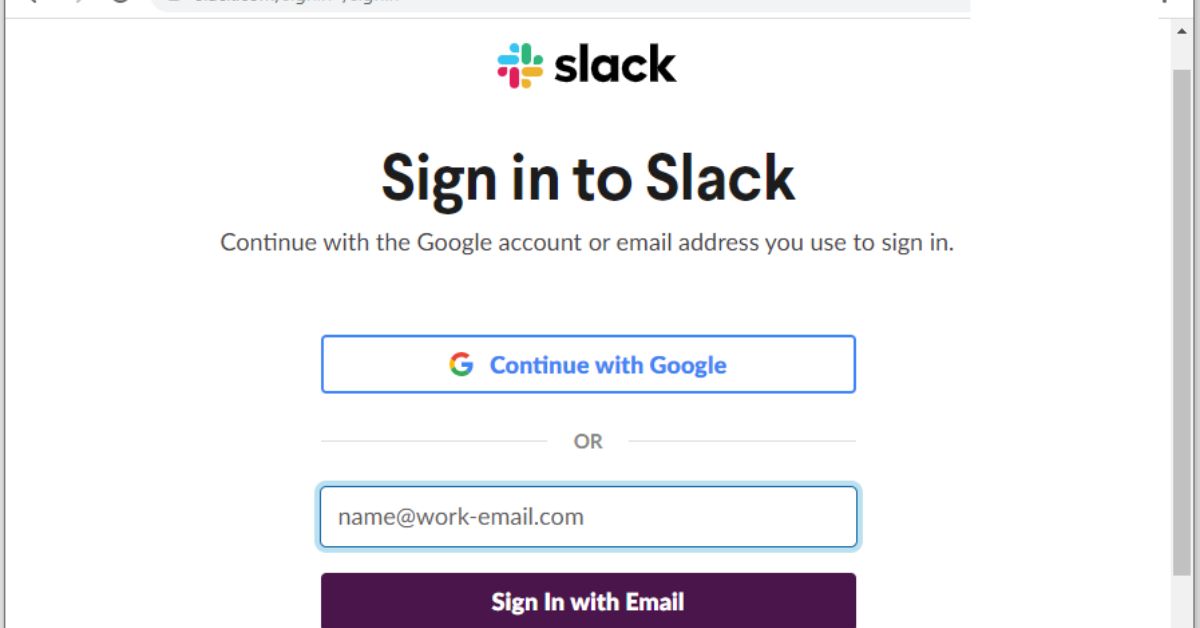
The most popular platforms is Slack, a powerful communication and productivity hub that connects teams across the globe. One of the very first steps to using Slack effectively is understanding the Slack login process. While this may seem like a simple action, it actually serves as the gateway to unlocking Slack’s many features such as channels, file sharing, integrations, and real-time messaging.
In this article I will provide a complete guide to Slack login, covering everything from the basics of signing in to advanced troubleshooting. By the end of this article, I hope you will have a complete understanding of the Slack login process.
What is Slack?
Before diving into the login process, it is important to understand what Slack is and why it matters. Slack is a cloud-based platform designed to simplify workplace communication. It eliminates the need for long email threads by allowing users to communicate in dedicated channels. These channels can be organized by team, project, department, or even topic of interest.
Slack supports text messaging, audio calls, video meetings, and screen sharing. It also integrates with popular apps like Google Drive, Dropbox, Zoom, Trello, and countless others. The login process is central to accessing all these features because it ensures that only authorized users can enter their workspace.
Why Slack Login is Important ?
Logging in is more than just an entry point. It plays a key role in data security, personalization, and productivity.
-
Security: Every Slack workspace is private. Login credentials prevent unauthorized access.
-
Customization: After logging in, users can set preferences such as notifications, themes, and profile details.
-
Integration: A successful login allows users to connect apps, bots, and tools to streamline workflows.
-
Continuity: Slack login ensures that conversations and files remain in sync across multiple devices such as mobile, desktop, and web.
Slack Login Methods
Slack offers several ways to log in, depending on your device and the type of account you are using. Below are the most common methods.
1. Slack Login via Web Browser
Slack can be accessed through any major web browser such as Google Chrome, Mozilla Firefox, Safari, or Microsoft Edge.
Steps:
-
Open your browser and go to slack.com.
-
Click on Sign In at the top right corner.
-
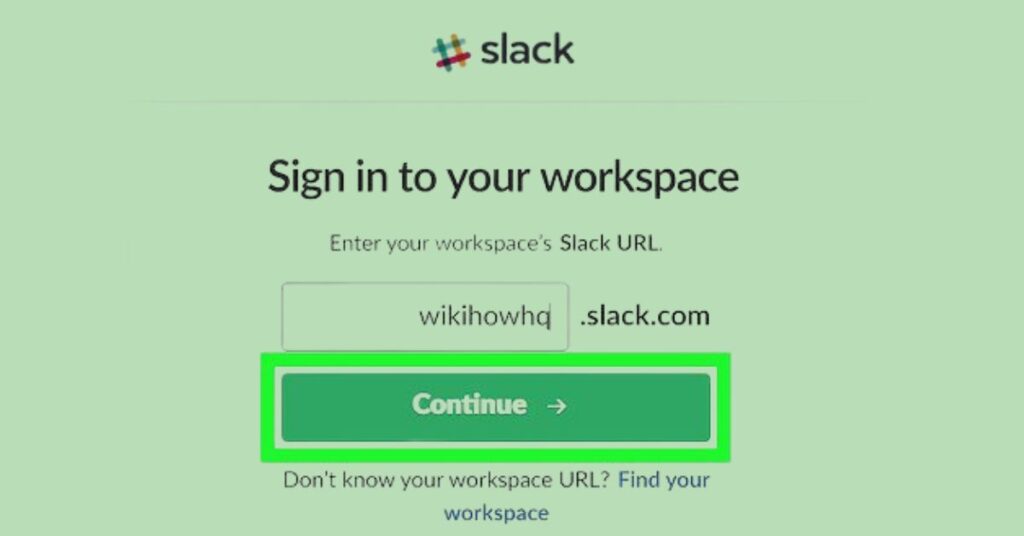
Enter your workspace URL or email address associated with your Slack account.
-
If your workspace uses Single Sign-On (SSO), you will be redirected to your organization’s login portal.
-
Once verified, you will be logged in to your Slack workspace.
2. Slack Login via Desktop App
Slack offers dedicated desktop applications for both Windows and macOS.
Steps:
-
Download and install the Slack app from the official Slack website.
-
Launch the app and click Sign In.
-
Enter your workspace name or email address.
-
Complete the verification process either by password or SSO.
-
You will be taken directly into your workspace.
3. Slack Login via Mobile App
For users on the go, Slack’s mobile app is available on both Android and iOS devices.
Steps:
-
Download the Slack app from Google Play Store or Apple App Store.
-
Open the app and tap Sign In.
-
Enter your email address or select your workspace.
-
Follow the instructions to verify your identity.
-
Once logged in, you can use Slack just as you would on a desktop.
4. Slack Login via Single Sign-On (SSO)
Organizations that prioritize security often use SSO. This allows employees to log in to Slack using their existing company credentials.
Steps:
-
Click Sign In with SSO.
-
Enter your company’s domain or select your organization.
-
Authenticate using your corporate login details.
-
Access Slack without creating a separate Slack-specific password.
How to Log in to Multiple Workspaces ?
Many professionals belong to more than one Slack workspace. For example, a freelancer might have different workspaces for each client. Slack makes it easy to log in to multiple accounts.
Steps:
-
Open Slack in your browser or app.
-
Click Add Workspaces.
-
Enter the email associated with the new workspace.
-
Complete the login steps.
-
You can now switch between workspaces easily without logging out.
Troubleshooting Slack Login Issues
Sometimes, login issues may arise due to forgotten passwords, expired sessions, or network errors. Here are solutions for common problems.
1. Forgotten Password
If you forget your password, click on Forgot Password at the login screen. Slack will send you a password reset link via email. Follow the instructions to create a new password and log in again.
2. Incorrect Workspace URL
Many users confuse workspace URLs. If you cannot remember yours, visit slack.com/signin and enter your email. Slack will display all workspaces linked to that email.
3. Two-Factor Authentication (2FA) Problems
If your workspace requires 2FA, you will need to enter a code from your authentication app or SMS. If you lose access, you must contact your workspace administrator for help.
4. SSO Errors
If you face errors during Single Sign-On, the issue might be with your organization’s authentication system. Contact your IT team for assistance.
5. App Cache Issues
Sometimes the Slack app may store corrupted cache. Clear cache or reinstall the app to resolve login problems.
Tips for a Smooth Slack Login Experience
-
Save Login Credentials: Use a password manager to store your Slack details securely.
-
Enable Two-Factor Authentication: This adds an extra layer of security.
-
Keep Apps Updated: Always update your Slack app to the latest version to avoid bugs.
-
Bookmark Workspace URL: Save your workspace link for quick access.
-
Use Remember Me: On personal devices, check the Remember Me option for quicker login.
Security Features in Slack Login
Slack is widely used by companies, which means security is a top priority.
-
Encrypted Login: Slack uses secure HTTPS encryption for all logins.
-
Two-Factor Authentication: Ensures that even if your password is stolen, the hacker cannot log in without the second code.
-
Enterprise Key Management: Available for enterprise clients, allowing control over encryption keys.
-
Session Management: Users can see all active sessions and log out remotely if needed.
Slack Login for Administrators
Workspace administrators have additional responsibilities when it comes to login management.
-
Managing Member Access: Admins can invite, remove, or suspend members.
-
SSO Integration: Admins set up and enforce Single Sign-On for employees.
-
Password Policies: Admins can define password requirements.
-
Two-Factor Authentication Enforcement: Admins can make 2FA mandatory.
-
Audit Logs: Admins can track login activity for security purposes.
Slack Login Across Devices
One of Slack’s biggest advantages is its cross-platform availability. Once logged in on multiple devices, your conversations remain synchronized.
-
On Desktop: Best for heavy usage, long meetings, and multitasking.
-
On Mobile: Ideal for notifications, quick replies, and staying connected while traveling.
-
On Browser: Useful for quick access when you do not want to install an app.
All devices remain in sync, ensuring you never miss an important update.
Conclusion
Slack login may appear to be a small step, but it is the key that unlocks an entire world of productivity and collaboration. Whether you are using the web, desktop, or mobile app, understanding the login process ensures that you can access your workspace efficiently and securely. From resetting passwords to enabling two-factor authentication, Slack provides tools that keep both individuals and organizations safe. By following the tips and troubleshooting steps provided in this guide, you can eliminate common login frustrations and focus on what truly matters seamless communication with your team. Slack is more than just a messaging app. It is a digital headquarters, and the login is your front door. Make sure you open it wisely.
Frequently Asked Questions
Do I need a workspace URL to log in?
Yes, unless you use email login, in which case Slack shows all workspaces linked to your account.
Can I log in to Slack without internet?
No, Slack requires an active internet connection.
How do I switch between multiple accounts?
You can add multiple workspaces and switch between them without logging out.
Can I log in with Google?
Yes, if your workspace has Google authentication enabled.
What if I cannot access my two-factor authentication code?
Contact your administrator or use backup codes.
