
In today’s connected world, knowing your IP address is not just a technical curiosity — it’s a necessity for online privacy, troubleshooting, and security. One of the simplest yet most comprehensive tools for checking your IP address and related network information is Whoer.net.
In this guide, we’ll explore what Whoer IP is, why you might want to check your IP address, and provide a detailed, step-by-step walkthrough on using the Whoer IP tool. We’ll also discuss interpretation of results, privacy tips, and advanced uses to help you get the most out of it.
1. Understanding the Basics: What is an IP Address?
1.1 Definition
An IP (Internet Protocol) address is a unique number assigned to your device when it connects to the internet. It works like a digital street address, helping data packets know where to go.
Example:
-
IPv4 address:
192.168.0.101 -
IPv6 address:
2001:0db8:85a3:0000:0000:8a2e:0370:7334
1.2 Types of IP Addresses
-
Public IP – The address visible to the internet, assigned by your ISP (Internet Service Provider).
-
Private IP – Used within your local network (e.g., your home Wi-Fi).
-
Dynamic IP – Changes periodically, often assigned automatically by your ISP.
-
Static IP – Remains constant until manually changed.
1.3 Why You Might Need to Check Your IP
-
To verify if a VPN is working correctly.
-
To troubleshoot internet issues.
-
To check if your IP has been blacklisted.
-
To confirm your geolocation data.
-
For online security and anonymity verification.
2. What is Whoer.net and Whoer IP Tool?
Whoer.net is a web-based service that provides:
-
IP address detection.
-
Geolocation details.
-
ISP information.
-
Browser and device fingerprinting data.
-
Speed and ping tests.
The Whoer IP tool is a specialized part of the site that instantly displays:
-
Your public IP address.
-
Location (city, region, country).
-
Internet provider (ISP) name.
-
An anonymity score indicating your privacy status.
3. Benefits of Using Whoer IP
3.1 No Installation Required
You don’t need to download any software — it works directly in your web browser.
3.2 Comprehensive Details
Beyond just your IP, Whoer shows DNS, proxy, and VPN detection.
3.3 Free to Use
The basic IP check is free and unlimited.
3.4 Useful for VPN Users
You can confirm if your VPN is masking your real IP effectively.
3.5 Multi-Platform Support
It works on Windows, Mac, Linux, Android, and iOS devices.
4. Step-by-Step Guide: How to Use Whoer IP to Check Your IP Address
Step 1: Open Your Web Browser
You can use Google Chrome, Firefox, Edge, Safari, or any modern browser.
Step 2: Visit Whoer.net
-
In the address bar, type:
https://whoer.net/ -
Press Enter.
Step 3: Access the IP Check Tool
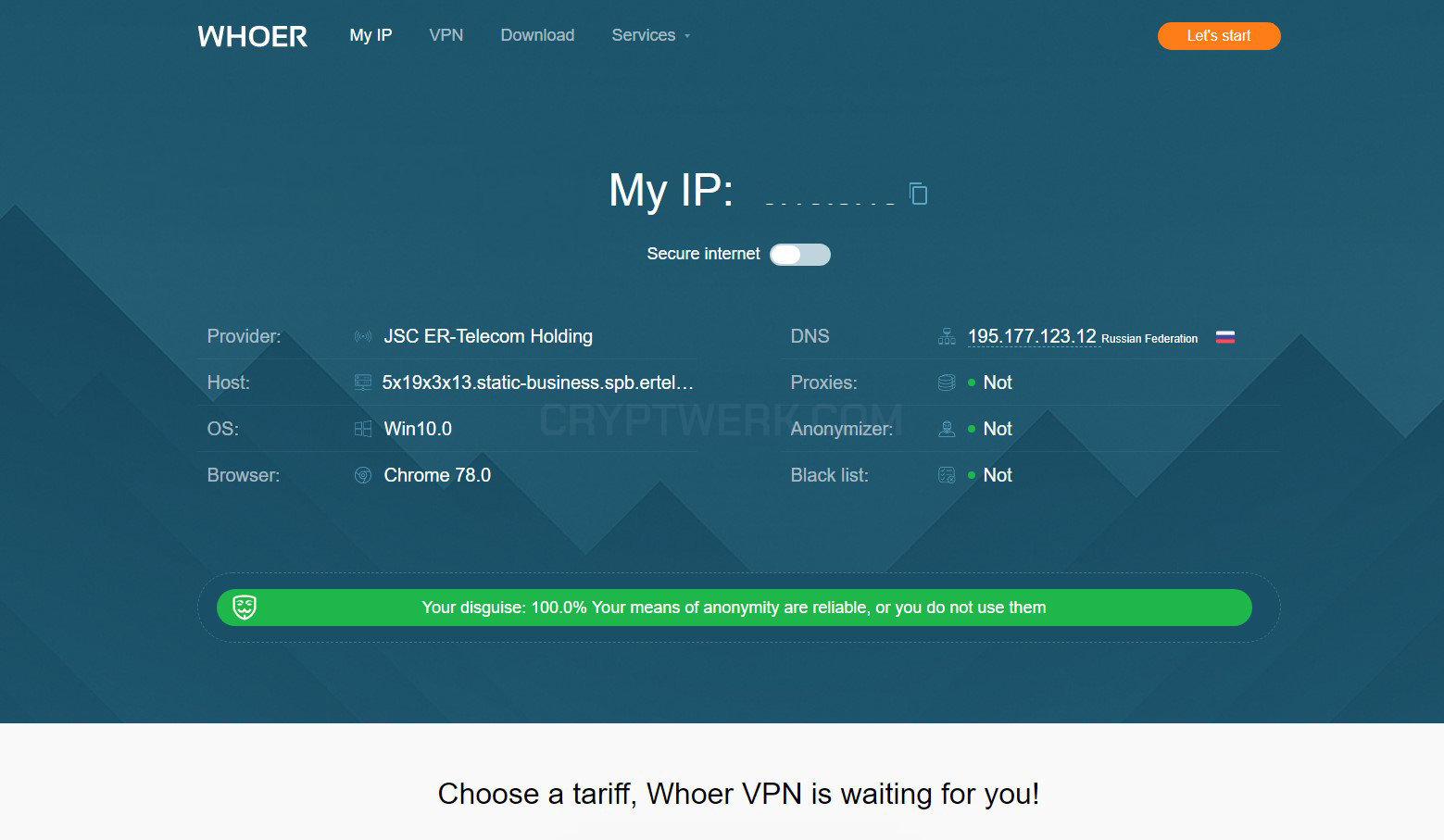
The homepage automatically displays your IP information. No need to click anything — the IP check runs instantly.
Step 4: View Your Public IP
You will see:
-
Your IP address in large numbers.
-
Location details (city, region, country).
-
ISP name.
Example:
IP Address: 103.45.78.22
Location: Karachi, Pakistan
ISP: PTCL
Step 5: Check Anonymity Score
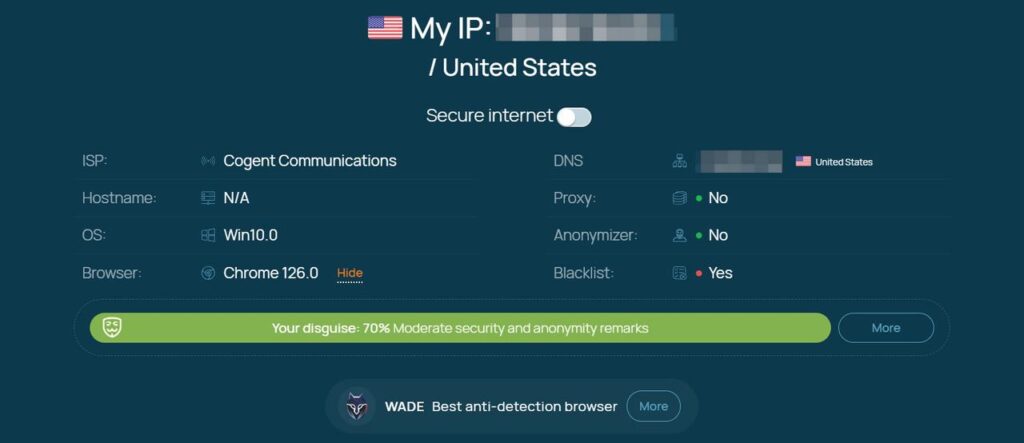
Whoer provides an anonymity percentage showing how hidden you are online.
-
0–50% = Low anonymity (easily tracked).
-
50–80% = Medium anonymity.
-
80–100% = High anonymity (VPN/Proxy working well).
Step 6: Verify VPN or Proxy
If you are using a VPN:
-
The location should match your chosen VPN server.
-
Your ISP should display the VPN provider’s name, not your actual ISP.
5. Interpreting Whoer IP Results
5.1 Location Accuracy
Whoer uses IP geolocation databases. The city may not be 100% accurate, but the country usually is.
5.2 ISP Information
If the ISP shown is your actual provider and not your VPN provider, your VPN might not be working.
5.3 DNS & Proxy Detection
Whoer shows if your DNS requests or proxy connections are leaking your real location.
6. Advanced Features in Whoer.net
6.1 Speed Test
Measures:
-
Download speed.
-
Upload speed.
-
Ping (latency).
6.2 Ping Test
Checks connectivity to multiple global servers.
6.3 WHOIS Lookup
Finds ownership and registration details of a specific IP or domain.
6.4 Browser Fingerprint Analysis
Shows:
-
Browser version.
-
Screen resolution.
-
Installed plugins.
-
Time zone.
7. Privacy Tips When Using Whoer IP
-
Always use HTTPS to ensure a secure connection.
-
Combine with VPN to hide your real IP.
-
Clear browser cookies to reduce tracking.
-
Disable WebRTC in browser settings to prevent IP leaks.
8. Troubleshooting Common Issues
8.1 Whoer Shows Your Real IP Despite VPN
-
Switch VPN servers.
-
Enable the VPN’s “Kill Switch” option.
-
Disable WebRTC.
8.2 Location Not Matching VPN
-
Try a different VPN protocol (e.g., OpenVPN, WireGuard).
-
