
Is your PC lagging? Revive it with these 15 expert-tested tweaks from quick settings to deep optimizations.
Why Windows 11 Slows Down (And How to Fix It)
The Problem
Even the best-optimized PCs can slow down over time. Bloatware, startup clutter, outdated drivers, and hidden system settings can cripple performance. Windows 11’s advanced features, like VBS and virtual machine platform, can also consume resources unnecessarily . This guide cuts through the noise with 15 proven methods to restore your PC’s speed .
Why It Matters in 2025–2026
With the Windows 11 24H2 update and the rise of AI-powered features, system demands have evolved. Users report that new installations can be slow if not configured correctly . Moreover, with remote work and hybrid setups, a laggy PC means lost productivity and frustration. These fixes are tailored for the latest updates, ensuring compatibility and maximum impact .
Who This Page Is For
Home Users • Gamers • Remote Workers • IT Professionals • Students • Seniors – Anyone frustrated by a sluggish PC, from beginners needing simple steps to power users seeking deep registry tweaks and advanced optimizations .
Top 6 Quick Wins to Fix Slow Windows 11 ⚙️
1. Restart Regularly
The oldest trick in the book. Restarting clears memory, ends background processes, and installs pending updates. Aim for at least once a week .
2. Free Up Disk Space
Use Storage Sense (Settings > System > Storage) to automatically delete temporary files, old downloads, and empty the recycle bin .
3. Uninstall Bloatware
Remove pre-installed apps you never use. Go to Settings > Apps > Installed apps, sort by size, and uninstall any unnecessary software .
4. Disable Startup Programs
Open Task Manager (Ctrl+Shift+Esc) > Startup apps. Disable any program you don’t need immediately after boot, like Spotify or Adobe Updater .
5. Update Drivers
Outdated drivers, especially graphics and chipset drivers, can cause major slowdowns. Check Windows Update or visit your manufacturer’s website (NVIDIA, Intel, AMD) .
6. Install Windows Updates
Microsoft constantly releases performance fixes and security patches. Go to Settings > Windows Update and check for updates .
What You’ll Achieve with These Fixes 🌟
✅ Faster Boot Times
Reduce startup from minutes to seconds. Disabling startup apps and optimizing services can cut boot time by 50% or more .
✅ Smoother Multitasking
Free up RAM and CPU cycles. Switch between 20+ browser tabs and apps without lag or stuttering .
✅ Extended PC Lifespan
Optimizing your system reduces wear and tear, potentially delaying the need for a costly upgrade by years .
The Complete 15 Proven Methods (Step-by-Step) 📝
Run a Full Malware Scan
Hidden malware is a common cause of slowdowns. Use Windows Security (or a trusted third-party like Malwarebytes) to perform a full scan .
Adjust for Best Performance
Go to Settings > System > About > Advanced system settings > Performance Settings. Choose “Adjust for best performance” to disable all visual effects .
Disable Virtual Machine Platform (VMP)
If you don’t use WSL or Hyper-V, go to Windows Features and disable “Virtual Machine Platform.” It can consume significant resources in the background .
Turn Off VBS (Virtualization-Based Security)
VBS can reduce performance by up to 25%, especially on older PCs. Search for “Core Isolation” in Windows Security and turn off “Memory Integrity” to disable it .
Run Disk Cleanup
Search for “Disk Cleanup” in the Start menu, select your system drive, and clean up temporary files, system cache, and previous Windows installations .
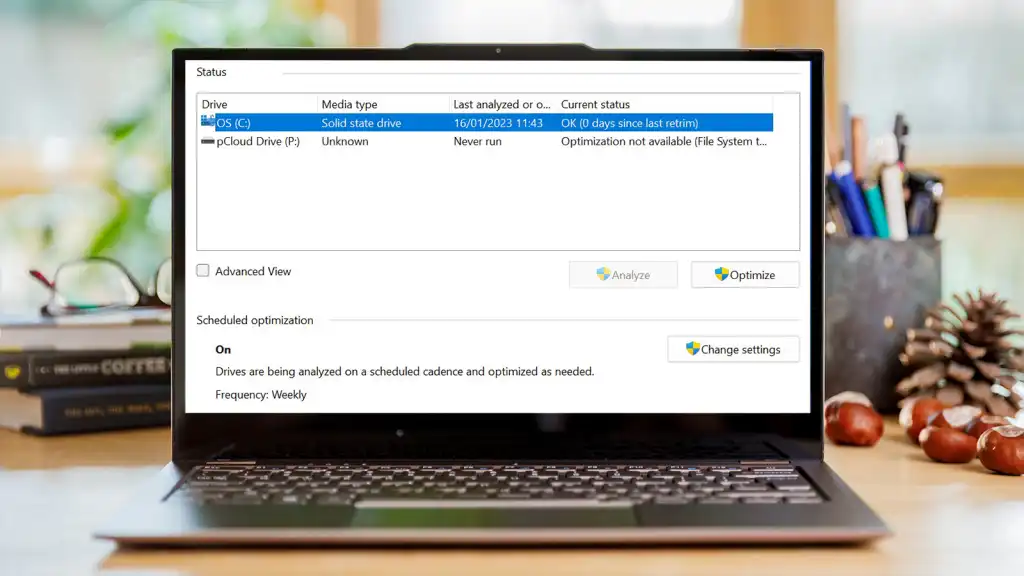
Defragment Your Hard Drive (HDD Only)
If you still use an HDD, search for “Defragment and Optimize Drives” and optimize your drive. Do not defrag an SSD; it can shorten its lifespan.
Change Power Settings to High Performance
Go to Control Panel > Hardware and Sound > Power Options and select “High performance.” This ensures your CPU runs at full speed .
Disable Search Indexing
If search is slow, go to Settings > Privacy & security > Searching Windows and exclude folders you don’t need indexed (like large media folders) .
Limit Background Apps
Go to Settings > Apps > Installed apps, click the three dots on any app, and select “Advanced options” to restrict its background activity .
Check for Firmware/BIOS Updates
Manufacturers release BIOS updates that can improve system stability and performance. Check your PC manufacturer’s support site .
Run System File Checker (SFC)
Open Command Prompt as admin and run sfc /scannow. This repairs corrupted system files that could cause slowdowns .
Use the Performance Monitor
Open Resource Monitor (search for it). Check which apps are hogging CPU, memory, or disk. Use this info to target specific problematic software .
Turn Off “Fast Startup”
Ironically, Fast Startup can sometimes cause slow boot times. Go to Control Panel > Power Options > Choose what the power buttons do > Turn on fast startup (disable) .
Reset This PC
If all else fails, a clean slate works wonders. Go to Settings > System > Recovery > Reset PC. Choose “Keep my files” to avoid losing personal data .
Upgrade Your Hardware
If software tweaks aren’t enough, consider adding more RAM (16GB recommended) or switching to an SSD if you haven’t already .
Quick Fix vs. Deep Tune-Up: Which Do You Need? ⚖️
✅ Quick Wins (Methods 1-6)
- ✔️ Time: 5-10 minutes each .
- ✔️ Best For: Sudden slowdowns, daily maintenance .
- ✔️ Risk: Zero. Safe for all users .
- ✔️ Effect: Can improve speed by 20-30% .
✅ Deep Tune-Up (Methods 7-15)
- ✔️ Time: 30-60 minutes total .
- ✔️ Best For: Persistent lag, aging PCs .
- ✔️ Risk: Low. Follow instructions carefully .
- ✔️ Effect: Can extend PC life by years .
Ready to Supercharge Your PC?
Start with the quick wins today and feel the difference. Your faster, smoother Windows 11 experience is just a few clicks away.
Frequently Asked Questions ❓
1. Why is my Windows 11 PC suddenly so slow?
Common culprits include a recent Windows update, too many startup programs, background apps, low disk space, or even malware .
2. What is VBS and should I turn it off?
VBS (Virtualization-Based Security) is a security feature that can hurt performance, especially on older PCs. If you don’t need it, turning it off can boost speed by up to 25% .
3. How do I know if my PC is overheating?
Use tools like HWMonitor. If your CPU temps are consistently above 90°C, thermal throttling may be slowing you down. Clean your fans and vents .
4. Is it safe to disable all visual effects?
Yes. It makes Windows look more like classic Windows, but it significantly reduces the load on your GPU, making everything feel snappier .
5. How often should I restart my PC?
At least once a week. This clears temporary memory and ensures updates are properly installed .
6. What’s the difference between an HDD and an SSD?
An SSD is significantly faster. Upgrading from an HDD to an SSD is the single best performance upgrade you can make for an old PC .
7. Will resetting my PC delete my files?
No, if you choose “Keep my files.” It will remove apps and settings but keep your personal documents. Always back up first, though .
8. How much RAM does Windows 11 need to run smoothly?
While the minimum is 4GB, 8GB is recommended for basic tasks. For gaming and heavy multitasking, 16GB or 32GB is ideal .
9. Are free antivirus programs good enough?
Windows Security (built-in) is excellent and free. It’s often better than many paid options and won’t slow down your PC with bloat .
10. Why is my SSD slower than expected?
Check if TRIM is enabled (it usually is). Also, ensure your SSD isn’t near full capacity (keep at least 10-20% free) for optimal performance .
For IT Professionals & Advanced Users 👨💻
Need to optimize multiple machines? Dive into group policy edits, PowerShell scripts, and deployment toolkit strategies.
Your PC, Reborn: The Final Word 🏁
A slow Windows 11 PC isn’t a life sentence. With the 15 proven methods in this guide, you have a complete toolkit to diagnose and fix almost any performance issue. From the simplest restart to the more advanced tweaks like disabling VBS or resetting your PC, each step is designed to bring back the speed and responsiveness you deserve .
Remember, the best fix often depends on your specific hardware and usage. Start with the quick wins and work your way through. Your PC will thank you .
“I tried the VBS fix and my PC felt like new. Thank you!” — Sarah K., Satisfied Reader
Your faster Windows 11 is just a click away.
