
That sinking feeling when you accidentally delete an important file, or your hard drive suddenly stops responding, is something almost everyone has experienced at least once. Maybe it was a folder of family photos, a half-finished project, or an entire USB drive that just stopped showing up. The panic that follows is real and so is the temptation to download the first “free data recovery software” that pops up in a search.
The good news is that free data recovery tools have genuinely gotten better over the years, and in 2026 there are several solid, trustworthy options that can actually bring back lost files without costing anything upfront. The catch is that “free” usually comes with limits a capped amount of recoverable data, fewer advanced features, or platform restrictions. This article breaks down what actually works, what to realistically expect from free tools, and how to give yourself the best possible chance of getting your files back.
Why Free Data Recovery Tools Exist (And Why They’re Not a Trick)
It’s fair to be a little suspicious of anything free, especially in software. But free data recovery tools generally work on a straightforward business model: they let you scan your device and preview recoverable files at no cost, then charge for the full recovery, or cap how much data you can restore for free before asking you to upgrade.
This actually works out well for users in a practical sense. It means you can test whether a tool can even find your lost files before spending a single rupee or dollar something that wasn’t always possible with older recovery software that charged upfront regardless of whether it actually found anything useful.
The One Rule That Matters More Than Which Software You Pick
Before getting into specific tools, there’s one piece of advice that matters more than almost anything else: stop using the device immediately after you realize something is missing, and if possible, install the recovery software on a different device rather than the one you’re trying to recover from.
Here’s why this matters so much. When a file gets deleted, it usually isn’t actually erased right away the space it occupied just gets marked as available for new data. If you keep using that same drive, there’s a real risk that new files will overwrite the exact space where your deleted file still technically exists, making recovery much harder or sometimes impossible. Installing the recovery tool onto the same drive you’re trying to recover data from can itself accidentally overwrite the very files you’re trying to save. This single habit stop, don’t write anything new, and recover from a separate device when possible does more for your chances of success than any specific software choice.
What to Actually Look For in a Free Tool
Not all free recovery software is created equal, and a few features consistently separate the genuinely useful tools from the frustrating ones.
Preview before recovery is one of the most important. Good tools let you see exactly what they’ve found file names, thumbnails, file types before you commit to recovering anything, so you’re not wasting your limited free recovery quota on files you don’t actually need back.
Broad device and file-type support matters too. The best free tools can scan not just your main hard drive, but external drives, USB sticks, SD cards, and sometimes even mobile devices, and they can recognize a wide range of file types documents, photos, videos, audio, and archive formats rather than just one or two categories.
A clear, honest free-tier limit is a good sign of a trustworthy tool. The most reputable options are upfront about exactly how much data you can recover for free (often measured in gigabytes) rather than hiding the limit until you’re partway through the process.
Deep scan capability, sometimes called a “raw” or “signature” scan, is important for more serious data loss situations, like formatted drives or lost partitions, since a quick scan alone often can’t find everything in those cases.

The Tools That Actually Deliver in 2026
Based on how these tools are currently reviewed and used, here’s an honest breakdown of what’s actually worth trying.
Disk Drill consistently comes up as one of the most well-rounded free options available right now. It covers a very wide range of data loss situations and file types photos, videos, audio, documents, and archive formats while staying genuinely approachable for people who aren’t tech experts. It works across both Windows and Mac, which makes it a solid first choice for most everyday users dealing with accidentally deleted files, formatted drives, or corrupted storage devices.
EaseUS Data Recovery Wizard Free is another strong, beginner-friendly pick, known for a clean interface and AI-assisted scanning that digs through hard drives, SD cards, and USB devices to locate hard-to-find files. On Windows, the free version typically allows recovery of a set amount of data (commonly around 2GB) before requiring an upgrade, while the Mac version tends to be more limited, often restricted to previewing files rather than fully recovering them for free. It’s a solid option if your data loss is relatively small and recent.
Stellar Data Recovery Free is a versatile option that handles files lost through accidental deletion or formatting, supporting recovery of documents, photos, videos, and emails across hard drives, SSDs, USB drives, and memory cards. It’s a good fit for straightforward, everyday recovery needs without requiring much technical know-how.
R-Studio is a different kind of tool altogether built more for IT professionals and power users who don’t mind a less polished interface in exchange for serious capability. It supports an unusually wide range of operating systems and file systems, including older Windows versions, Linux, and macOS, making it a strong choice for more complex or unusual recovery situations that beginner-friendly tools might struggle with.
Matching the Tool to Your Actual Situation
Rather than assuming one “best” tool fits every case, it helps to think about what you’re actually dealing with.
If you’ve lost a small number of recently deleted files like an accidentally deleted folder of photos or a document you emptied from the recycle bin a beginner-friendly tool with a generous preview feature, like Disk Drill or EaseUS, is usually more than enough, and you may not even need to use up your full free quota.
If you’re dealing with a formatted drive, a lost partition, or a drive that’s behaving unusually (not showing up properly, throwing errors, or requiring repair), you’ll likely need a tool with strong deep-scan capability, since a basic quick scan often won’t find everything in these more serious situations.
If you’re technically comfortable and dealing with a more complex file system, an older operating system, or a business-related recovery need, a more advanced tool like R-Studio may be worth the steeper learning curve, since it offers capabilities that simpler consumer tools don’t.
Realistic Limits of Free Recovery Software
It’s worth being honest about where free tools fall short, so expectations stay realistic. Free versions almost always come with a data recovery cap commonly somewhere between 500MB and a few gigabytes which is usually enough for a handful of important files, but not for restoring an entire drive’s worth of lost data. Mac versions of many popular tools tend to be more restricted than their Windows counterparts, sometimes limited to previewing files rather than fully recovering them without payment.
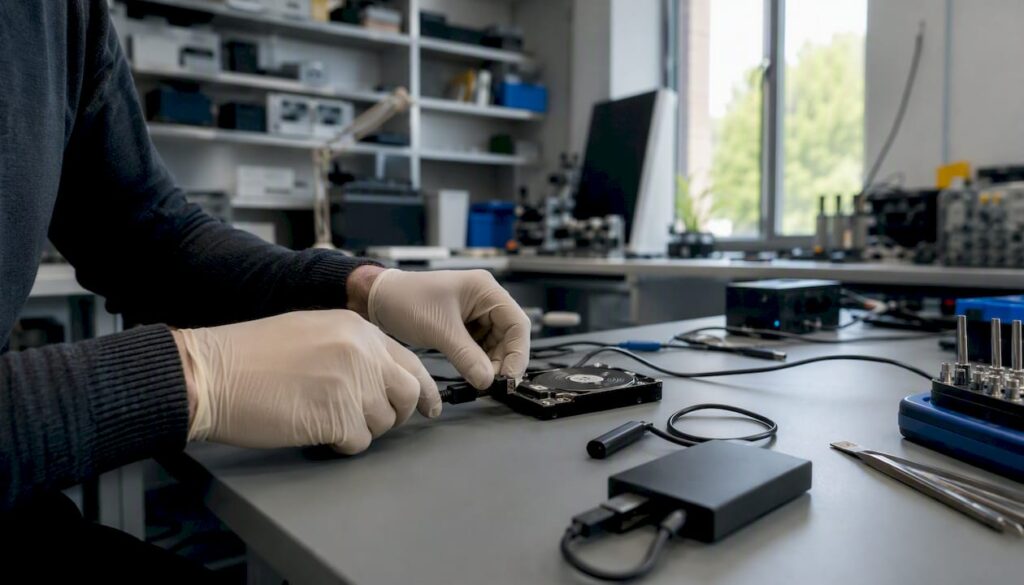
Free tools also generally lack some of the more advanced features found in paid versions, like priority technical support, advanced deep-scan algorithms for severely damaged drives, or the ability to create a bootable recovery drive for a computer that won’t start up at all. For most everyday data loss situations accidental deletion, a quick format, a corrupted memory card free tools are genuinely capable. For serious physical drive damage or business-critical recovery needs, professional data recovery services or paid software with stronger support may be worth the investment.
A Word of Caution: Not Every “Free” Tool Is Trustworthy
With so many recovery tools available, it’s worth being cautious about where you download from. Stick to software from established, well-reviewed providers, and download directly from the official website rather than third-party download aggregators, which sometimes bundle unwanted software or outdated, unsafe versions of legitimate tools. If a “free” recovery tool asks for unusual permissions, wants payment information before you’ve even tested it, or seems to promise unlimited recovery with absolutely no restrictions at all, treat that as a red flag rather than a bonus.
A Simple Step-by-Step Approach
If you’re dealing with lost data right now, here’s a practical order to follow: stop using the affected device immediately to avoid overwriting anything, download a reputable recovery tool onto a different device if at all possible, run a scan and use the preview feature to confirm your actual files are recoverable before committing to anything, recover the essential files first if you’re limited by a free-tier data cap, and once your important files are safely recovered, set up a proper backup system (cloud storage, an external drive, or both) so you’re not starting from scratch the next time something goes wrong.
The Bottom Line
Free data recovery software in 2026 has genuinely come a long way, and tools like Disk Drill, EaseUS Data Recovery Wizard, Stellar Data Recovery, and R-Studio each offer real, usable recovery capability without requiring payment upfront. The key is matching the tool to your actual situation, acting quickly and carefully once you notice something’s missing, and being realistic about what a free tier can and can’t do. For most everyday accidents a deleted photo folder, a formatted USB drive, an accidentally emptied recycle bin a good free tool is often all you’ll need.
FAQs
Q1: Can free data recovery software really get back permanently deleted files? In many cases, yes. When a file is deleted, the space it occupied is usually just marked as available rather than immediately erased, so recovery is often possible as long as that space hasn’t been overwritten by new data. The key is acting quickly and avoiding further use of the affected device before running a recovery scan.
Q2: Why do free versions of data recovery software have a data limit? Most recovery software companies use free versions to let users test whether the tool can actually find their lost files before committing to a paid upgrade for full recovery. The cap (often a few gigabytes) is usually enough for a handful of important files, but not for restoring an entire drive.
Q3: Should I install recovery software on the same drive I’m trying to recover data from? No, this is generally not recommended. Installing new software onto the same drive can write new data over the exact space where your deleted files still exist, reducing your chances of successful recovery. Installing the tool on a separate device, and connecting the affected drive externally if possible, is the safer approach.
Q4: What’s the difference between a quick scan and a deep scan? A quick scan looks for recently deleted files using leftover file system information, and it’s usually fast but limited. A deep (or “raw”) scan searches the storage device at a more thorough level, which can recover files even from formatted or more seriously damaged drives, though it typically takes significantly longer to complete.
Q5: When should I stop trying free software and use a professional data recovery service instead? If your device has suffered physical damage, makes unusual clicking or grinding noises, or free software scans aren’t finding your files at all, it’s a good sign the situation may be beyond what consumer-grade software can safely handle, and a professional recovery service would be a safer next step than repeated recovery attempts.
