
If your PC lags in games even though you bought a strong graphics card, you are not alone. Many people spend a lot of money on a new GPU and still get low FPS or sudden stutters. In most cases the problem is a bottleneck, which means one part of your computer is slowing down the others.
In this guide, you will learn what a bottleneck is, how a bottleneck calculator works, and how you can check your CPU and GPU performance yourself. We will use simple words and easy steps, so even a beginner can follow along.
What Is a Bottleneck?
Think of a bottle with a narrow neck. You can pour water into it very fast, but the water only comes out as fast as the neck allows. The narrow neck is the “bottleneck.”
Your PC works in a similar way. The CPU (processor) prepares the instructions and data for each frame in a game. The GPU (graphics card) then draws that frame on your screen. These two parts must work together. If one of them is much slower than the other, the faster part has to wait. That waiting is a bottleneck.
For example:
- If your CPU is old and slow, it cannot send frames to a powerful GPU fast enough. The GPU sits idle and waits. This is a CPU bottleneck.
- If your GPU is weak and your CPU is strong, the CPU finishes its work early and waits for the GPU. This is a GPU bottleneck.
Here is an important point: some bottleneck always exists. No PC is perfectly balanced in every game and every setting. The goal is not to remove every bottleneck. The goal is to keep it small enough that you get smooth performance.
What Is a Bottleneck Calculator?
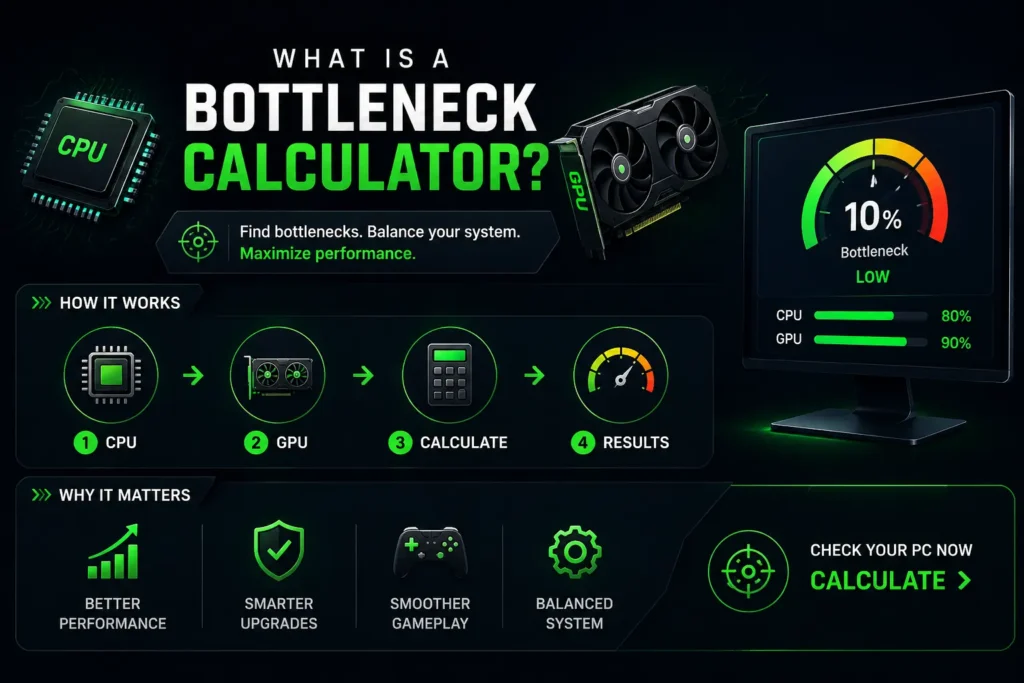
A bottleneck calculator is an online tool. You choose your CPU and your GPU from a list, and sometimes you also choose your screen resolution and the type of work you do (gaming, video editing, and so on). The tool then shows a percentage that tells you how much one part may be holding back the other.
For example, a calculator might say, “Your CPU may bottleneck your GPU by 12%.” Many people like these tools because they are fast, free, and need no technical skills.
How These Calculators Work
Most calculators use a database of CPU and GPU benchmark scores. A benchmark is a test that measures how fast a part can work. The calculator compares the two scores and estimates how well they match. If the CPU score is far lower than the GPU score, it reports a CPU bottleneck. If the GPU score is lower, it reports a GPU bottleneck.
Why You Should Not Trust a Calculator 100%
Bottleneck calculators are useful for a quick idea, but they have clear limits. You should treat the result as a rough guide, not as a fact.
- They cannot test your real PC. A calculator does not know your RAM speed, your cooling, your background programs, or your drivers.
- Every game is different. Some games need a strong CPU, such as strategy games and big open-world games. Other games need a strong GPU, such as games with heavy graphics. One percentage cannot cover all of them.
- Resolution changes everything. At 1080p, the CPU often matters more. At 1440p and 4K, the GPU usually becomes the main limit.
- Their data can be old. New parts come out all the time, and a calculator may not have fresh data.
So, use a calculator as a starting point. Then confirm the result with real tests on your own computer. We will show you how below.
Signs of a CPU Bottleneck
Your CPU may be holding back your GPU if you notice these signs:
- Low GPU usage while gaming. If your GPU stays at 50% to 70% usage and your FPS is still low, the GPU is waiting for the CPU.
- High CPU usage. One or more CPU cores stay near 90% to 100% during the game.
- Stutters and sudden FPS drops. This often happens in busy scenes with many characters, cars, or effects.
- FPS does not improve when you lower graphics settings. If you reduce the graphics quality and your FPS stays the same, the CPU is probably the limit.
Signs of a GPU Bottleneck
Your GPU may be the weak point if you notice these signs:
- GPU usage stays at 95% to 100%. This is actually normal and healthy in many games. It shows that the GPU is working at full power.
- CPU usage is moderate or low. The CPU finishes its work early and waits.
- FPS rises when you lower graphics settings or resolution. This is a clear sign that the GPU is the limit.
A GPU bottleneck is usually easier to live with. If your GPU is at 99% and the game runs smoothly, nothing is wrong. You simply use all the power you paid for.
How to Check CPU and GPU Usage on Windows
You do not need paid software to check your performance. Here are three easy ways.
Method 1: Windows Task Manager
This is the simplest method, and it is already on your PC.
- Press Ctrl + Shift + Esc to open Task Manager.
- Click the Performance tab.
- Select CPU to see your processor usage. Select GPU to see your graphics card usage.
- Start your game, then use Alt + Tab to open Task Manager while the game runs, and look at the numbers.
Task Manager is good for a quick check. However, it does not show live numbers on top of your game screen.
Method 2: MSI Afterburner with RivaTuner
MSI Afterburner is a free and popular tool. When combined with RivaTuner Statistics Server (which usually comes with it), it can show an on-screen display while you play. You can see:
- CPU usage and temperature
- GPU usage and temperature
- FPS
- RAM and VRAM usage
This is very helpful because you see what happens in real time, right inside the game.
Method 3: Built-in Game and Driver Overlays
Many systems already include a performance overlay. NVIDIA, AMD, and Intel graphics software, as well as the Xbox Game Bar in Windows (press Windows + G), can show FPS and usage. Many games also have a built-in FPS counter in their settings. These options are easy to turn on and do not need extra downloads.
Step-by-Step Test to Find Your Bottleneck
Now let us put everything together. Follow these steps to find out whether your CPU or GPU is the problem.
Step 1: Close extra programs. Close your browser, downloads, and other apps. Background programs can use CPU power and give you wrong results.
Step 2: Turn on a monitoring tool. Use MSI Afterburner or the Windows overlay to show CPU usage, GPU usage, and FPS.
Step 3: Play a demanding game for 10 to 15 minutes. Choose a game that you normally play, and play in a busy area. Do not test only in a menu or an empty room.
Step 4: Watch the numbers.
- GPU near 95%–100% and FPS acceptable: your GPU is working fully. This is fine.
- GPU much lower than 90% and one CPU core or total CPU near 100%: you likely have a CPU bottleneck.
- Both CPU and GPU are low but the game still stutters: the problem may be RAM, storage, drivers, or the game itself.
Step 5: Change one setting and test again. Lower the resolution or graphics quality. If FPS increases a lot, the GPU was the limit. If FPS stays almost the same, the CPU is the limit.
Step 6: Test more than one game. A PC may behave very differently in different games. Testing two or three games gives a more honest picture.
Resolution and Bottlenecks
Your screen resolution has a big effect on the balance between CPU and GPU.
- 1080p: The GPU draws frames quickly, so the CPU has to work hard to keep up. CPU bottlenecks are more common here, especially with a high-end GPU.
- 1440p: This is often a good middle point. The load is shared more evenly.
- 4K: The GPU has a lot of pixels to draw, so it is almost always the main limit. Even an average CPU can often keep up.
This is why a calculator that ignores resolution can give a misleading answer. The same CPU and GPU pair can look “bad” at 1080p and “perfect” at 4K.
How to Fix a Bottleneck
Once you know where the problem is, you can take action. Not every fix costs money.
Free or Low-Cost Fixes
- Update your drivers. New GPU drivers often improve performance and fix bugs.
- Close background apps. Less background work means more CPU power for your game.
- Change the Windows power plan. Use “Balanced” or “High performance” so your CPU does not slow itself down.
- Adjust in-game settings. To reduce a CPU bottleneck, lower settings that use the CPU a lot, such as crowd density, view distance, and physics. To reduce a GPU bottleneck, lower resolution, shadows, and anti-aliasing.
- Improve cooling. A hot CPU or GPU slows itself down to stay safe. Clean the dust from fans and make sure air can flow through your case.
- Turn on XMP or EXPO for your RAM. Many RAM kits run at a slower speed by default. Enabling the rated speed in the BIOS can improve performance, especially on some processors.
- Use an SSD. Games installed on a solid-state drive load faster and often stutter less than on an old hard drive.
Upgrade Fixes
If settings are not enough, you may need to upgrade hardware.
- CPU bottleneck: Upgrade the processor. Check that the new CPU works with your motherboard first. You may need to update the BIOS, or even change the motherboard.
- GPU bottleneck: Upgrade the graphics card. Make sure your power supply is strong enough and that the card fits inside your case.
- RAM: If you have only 8 GB, moving to 16 GB or 32 GB can help in modern games.
Before you buy anything, search for real benchmark tests of the exact parts you plan to use. Reviews from trusted tech sites and video channels show real game results, which are more reliable than a calculator’s percentage.
Common Myths About Bottlenecks
Myth 1: “A bottleneck means my PC is broken.” No. A bottleneck is just an imbalance. Your PC still works correctly.
Myth 2: “I must have 0% bottleneck.” This is not possible. Even very expensive PCs have a limit somewhere.
Myth 3: “Any bottleneck above 10% is bad.” There is no magic number. If your games run smoothly at the quality you like, the bottleneck is not a problem for you.
Myth 4: “A faster GPU always means more FPS.” Not if your CPU cannot keep up. This is exactly why checking both parts matters.
Myth 5: “100% GPU usage is dangerous.” Not at all. In most games, full GPU usage just means the card is doing its job. Only high temperatures are a concern, so keep an eye on those.
Frequently Asked Questions
Is a bottleneck calculator accurate? It gives a rough idea, but it is not exact. Always confirm with real usage numbers from your own PC.
What is a good CPU and GPU balance? It depends on your resolution and the games you play. As a simple rule, at 1080p you want a CPU that is not far weaker than your GPU, and at 4K the GPU matters more.
Can RAM cause a bottleneck? Yes. Too little RAM or slow RAM can cause stutters and low FPS, even when your CPU and GPU are good.
Can I fix a bottleneck without buying new parts? Often yes. Updating drivers, improving cooling, enabling XMP or EXPO, and changing game settings can help a lot.
Do bottlenecks matter for work like video editing? Yes, but differently. Many editing and rendering tasks use the CPU heavily, while others use the GPU. Check your usage while you work, the same way you do in games.
Final Thoughts
A bottleneck calculator is a handy first step. It can quickly show whether your CPU and GPU look like a good match on paper. But real performance depends on many things: the game, your resolution, your RAM, your cooling, and your settings.
The best way to understand your PC is to watch it while it runs. Use Task Manager or MSI Afterburner, play your favorite games, and look at CPU usage, GPU usage, and FPS. If your GPU is at high usage and your game runs smoothly, you are in good shape. If your GPU is low and your CPU is maxed out, you have found your bottleneck, and now you know how to fix it.
Remember, the goal is not a perfect score on a calculator. The goal is a smooth, enjoyable experience on the PC you already own. Test, learn, and upgrade only when you really need to.
