
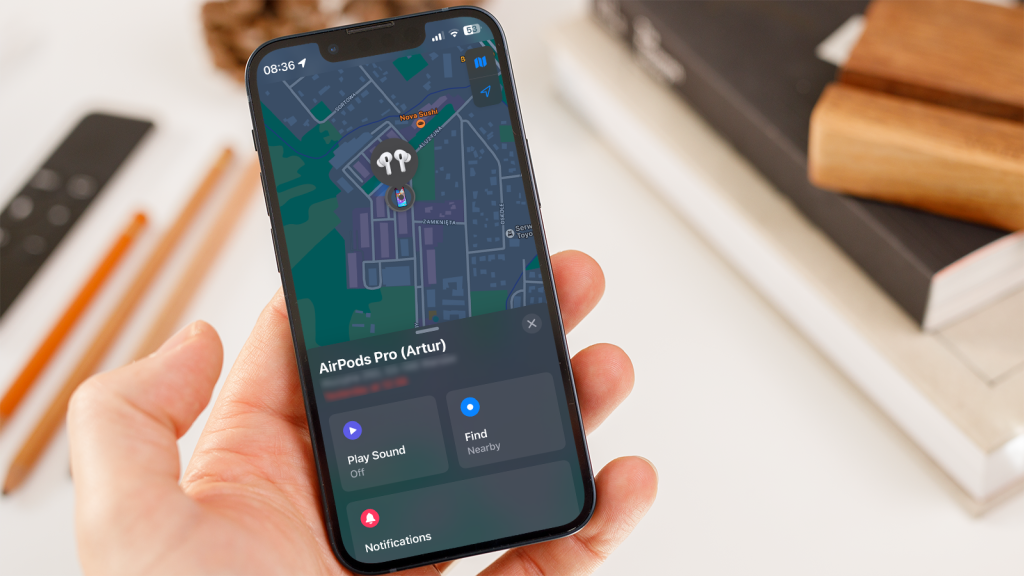
That moment when you pat your pockets and realize your phone isn’t there is genuinely stressful, and it only gets worse the longer it takes to figure out where it went. The good news is that Android has built-in tools specifically designed for exactly this situation, and if you’ve set things up correctly ahead of time, locating a lost or stolen phone is usually a matter of minutes, not hours.
This guide walks through every step of tracking a lost Android phone, from the built-in Google tools most people already have access to, to what to do if those tools aren’t working, and how to make sure you’re better prepared if it happens again.
Before You Start: What You’ll Need
To track a lost Android phone, a few things need to already be true, ideally set up before the phone ever goes missing:
- The phone must be signed into a Google account
- Location services must have been turned on at the time the phone went missing
- “Find My Device” must be enabled in the phone’s settings
- The phone needs an internet connection (Wi-Fi or mobile data) to report its location
If all of these were active, you’re in good shape. If you’re not sure, don’t worry the first step below will tell you fairly quickly whether tracking is going to work.
Step 1: Go to Google’s Find My Device
The fastest way to start tracking a lost Android phone is through Google’s Find My Device tool, accessible from any web browser or another device.
- On a computer, tablet, or another phone, go to android.com/find or open the Find My Device app if it’s installed on a secondary device.
- Sign in with the same Google account that’s used on the lost phone.
- Once signed in, Find My Device will display a map showing the phone’s last known location, along with its battery level and connection status.
If the phone is online, the map updates in real time as long as you keep the page open. If it’s offline, you’ll see its last reported location along with a timestamp for when that location was recorded.
Step 2: Use the Available Remote Actions
Once you’ve located the phone, Find My Device gives you a few practical options depending on the situation:
Play Sound This makes the phone ring at full volume for five minutes, even if it’s set to silent or vibrate. This is the fastest way to find a phone that’s simply misplaced somewhere nearby, like under a couch cushion or in a bag.
Secure Device This remotely locks the phone with your PIN, pattern, or password (if one isn’t already set) and displays a custom message and contact number on the lock screen useful if you’re hoping an honest stranger who finds it will reach out.
Erase Device This performs a full factory reset, permanently removing all data from the phone. This should be a last resort, used only if you’re confident the phone is stolen and unlikely to be recovered, since it also disables Find My Device’s ability to continue tracking the phone afterward.
It’s worth noting that once you erase a device, you lose the ability to locate it further, since the tracking service itself gets wiped in the process. If there’s still a reasonable chance of recovery, it’s usually better to lock the phone first and hold off on erasing it.
Step 3: Check for a Recent Location if the Phone Is Offline
If the phone appears offline or the battery has died, Find My Device will still show its last known location before it lost connection, which is often enough to narrow down where it was left, even if it can’t be actively pinged anymore.
For newer Android phones with offline finding enabled, some devices can still be located even when powered off or disconnected from the internet, using Bluetooth signals detected by other nearby Android devices in Google’s crowdsourced network similar in concept to how Apple’s Find My network locates offline iPhones.
Step 4: Try Google Timeline for Historical Location Data
If Find My Device isn’t showing a useful result, checking your Google Timeline (previously known as Google Maps Timeline) can sometimes help reconstruct where the phone has been recently, based on historical location history tied to your Google account, assuming location history was enabled.
- Go to timeline.google.com and sign in with the same Google account
- Review the most recent locations recorded before the phone went missing
- Use this information alongside Find My Device’s live tracking to narrow down the search area
This step is more useful for reconstructing a timeline of where you’ve been than for real-time tracking, but it can help jog your memory about where the phone might have been left.
Step 5: Contact Your Carrier if the Phone Is Stolen
If you believe the phone was stolen rather than simply lost, contacting your mobile carrier is an important step beyond just using Find My Device.
- Call your carrier and report the phone as lost or stolen
- Ask them to suspend service on the line to prevent unauthorized calls, texts, or data usage
- Request that they blacklist the IMEI number, which prevents the phone from being reactivated on most networks, even if the SIM card is swapped out
You can typically find your phone’s IMEI number in your original purchase receipt, the phone’s original packaging, or in your carrier account if the device was registered under your plan.
Step 6: File a Police Report if the Phone Was Stolen
For stolen phones, especially if there’s a reasonable chance of recovery or if the phone contained sensitive personal or financial information, filing a police report is worth doing, even if recovery isn’t guaranteed.
- Provide the phone’s IMEI number and any location data from Find My Device
- Include the approximate time and location where the phone was last in your possession
- Keep the report number for insurance claims or carrier documentation, since many insurance providers require a police report to process a stolen device claim
What to Do If Find My Device Isn’t Working
Sometimes Find My Device won’t show a location, usually for one of a few common reasons:
- Location services were turned off at the time the phone was lost
- The phone is offline and doesn’t support offline finding
- The phone was signed out of the Google account, either by the finder or as part of a factory reset
- Find My Device wasn’t enabled in the phone’s settings before it went missing
If none of these tools return useful results, your best remaining options are contacting your carrier to suspend service and blacklist the IMEI, and filing a police report if theft is suspected.

How to Set Up Better Protection for Next Time
Once you’ve recovered your phone, or replaced it, it’s worth taking a few minutes to make sure you’re better prepared if this happens again:
- Confirm Find My Device is turned on: Settings > Security & privacy > Find My Device, and make sure it’s toggled on.
- Keep location services enabled, at least for essential apps, since Find My Device relies on it to report the phone’s location.
- Enable offline finding if your device supports it, so the phone can still be located via Bluetooth even without an internet connection.
- Set a lock screen with a PIN, pattern, or biometric lock, which makes the “Secure Device” feature far more effective if you ever need it.
- Note down your phone’s IMEI number somewhere safe, like a notes app on another device, so you’re not scrambling to find it during an already stressful moment.
Frequently Asked Questions
1. Can I track my Android phone if it’s turned off? Only if your phone supports offline finding via Bluetooth and it was enabled before the phone was lost. Otherwise, Find My Device will only show the phone’s last known location before it powered off or lost connectivity.
2. Does Find My Device work if the phone doesn’t have mobile data or Wi-Fi? Standard real-time tracking requires an internet connection, but phones with offline finding enabled can still be located using Bluetooth signals picked up by nearby Android devices, even without their own internet connection.
3. Can someone else use my phone if they don’t know my Google password? If Find My Device is enabled and you remotely secure or erase the device, it typically requires your Google account credentials to set the phone back up, which is designed to make a stolen phone significantly less useful to whoever has it.
4. What happens if I erase my phone remotely and then find it later? If you erase the device and later recover it, you can simply set it up again as you would a new phone using your Google account, but any data that wasn’t backed up beforehand will be permanently lost.
5. Is Find My Device the same as Find My iPhone? No, Find My Device is Google’s Android-specific tracking tool, while Find My iPhone (part of Apple’s broader Find My system) is Apple’s equivalent for iOS devices. The two are not compatible across platforms.
6. How accurate is the location shown by Find My Device? Accuracy depends on the phone’s connection type and available signals, but it typically ranges from a few meters using GPS and Wi-Fi to a broader estimated area if the phone is relying solely on cellular network triangulation.
7. Can I track a lost Android phone using someone else’s phone? Yes, you can sign into Find My Device using a web browser on any device, or install the Find My Device app on a friend or family member’s phone and sign in with your own Google account temporarily to locate your missing device.
Final Thoughts
Losing a phone is stressful, but Android’s built-in tracking tools make recovery genuinely possible in most cases, as long as Find My Device was enabled beforehand. Starting with Find My Device to locate and secure the phone, followed by contacting your carrier and filing a police report if theft is suspected, covers the most effective path to recovery. And once the immediate situation is resolved, taking a few minutes to confirm your settings are properly configured means you’ll be in a much stronger position if it ever happens again.
