

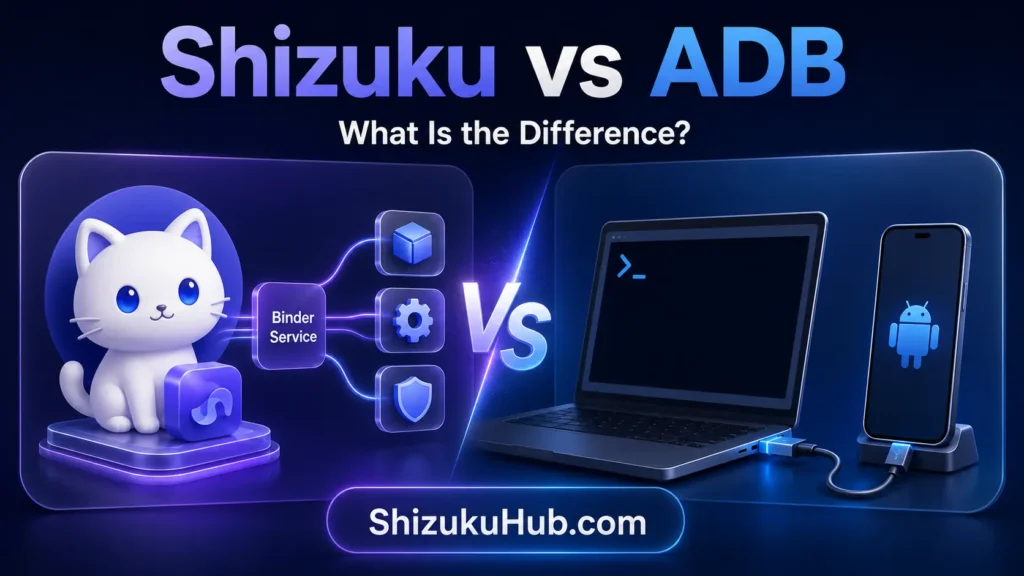
If you have ever searched for a way to give an Android app extra power without rooting your phone, you have probably seen two terms side by side: Shizuku and wireless ADB. Guides often mix them up, and many people wonder which one to use. The short answer is that they are not rivals. They are two parts of the same chain.
This guide explains what each one is, how they relate, how to set up Shizuku using wireless debugging without a computer, what usually goes wrong, and what safety rules to follow. It is written for regular Android users, so you do not need developer experience.
Quick Answer
Question |
Short answer |
|---|---|
Are Shizuku and wireless ADB competitors? |
No. Shizuku can use wireless debugging (ADB) as the way it gets started |
Do I need a PC? |
Not on Android 11 or newer, if you use wireless debugging |
Does it need root? |
No, unless you choose the root method |
Does it survive a reboot? |
Usually not. The wireless method must be repeated after each reboot |
Do I need Wi-Fi? |
Wireless debugging is tied to a Wi-Fi connection, so plan for that |
Is it risky? |
It can be, if you grant access to apps you do not trust |
What Is ADB?
ADB stands for Android Debug Bridge. It is a tool from Google that developers use to talk to an Android device. With ADB, a developer can install apps, read logs, and run commands that normal apps are not allowed to run. These commands run with a level of permission called shell access, which sits above a regular app but below root.
Traditionally you needed a computer and a USB cable. You turned on USB debugging, plugged the phone in, approved the computer, and typed commands.
What Is Wireless ADB (Wireless Debugging)?
Starting with Android 11, Google added Wireless debugging to Developer options. It lets a device connect to ADB over Wi-Fi instead of a cable. You pair the phone once using a pairing code and then connect without wires.
Two details matter for this guide:
- It needs a Wi-Fi connection that your phone is joined to.
- Android may turn wireless debugging off after a period of inactivity or when the network changes, so you sometimes have to switch it back on.
On its own, wireless ADB still normally expects a second device, such as a computer, to send the commands. That is where Shizuku comes in.
What Is Shizuku?
Shizuku is an open-source app that lets other apps use system-level features through a helper service. Instead of every app needing root, Shizuku starts one service with ADB-level (shell) permission. Apps that support Shizuku then ask it to do certain things for them, and you approve each app.
Think of it as a permission bridge. You start Shizuku once, then supported apps can use that elevated access for tasks such as managing app permissions, freezing apps, or changing certain system settings, depending on the app.
Important points:
- Shizuku itself is not a magic tool. It only gives apps shell-level access, not full root.
- Each app must be built to support Shizuku. It does nothing for apps that do not.
- You decide which apps get access, and you can revoke it.
Shizuku vs Wireless ADB: The Relationship
Here is the simplest way to understand it.
- ADB is the privilege and the channel.
- Wireless debugging is the Android feature that opens that channel over Wi-Fi.
- Shizuku is the app that uses the channel from the phone itself and then shares that access with other apps.
According to the official Shizuku user manual, there are three ways to start it:
- Root. For rooted devices.
- Wireless debugging. Needs Android 11 or above and does not need a computer. You enable Developer options and wireless debugging, pair Shizuku once with a pairing code, and start the service.
- Computer connection. For unrooted phones on Android 10 and below. You install Google’s Platform Tools on a PC, enable USB debugging, and run a start command.
So “wireless ADB without PC” is really the second method: your phone talks to itself through wireless debugging, and Shizuku handles the rest. No separate computer is required.
Comparison table
Feature |
Wireless ADB alone |
Shizuku with wireless debugging |
|---|---|---|
Purpose |
Developer channel to run commands |
Shares shell access with approved apps |
Needs a PC |
Usually yes, to send commands |
No, on Android 11+ |
Needs root |
No |
No |
Who uses it |
Developers, advanced users |
Everyday users of Shizuku-enabled apps |
Works on Android 10 or below |
Not wireless (USB only) |
Only with the computer method |
Survives reboot |
No |
Usually no; must restart the service |
Main risk |
Exposed debugging access |
Granting access to untrusted apps |
Before You Start: Checklist
- Your phone runs Android 11 or newer (for the no-PC method).
- You are connected to a Wi-Fi network you trust. Avoid public Wi-Fi.
- You have a screen lock (PIN or password) set up.
- You know which app you want to use with Shizuku. Do not install it just because it sounds powerful.
- You have downloaded Shizuku from a source you trust. Some guides note that the Play Store version has been outdated for long periods and recommend the official GitHub releases instead. Check the current situation before you install.
How to Set Up Shizuku Without a PC (Android 11+)
Menu names vary by brand, but the flow is the same.
Step 1: Turn on Developer options
Go to Settings > About phone and tap Build number seven times. Enter your lock screen code if asked. Developer options will appear in Settings, often under System.
Step 2: Turn on Wireless debugging
Open Developer options, find Wireless debugging, and switch it on. Confirm that you want to allow it on the current network.
Step 3: Open Shizuku and choose wireless debugging
Install and open Shizuku. In the “Start via Wireless debugging” section, follow the on-screen link to the pairing screen.
Step 4: Pair using the pairing code
In Developer options, open Wireless debugging and tap Pair device with pairing code. A six-digit code appears. Enter it in the Shizuku notification. Pairing is done once, not every time.
A common stumbling block: on some phones you must use split-screen or a floating window so the pairing dialog stays open while you type. If the dialog closes when you leave it, pairing fails.
Step 5: Start the service
Go back to Shizuku and tap Start. If it works, the app will show that Shizuku is running. If it fails, the manual suggests turning wireless debugging off and on again.
Step 6: Grant access to apps
Open a Shizuku-supported app. It will ask for permission. Approve only apps you trust and understand.
What Happens After You Reboot?
This is the part people dislike most. According to the Shizuku manual, the wireless debugging and computer methods must be repeated after every reboot because of Android system limits. Shizuku will not simply restart itself.
In practice, this means:
- After a reboot, connect to Wi-Fi, open Developer options, check that wireless debugging is on, and open Shizuku and tap Start.
- You do not need to pair again unless the pairing was reset.
- Root users have a smoother experience, but even there the manual notes startup can fail unless Shizuku is allowed to run in the background.
Android is also working on making wireless ADB more convenient. Android Authority reported that a recent Android Canary build turns wireless debugging back on automatically when your phone joins a trusted Wi-Fi network. That report described a test build, not a stable release, and the author said it was not yet clear how it would affect Shizuku. Do not count on it until it appears in your phone’s stable update.
Troubleshooting Common Problems
Shizuku is stuck on “waiting for service.” Turn Wireless debugging off and on again in Developer options, then return to Shizuku. In some guides, the service starts again within a few seconds and you do not need to pair again. If it still fails, confirm you have the latest Shizuku build.
Pairing code is rejected or the dialog disappears. Keep the pairing dialog visible by using split-screen or a floating window, and make sure you are on the same Wi-Fi network. Re-generate a fresh code if it times out.
Shizuku stops working after a while. Android or the phone maker may stop background apps. Allow Shizuku to run in the background and set battery usage to unrestricted. The manual also recommends keeping Developer options enabled.
It works on Wi-Fi but not on mobile data. Wireless debugging relies on a Wi-Fi connection, so this is expected.
Your phone brand blocks it. Many manufacturers change Android in ways that interrupt Shizuku. The official FAQ lists vendor-specific fixes for brands such as Xiaomi, Oppo, Huawei, and Sony. On GrapheneOS, the manual says “Secure app spawning” may need to be disabled.
Android version too old. On Android 10 and below, wireless debugging is not an option for this method. You would need the computer method, which does require a PC.
Safety and Privacy: Read This Before You Use It
Shizuku does not need root, but it still grants real power. A few rules keep you safe.
- Only grant access to apps you trust. An app with Shizuku access can do things normal apps cannot. Check the developer, reviews, and whether the project is open source.
- Use trusted Wi-Fi. Do not enable wireless debugging on public networks. Turn it off when you are done.
- Keep a screen lock. Debugging features should never be on a phone anyone can open.
- Review permissions regularly. Open Shizuku and remove apps you no longer use. If you also see random app stops, remember that aggressive battery settings are a common cause, and our Android battery draining fast troubleshooting guide explains how to tune them without breaking background apps.
- Avoid copy-and-paste commands you do not understand. Some online tutorials ask you to run commands that change system settings. If you cannot explain a command, do not run it.
- Download from official sources. Fake or modified APK files exist for popular tools. Use the project’s official page.
- Back up your data. A bad change to system settings can cause trouble, so keep a backup of important files.
Also remember that using debugging tools may affect warranty or banking and work-profile apps on some devices. Check your phone maker’s policy if that matters to you.
Who Should Use Shizuku, and Who Should Skip It?
Shizuku may suit you if you:
- like customizing Android and want finer control without rooting;
- use apps that clearly support Shizuku and explain what they do;
- are comfortable restarting a service after reboots;
- understand the safety trade-offs.
You may want to skip it if you:
- only need normal everyday phone features;
- often reboot or switch networks and dislike repeating setup;
- share your phone with others or children;
- are unsure about what a particular app will change.
Related Tips for a Safer Smartphone Setup
Getting more power from your phone also means being more careful about what you install and where it comes from. Mistakes happen when you change system settings, so know your safety net: our step-by-step guide on how to recover deleted files on Android is worth reading before you experiment, and it is a good reminder to back up first.
Frequently Asked Questions
Is Shizuku the same as ADB?
No. ADB is Google’s debugging tool and channel. Shizuku is an app that uses ADB-level (shell) permission and shares it with other approved apps.
Can I use Shizuku without a computer?
Yes, on Android 11 or newer using wireless debugging. On Android 10 and below, the manual describes a method that needs a computer.
Do I need root to use Shizuku?
No. Root is one startup option, but wireless debugging works on unrooted phones.
Why do I have to restart Shizuku after every reboot?
The official manual says the wireless debugging method must be repeated after each reboot because of Android system limitations.
Does wireless debugging work without Wi-Fi?
Wireless debugging relies on being connected to a Wi-Fi network, so plan to have Wi-Fi available when you start the service.
Is Shizuku safe?
The app is open source, and you control which apps get access. The risk comes from granting access to apps you do not trust or leaving debugging features on in unsafe conditions.
Which is better, Shizuku or wireless ADB?
They do different jobs. Use wireless ADB with a computer if you are a developer running commands yourself. Use Shizuku if you want supported apps on your phone to use that access without a PC.
Will Android make this easier in the future?
Possibly. A report on Android Canary builds describes wireless debugging turning on automatically on trusted Wi-Fi, but that was an early test and not a confirmed stable feature.
Final Thoughts
Shizuku and wireless ADB are not “versus” at all. Wireless debugging is the door, and Shizuku is the helper that walks through it so your apps can use the access. On Android 11 or newer, you can set this up without a computer in a few minutes: enable Developer options, turn on wireless debugging, pair once, and tap Start.
Just keep the limits in mind. You will need to restart the service after reboots, you need Wi-Fi, and every app you approve gets real power. Use trusted apps, trusted networks, and the official instructions for your phone. If you follow those habits, you get most of the benefits of advanced Android control without the cost and risk of rooting.
