
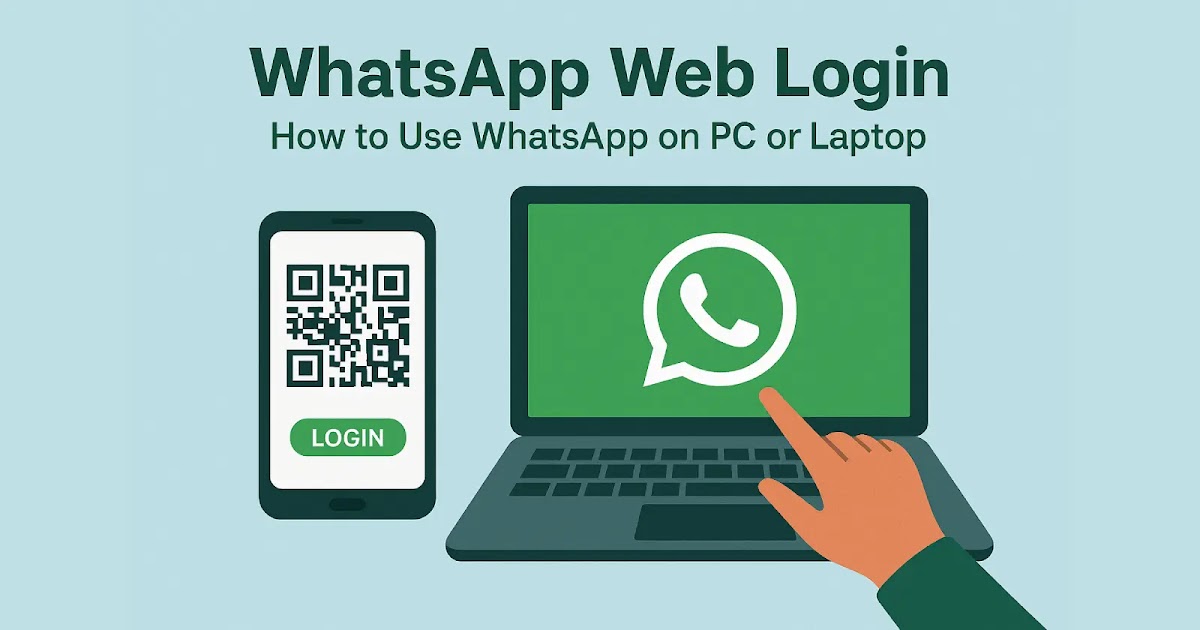
Remember the last time you were working on your laptop and your phone kept buzzing with WhatsApp messages? Constantly switching between devices breaks your workflow and kills productivity.
I’ve been there countless times. You’re in the middle of drafting an important email, and suddenly you need to send a document via WhatsApp. Picking up your phone, unlocking it, finding the chat, attaching the file it all adds up to wasted minutes throughout your day.
That’s exactly why WhatsApp Web login exists. It lets you access all your chats, send messages, share files, and make calls directly from your computer’s browser. No more juggling devices.
In this guide, I’ll walk you through everything about WhatsApp Web from logging in for the first time to troubleshooting common issues. Whether you’re a student, professional, or just someone who spends hours on their computer, this will change how you use WhatsApp.
What Is WhatsApp Web and How Does It Work?
WhatsApp Web is the browser-based version of the WhatsApp messaging app. It mirrors all your conversations from your phone to your computer screen in real-time.
Here’s the interesting part: WhatsApp Web doesn’t work independently. Your phone acts as the primary device and must stay connected to the internet. The web version simply displays what’s on your phone.
Think of it like casting your phone screen to your computer, but much more sophisticated. Messages sync instantly between devices, so you can start a conversation on your phone and continue it seamlessly on your laptop.
The service launched back in 2015, and it’s completely free. You don’t need to download any software—just open your browser and you’re good to go.
Why You Should Use WhatsApp Web Login
Using WhatsApp on your computer isn’t just convenient—it’s a game-changer for productivity.
Faster Typing and Multitasking
Typing on a full keyboard is significantly faster than tapping on a phone screen. When you’re having lengthy conversations or need to send detailed messages, the difference is remarkable.
I personally save at least 20-30 minutes daily by using WhatsApp Web instead of constantly reaching for my phone.
Easier File Sharing
Dragging and dropping files from your computer directly into WhatsApp chats is incredibly smooth. No need to transfer files to your phone first or email them to yourself.
This is especially useful for work documents, presentations, or high-resolution photos stored on your computer.
Better Screen Real Estate
Your computer monitor offers much more viewing space than your phone. You can see entire conversations at once, view images in larger sizes, and manage multiple chats side by side.
Reduced Phone Battery Drain
Since your computer handles the heavy lifting of displaying messages, your phone battery lasts longer throughout the day.
Professional Communication
Let’s be honest—pulling out your phone during meetings or work hours can look unprofessional. Using WhatsApp Web keeps you connected without the appearance of being distracted.
How to Access WhatsApp Web Login: Step-by-Step Guide
Getting started with WhatsApp Web is straightforward. Here’s exactly how to do it:
Step 1: Open Your Web Browser
Launch any modern browser on your computer. Chrome, Firefox, Safari, Edge—they all work perfectly fine.
Type web.whatsapp.com into the address bar and press Enter.
Step 2: Prepare Your Phone
Grab your smartphone and open the WhatsApp application. Make sure you’re connected to the internet via WiFi or mobile data.
Step 3: Access the QR Code Scanner
For iPhone users:
- Tap “Settings” at the bottom right
- Select “Linked Devices”
- Tap “Link a Device”
For Android users:
- Tap the three dots menu at the top right
- Select “Linked Devices”
- Tap “Link a Device”
Your phone camera will activate automatically.
Step 4: Scan the QR Code
Point your phone’s camera at the QR code displayed on your computer screen. Hold it steady for a second or two.
The phone will recognize the code automatically—no need to tap anything.
Step 5: Start Using WhatsApp Web
Within seconds, all your chats will load on your computer screen. You’re now connected and can start messaging immediately.
The interface is nearly identical to the mobile app, so there’s practically no learning curve.

Advanced Features of WhatsApp Web You Should Know
WhatsApp Web offers more functionality than most people realize. Here are features that many users miss:
Voice and Video Calls
Yes, you can make calls directly from WhatsApp Web. Click on the phone or video camera icon at the top of any chat.
The audio quality is often better than phone calls since you can use your computer’s speakers or a headset with better microphones.
Desktop Notifications
Enable browser notifications to get pop-ups whenever new messages arrive. This way, you don’t need to keep the WhatsApp tab open constantly.
Just click “Allow” when the browser asks for notification permissions.
Keyboard Shortcuts
Speed up your messaging with keyboard shortcuts:
- Ctrl + N (Cmd + N on Mac): Start a new chat
- Ctrl + Shift + ]: Next chat
- Ctrl + Shift + [: Previous chat
- Ctrl + E: Archive chat
- Ctrl + Shift + M: Mute chat
- Ctrl + Backspace: Delete chat
These shortcuts save significant time once you memorize them.
Status Updates
View and post status updates just like on your phone. The Status section appears on the left sidebar.
You can upload photos, videos, or text-based status updates that disappear after 24 hours.
Message Formatting
Format your text for emphasis:
- Bold: Type asterisks around text
- Italic: Type underscores around text
Strikethrough: Typetildesaround text- Monospace: Type
three backticksaround text
This formatting works on both phone and web versions.
WhatsApp Web vs WhatsApp Desktop App: Which Is Better?
WhatsApp also offers a downloadable desktop application for Windows and Mac. So which should you use?
WhatsApp Web Advantages
No installation required: Access from any computer without downloading software. Perfect for shared or public computers.
Always up-to-date: Browser-based means you automatically get the latest version.
Less storage space: Doesn’t take up room on your hard drive.
WhatsApp Desktop App Advantages
Native notifications: More reliable than browser notifications and work even when you close the browser.
Slightly faster performance: The app feels a bit snappier, especially when scrolling through long chat histories.
Offline accessibility: The app stays open in your system tray and reconnects automatically when your internet comes back.
Better integration: Works seamlessly with your operating system’s features.
My recommendation? Use WhatsApp Web when you’re on different computers throughout the day. Use the desktop app on your primary work machine where you want the best experience.
Common Problems with WhatsApp Web Login and Quick Fixes
Even though WhatsApp Web is generally reliable, you might encounter some issues. Here are solutions to the most common problems:
QR Code Won’t Scan
This frustrates many first-time users. Try these fixes:
- Clean your phone’s camera lens
- Increase your screen brightness
- Move closer or farther from the screen
- Refresh the web page to generate a new QR code
- Update your WhatsApp mobile app to the latest version
Sometimes browser extensions interfere with the QR code display. Try disabling ad blockers temporarily.
WhatsApp Web Shows “Phone Not Connected”
This error means your phone lost internet connection or WhatsApp closed in the background.
Check that your phone has active WiFi or mobile data. On iPhone, make sure WhatsApp hasn’t been force-closed. On Android, check that battery optimization isn’t killing WhatsApp in the background.
Messages Not Syncing
If messages appear on your phone but not on WhatsApp Web:
- Check your internet connection on both devices
- Log out and log back in to WhatsApp Web
- Restart your browser
- Clear your browser cache and cookies
Can’t Download or View Media
Media files might not load if your internet connection is slow or unstable. WhatsApp compresses images and videos for faster loading, but large files need decent bandwidth.
Try switching from WiFi to mobile data (or vice versa) to see if the issue persists.
Browser Compatibility Issues
WhatsApp Web works best on updated browsers. If you’re experiencing glitches:
- Update your browser to the latest version
- Try a different browser
- Disable unnecessary browser extensions
- Clear browsing data
Safari users sometimes report more issues than Chrome users, though Apple has been improving compatibility.
Security and Privacy Tips for WhatsApp Web
Using WhatsApp on a shared or public computer requires extra caution. Here’s how to stay safe:
Always Log Out
Never leave WhatsApp Web logged in on computers that others can access. Click the three dots menu and select “Log out” when you’re done.
This prevents anyone from reading your messages or sending messages from your account.
Check Linked Devices Regularly
Review which devices have access to your WhatsApp account:
Open WhatsApp on your phone → Settings/Menu → Linked Devices
You’ll see all active sessions with their login times. Remove any unfamiliar devices immediately.
Use the “Keep Me Signed In” Option Carefully
WhatsApp Web offers a checkbox to stay logged in. Only use this on your personal, password-protected computer.
On shared devices, never check this box.
Enable Two-Step Verification
Add an extra security layer to your WhatsApp account:
Settings → Account → Two-step verification → Enable
This requires a PIN whenever registering your phone number with WhatsApp, even if someone has access to your SIM card.
Avoid Public WiFi for Sensitive Conversations
Public WiFi networks are less secure. If you must use WhatsApp Web on public WiFi, avoid sending sensitive information like passwords, financial details, or private documents.
Consider using a VPN for added security on public networks.
Making the Most of WhatsApp Web: Productivity Hacks
Here are some advanced tips I’ve learned from years of using WhatsApp Web:
Pin Important Chats
Pin your most important conversations to the top of your chat list. This keeps them easily accessible regardless of new messages in other chats.
Right-click any chat and select “Pin chat.” You can pin up to three chats.
Use the Search Function Effectively
The search bar at the top is more powerful than it looks. You can search for:
- Contact names
- Message content
- Specific dates
- Shared links or documents
This is invaluable when you need to find something from months ago.
Star Messages for Later Reference
Found an important message you’ll need later? Star it by hovering over the message and clicking the down arrow, then “Star message.”
Access all starred messages through the three dots menu → Starred messages.
Create Broadcast Lists
Send the same message to multiple people without creating a group. Recipients receive your message as an individual chat.
This is perfect for announcements where you don’t want people replying to everyone.
Schedule Your Availability
While WhatsApp doesn’t have built-in scheduling, you can use your operating system’s Do Not Disturb mode to silence notifications during focused work time.
This helps maintain productivity without completely disconnecting from important messages.
Mistakes to Avoid When Using WhatsApp Web Login
Learn from these common errors that users make:
Forgetting to Disconnect on Public Computers
This is the biggest mistake. Always log out from shared computers. I’ve heard horror stories of people accessing someone else’s WhatsApp because they left it logged in.
Set a reminder on your phone if you tend to forget.
Ignoring Browser Updates
Outdated browsers cause compatibility issues. Enable automatic updates so you always have the latest security patches and features.
Keeping Too Many Tabs Open
WhatsApp Web consumes memory and processing power. If your computer slows down, close unnecessary browser tabs.
Consider using the desktop app instead, which manages resources more efficiently.
Not Backing Up Chats
WhatsApp Web doesn’t change how backups work—they still happen from your phone. Make sure automatic backups are enabled in your WhatsApp mobile settings.
Without backups, you risk losing all your chat history if something happens to your phone.
Using WhatsApp Web as Primary Device
Remember that WhatsApp Web requires your phone to stay online. If your phone dies or loses connection, WhatsApp Web stops working.
Don’t rely on it exclusively if you need constant access to messages.
Frequently Asked Questions About WhatsApp Web Login
Can I use WhatsApp Web without my phone nearby?
No, your phone must be powered on and connected to the internet. WhatsApp Web mirrors your phone’s conversations, so it needs that connection to function.
However, your phone and computer don’t need to be on the same WiFi network. As long as both have internet access, WhatsApp Web works regardless of location.
Is WhatsApp Web safe to use?
Yes, WhatsApp Web uses the same end-to-end encryption as the mobile app. Messages remain secure during transmission between your phone and computer.
The main security concern is physical access to your computer by others. Always lock your screen or log out when stepping away.
How many devices can I link to WhatsApp Web?
You can link up to five devices simultaneously. This means you could have WhatsApp Web open on multiple computers or tablets at once.
Each device shows up in your “Linked Devices” list with the date and time it was connected.
Can someone read my WhatsApp messages if they scan the QR code?
Yes, that’s why you should never let anyone scan the QR code on your screen. Once scanned, they’ll have full access to your WhatsApp conversations until you manually remove their device.
Regularly check your linked devices and remove any you don’t recognize.
Does WhatsApp Web work on Chromebook or Linux?
Absolutely. WhatsApp Web works on any device with a modern web browser, including Chromebooks, Linux machines, and even tablets.
The desktop app, however, is only available for Windows and Mac operating systems.
Will using WhatsApp Web drain my phone battery faster?
Slightly, yes. Since your phone maintains the connection and syncs data continuously, there’s some battery impact. However, it’s minimal compared to actively using WhatsApp on your phone.
If battery life is critical, keep your phone plugged in while using WhatsApp Web extensively.
Can I make voice and video calls from WhatsApp Web?
Yes, WhatsApp Web now supports both voice and video calls. The feature rolled out in 2021 and works remarkably well.
You’ll need to grant your browser permission to access your microphone and camera. The call quality depends on your internet connection speed.
What happens if I lose my phone—can I still access WhatsApp Web?
Unfortunately, no. If your phone is lost, stolen, or broken, WhatsApp Web will stop working since it relies on your phone as the primary device.
This is actually a security feature. It prevents unauthorized access if someone steals your computer but doesn’t have your phone.
The Future of WhatsApp Web: What’s Coming Next
WhatsApp continuously improves its web interface. Based on recent updates and beta features, here’s what we might see soon:
Multi-Device Support Without Phone Connection
WhatsApp is testing true multi-device functionality where the web version works independently of your phone. This would be a massive upgrade.
Beta testers are already trying this feature, and it should roll out to everyone eventually.
Enhanced Video Call Features
Expect improvements like screen sharing, background blur, and better group video call management on WhatsApp Web.
These features already exist in competing platforms, so WhatsApp will likely add them to stay competitive.
Better File Management
Future updates may include built-in file managers to help organize all the documents, photos, and videos shared in your chats.
Currently, finding old files can be tedious, especially in active group chats.
Integration with Meta Products
With Facebook and Instagram under the same company umbrella, we might see cross-platform messaging features that let you manage multiple apps from WhatsApp Web.
This would turn WhatsApp Web into a unified messaging hub.
Wrapping Up: Why WhatsApp Web Login Changes Everything
WhatsApp Web login transforms how you communicate on the world’s most popular messaging app.
The ability to type faster, share files seamlessly, and manage conversations from your computer screen isn’t just convenient it’s essential for modern productivity. Whether you’re a student collaborating on projects, a professional managing client communications, or someone who simply prefers larger screens, WhatsApp Web delivers.
The setup takes less than 30 seconds. You scan a QR code and immediately access all your chats. No complicated installations, no learning curve, no subscription fees.
Yes, there are minor limitations. Your phone needs to stay connected, and you can’t use it completely independently. But these are small tradeoffs for the massive productivity boost you’ll gain.
Start using WhatsApp Web today. Open web.whatsapp.com right now, scan the QR code, and experience how much easier messaging becomes when you stop juggling devices.
Your future self will thank you for those extra minutes saved every single day. And in our fast-paced world, every minute counts.
